Polygon control (shape)
Polygon control can draw complex polygonal shapes. It is a frequently used part when depicting deformed equipment on a graphic screen.
1.From the control view, select the shape Polygon control.
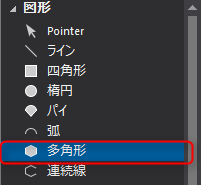
Click the mouse at the location of each vertex of the polygon you want to draw on the form. In this example, we will draw a star.
Starting from the apex, draw the star right up to the point where it is closed.
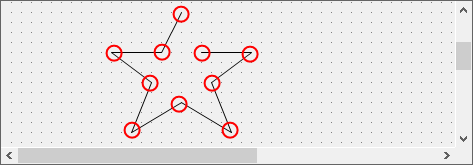
Double-click to close the polygon and complete the shape. (Note: double-click here, not at the closing point (the apex of the star).)
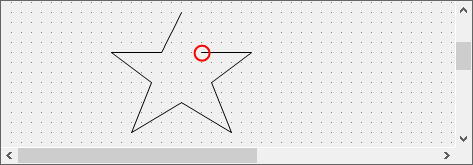
Then, a line is drawn connecting the start and end points, and a polygonal star is completed.
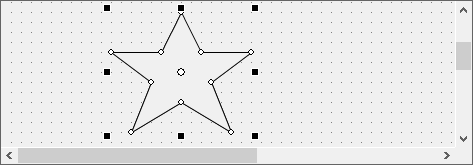
2.Edit the polygon.
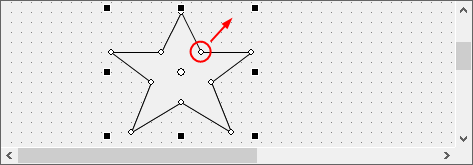
To edit the pasted polygon object, select the desired object and drag the handles (small white circles) at each vertex that appear.
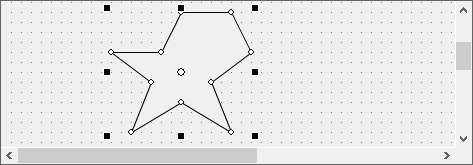
Try extending one of the handles diagonally upwards to the right.
The shape of the star has changed.
|
The trick to drawing accurate figures with Polygon control is to draw lines to guide the shape as an outline using Line control or similar, and then use Polygon control to draw the shape along the outline you drew with the lines. Alternatively, you can start by drawing a rough shape, deciding the number of vertices of the shape, and then later fine-tune it with the mouse to create a neat shape. You can also edit the coordinates of Polygon control directly from the property view. Once you become familiar with the operation, you can also specify the exact coordinates that you calculated in advance directly from the property view. |

|
You can draw Bezier curves in Polygon control. For details, please refer to "Editing Bezier curves". |
|
For instructions on how to change the fill and border color, please refer to the instructions in Rectangle control. |