How to call up the Extended Common Dialog
Extended common dialogs are pre-built into FA-Panel with form names starting with "_sys" and can be called using the OpenDialog common method (or OpenModalDialog common method).
For example, if you want to display the extended common dialog message box "_sysMsg" when you click the mouse on a button, the simplest way to call it is as follows.
event OnMouseUp(button)
{
	this.OpenDialog("_sysMsg","","Text:Message");
}
(Display example)
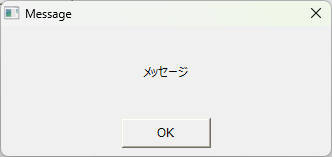
The first argument of the OpenDialog common method is the form name of the extended common dialog you want to display. In the above example, "_sysMsg" is specified.
The second argument can be used to specify the system parameters of the dialog. If omitted, leave it as "" (empty string).
The third argument specifies the open parameters of the extended common dialog. In the above example, the Text parameter specifies the message to be displayed in the message box. If you specify only one open parameter, specify the parameter name and value as a string separated by a colon, such as "Text:Message".
|
Dialog-related methods are provided as common methods. For example, they can be executed as object methods such as "this.OpenDialog(...)", or as root methods such as "::OpenDialog(...)". Regardless of how they are called, the dialog will not be hidden behind the form, but the behavior of the hierarchical display when multiple dialogs are displayed at the same time will differ.
▪When executed as a method of an object
▪When executed as a route method |

How to specify system parameters
The second argument of the OpenDialog common method allows you to specify system parameters for the dialog.
For example, you can specify the title of a dialog with the "title" parameter. If you specify only one system parameter, specify the parameter name and value as a string separated by a colon, such as "title: "title".
event OnMouseUp(button)
{
	this.OpenDialog("_sysMsg","title:Title","Text:Message");
}
(Display example)
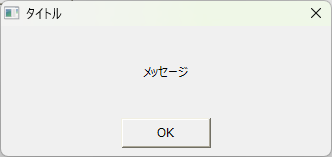
The system parameters allow you to specify various parameters, such as whether to display the dialog modally, the initial display position of the dialog, and whether the size of the dialog can be changed.
To specify multiple system parameters, use an array as shown below.
event OnMouseUp(button)
{
this.OpenDialog("_sysMsg",c("title:Title","left:0","top:0","modal:T"),"Text:Message");
}
|
For details about the dialog's system parameters, see the description of systemParam in "OpenDialog". |
|
When opening an extended common dialog, you may want to prevent the user from operating the background screen until the dialog is closed. In such cases, you can specify T for the "modal" system parameter, or you can display the dialog using the "OpenModalDialog" common method. |
|
In some cases, it may be more convenient to display the file common dialog (_sysSelectFile) of the extended common dialog with resizing enabled. To enable resizing of the dialog, call the dialog by specifying T for the system parameter "resizable". |
How to specify open parameters
The third argument of the OpenDialog common method allows you to specify the open parameters of the extended common dialog.
For example, to display a message in the message box "_sysMsg" of the Extended Common Dialog, specify the message to be displayed in the "Text" open parameter.
When specifying only one open parameter, specify the parameter name and value as a string separated by a colon, such as "Text:Message".
event OnMouseUp(button)
{
	this.OpenDialog("_sysMsg","","Text:Message");
}
(Display example)
If you want to specify multiple parameters simultaneously in an open parameter, you can specify them either as an array or as a MAP value.
The following is an example where "Text" and "TextColor" are specified as an array. When specifying as an array, specify as follows: c("parameter name 1:value 1", "parameter name 2:value 2",...).
event OnMouseUp(button)
{
	this.OpenDialog("_sysMsg","",c("Text:Message","TextColor:#FF0000"));
}
(Display example)
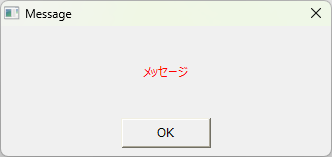
Below is an example where "Text" and "TextColor" are specified as MAP values. When executed, the result will be the same as the example above.
event OnMouseUp(button)
{
this.OpenDialog("_sysMsg","",::MAP("Text","Message","TextColor","#FF0000"));
}
|
The parameters that can be specified for the open parameters vary depending on the type of extended common dialog. For details on the open parameters that can be specified for each common dialog, please refer to "Extended Common Dialog Reference". |
|
In extended common dialogs that receive the results of dialog processing through the OnCommonEvent event, such as the Yes/No button message box (_sysYesNoMsg), you must pass the object that will receive notification of the event in question in the open parameter "Target". If you want to pass an object such as "this" to Target, write it as follows.
(Array example)
event OnMouseUp(button)
{
	this.OpenDialog("_sysYesNoMsg","",c("Text:Message","Target:" & ::CStr(this)));
}
(Example of MAP)
event OnMouseUp(button)
{
	this.OpenDialog("_sysYesNoMsg","",::MAP("Text","Message","Target",this));
}
|