List of Extended Common Dialogs
For details on each extension common dialog, please refer to the link of the name.
name |
Form Name |
explanation |
_sysMsg
|
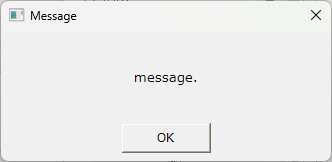
Displays a simple message box with only an OK button. |
|
_sysYesNoMsg
|
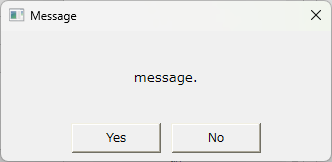
Displays a message box with Yes/No buttons. |
|
_sysYesNoCancelMsg
|
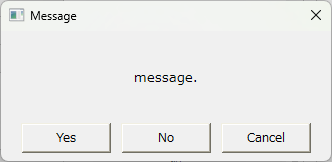
Displays a message box with Yes/No/Cancel buttons. |
|
_sysPassword
|
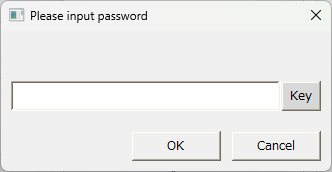
The password setting dialog box will be displayed. |
|
_sysNumKey
|
Displays the numeric keyboard. |
|
_sysTextKey
|
Displays the text keyboard. |
|
_sysCalendar
|
Display the calendar. |
|
_sysColor
|
Displays the color selection. |
|
_sysSearch
|
Displays the search dialog. |
|
_sysSelectTag
|
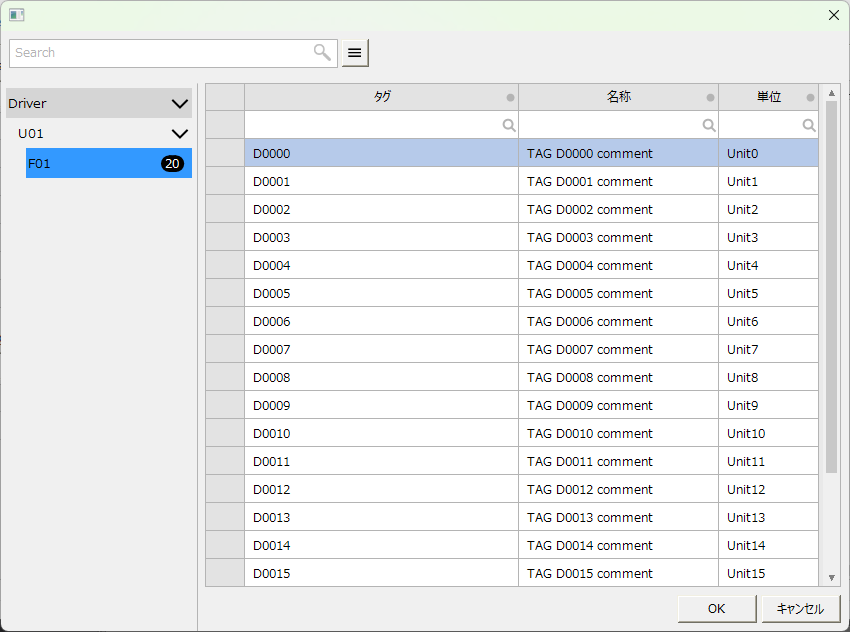
Displays the tag selection dialog. You can view and select tags registered in Panel Server. |
|
_sysEditMultiline
|
Displays a dialog for editing multiple lines of text. |
|
_sysEditTextList
|
Displays a dialog box for editing text lists. The display order of the list specified by the array can be edited on screen. |
|
_sysLocale
|
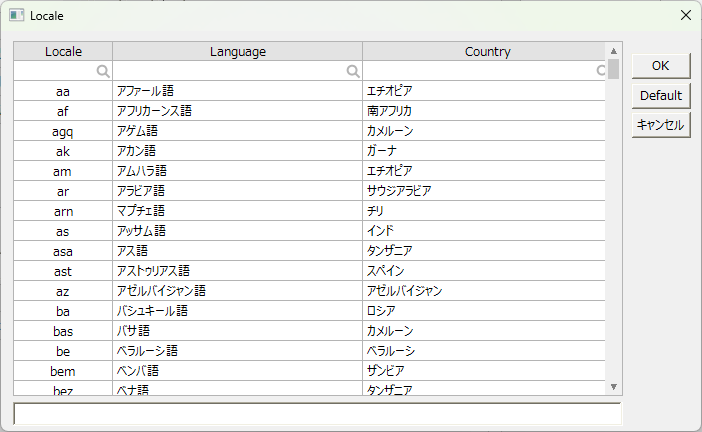
Displays a locale selection dialog. |
|
_sysTimeZone
|
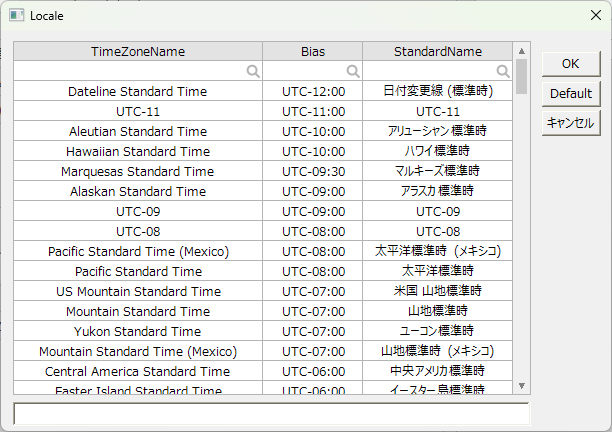
Displays a dialog for selecting the time zone. |
|
_sysSelectFile
|
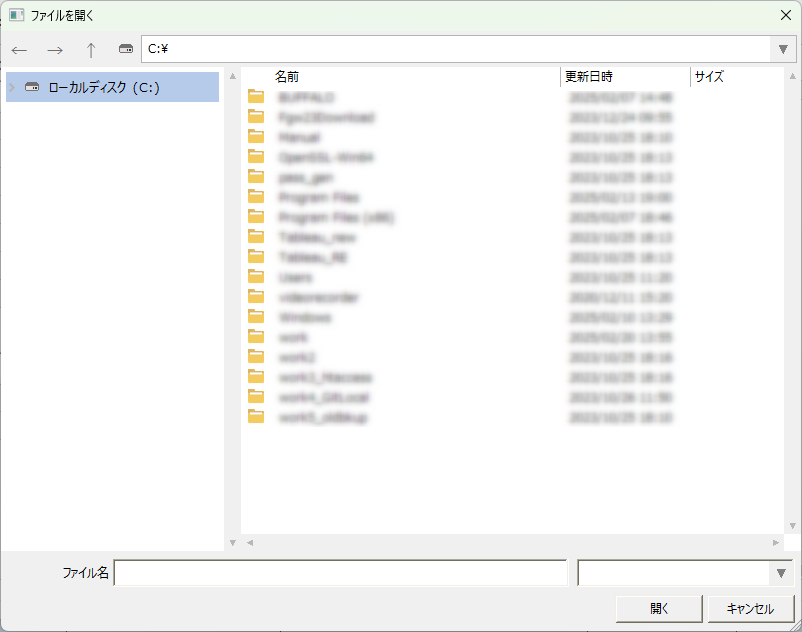
Displays a dialog for selecting a file or folder. |
|
_sysCameraControlNecaroku
|
Displays a dialog for controlling the PTZ of the camera connected to Nekaroku. |
Displays a message box with only an OK button.
■ Form name
_sysMsg
■Open parameters
name |
Parameter Name |
explanation |
||||||
Display Message |
Text
|
Specify the message to be displayed as a string. |
||||||
Text Color |
TextColor
|
Specifies the display color of the message text using a RGB color string (for example, "#FF0000" for red). |
||||||
X position of the text |
TextAlignX
|
Specifies the X-axis position of the message text as a string.
|
||||||
Y position of the text |
TextAlignY
|
Specifies the Y-position of the message text as a string.
|
||||||
Text font |
TextFont
|
Specifies the font for the message text. |
||||||
Space to the left and right of the text |
PaddingX
|
Specify the left and right margins for the message text in pixels. |
||||||
Space above and below the text |
PaddingY
|
Specify the number of pixels to add space above and below the message text. |
Displays a message box with Yes/No buttons.
■ Form name
_sysYesNoMsg
■Open parameters
name |
Parameter Name |
explanation |
||||||
Object to be notified of the selection result |
Target
|
Specifies the object that receives the processing results of the dialog. The processing results of the dialog will be received via the OnCommonEvent common event of the object specified here.
|
||||||
Event Notification Name |
CallerName
|
You can add any string to the event notification name (name) when receiving the results of a dialog box processing in a OnCommonEvent event. For details, see "Parameters received in OnCommonEvent (dialog box processing results)" below. |
||||||
Display Message |
Text
|
Specify the message to be displayed as a string. |
||||||
Text Color |
TextColor
|
Specifies the display color of the message text using a RGB color string (for example, "#FF0000" for red). |
||||||
X position of the text |
TextAlignX
|
Specifies the X-axis position of the message text as a string.
|
||||||
Y position of the text |
TextAlignY
|
Specifies the Y-position of the message text as a string.
|
||||||
Text font |
TextFont
|
Specifies the font for the message text. |
||||||
Space to the left and right of the text |
PaddingX
|
Specify the left and right margins for the message text in pixels. |
||||||
Space above and below the text |
PaddingY
|
Specify the number of pixels to add space above and below the message text. |
■ Parameters received by OnCommonEvent (results of dialog processing)
name |
Parameter Name |
explanation |
||||
Event Notification Name |
Name |
"_sysYesNoMsg"
If you specify "CallerName" in the open parameters, the notification will be in the format of event notification name + ":" + the specified string. Example: If "ABC" is specified, "_sysYesNoMsg:ABC" will be returned.
|
||||
Dialog processing result |
Value |
The result of processing the dialog.
|
|
For an example of creating a confirmation dialog for quitting using this dialog, see "Creating a confirmation dialog for quitting using extended common dialogs". |

Message box (Yes/No/Cancel buttons)
Displays a message box with Yes/No/Cancel buttons.
■ Form name
_sysYesNoCancelMsg
■Open parameters
name |
Parameter Name |
explanation |
||||||
Object to be notified of the selection result |
Target
|
Specifies the object that receives the processing results of the dialog. The processing results of the dialog will be received via the OnCommonEvent common event of the object specified here.
|
||||||
Event Notification Name |
CallerName
|
You can add any string to the event notification name (name) when receiving the results of a dialog box processing in a OnCommonEvent event. For details, see "Parameters received in OnCommonEvent (dialog box processing results)" below. |
||||||
Display Message |
Text
|
Specify the message to be displayed as a string. |
||||||
Text Color |
TextColor
|
Specifies the display color of the message text using a RGB color string (for example, "#FF0000" for red). |
||||||
X position of the text |
TextAlignX
|
Specifies the X-axis position of the message text as a string.
|
||||||
Y position of the text |
TextAlignY
|
Specifies the Y-position of the message text as a string.
|
||||||
Text font |
TextFont
|
Specifies the font for the message text. |
||||||
Space to the left and right of the text |
PaddingX
|
Specify the left and right margins for the message text in pixels. |
||||||
Space above and below the text |
PaddingY
|
Specify the number of pixels to add space above and below the message text. |
■ Parameters received by OnCommonEvent (results of dialog processing)
name |
Parameter Name |
explanation |
||||||
Event Notification Name |
Name |
"_sysYesNoCancelMsg"
If you specify "CallerName" in the open parameters, the notification will be in the format of event notification name + ":" + the specified string. Example: If "ABC" is specified, "_sysYesNoCancelMsg:ABC" will be returned.
|
||||||
Dialog processing result |
Value |
The result of processing the dialog.
|
The password setting dialog box will be displayed.
■ Form name
_sysPassword
■Open parameters
name |
Parameter Name |
explanation |
||||
Object to be notified of the selection result |
Target
|
Specifies the object that receives the processing results of the dialog. The processing results of the dialog will be received via the OnCommonEvent common event of the object specified here.
|
||||
Event Notification Name |
CallerName
|
You can add any string to the event notification name (name) when receiving the results of a dialog box processing in a OnCommonEvent event. For details, see "Parameters received in OnCommonEvent (dialog box processing results)" below. |
||||
Initial Password |
Password
|
Specify the password to be verified as a character string. The password specified here will be compared with the password entered on the screen to see if they match. |
||||
Input Mode |
InputMode
|
Specifies the password input mode as a string. If omitted, "normal" will be used.
|
■ Parameters received by OnCommonEvent (results of dialog processing)
name |
Parameter Name |
explanation |
||||
Event Notification Name |
Name |
"_sysPassword"
If you specify "CallerName" in the open parameters, the notification will be in the format of event notification name + ":" + the specified string. For example, if "ABC" is specified, "_sysPassword:ABC" will be returned.
|
||||
Dialog processing result |
Value |
The result of processing the dialog.
|
Displays the numeric keyboard.
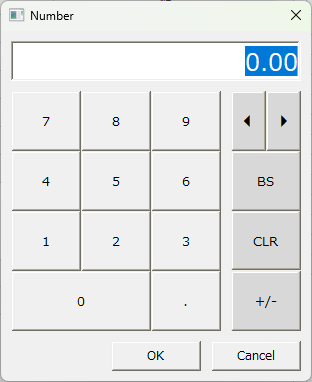
■ Form name
_sysNumKey
■Open parameters
name |
Parameter Name |
explanation |
||||||
Object to be notified of the selection result |
Target
|
Specifies the object that receives the processing results of the dialog. The processing results of the dialog will be received via the OnCommonEvent common event of the object specified here.
|
||||||
Event Notification Name |
CallerName
|
You can add any string to the event notification name (name) when receiving the results of a dialog box processing in a OnCommonEvent event. For details, see "Parameters received in OnCommonEvent (dialog box processing results)" below. |
||||||
Linking with edit boxes |
LinkEditBox |
Specifies whether to link with the calling edit box. If omitted, FALSE is used.
|
||||||
Edit box and related objects |
LinkEditBoxTarget
|
If LinkEditBox is set to TRUE, specify the Edit box control object to be linked. |
||||||
Initial display value |
Value
|
Specifies the initial value to be displayed in the dialog. If TRUE is specified for LinkEditBox, this will be ignored. |
||||||
Input Text Type |
TextType
|
Specify the TextType property of Edit box control as a string. If TRUE is specified for LinkEditBox, it will be ignored.
|
||||||
Input Text Format |
TextFormat
|
Specifies the TextFormat property of Edit box control as a string. If TRUE is specified for LinkEditBox, it will be ignored. For details, please refer to Edit box control's TextFormat property. |
■ Parameters received by OnCommonEvent (results of dialog processing)
name |
Parameter Name |
explanation |
Event Notification Name |
Name |
"_sysNumKey"
If you specify "CallerName" in the open parameters, the notification will be in the format of event notification name + ":" + the specified string. Example: If "ABC" is specified, "_sysNumKey:ABC" will be returned.
|
Dialog processing result |
Value |
The numeric value entered.
|
Displays the text keyboard.
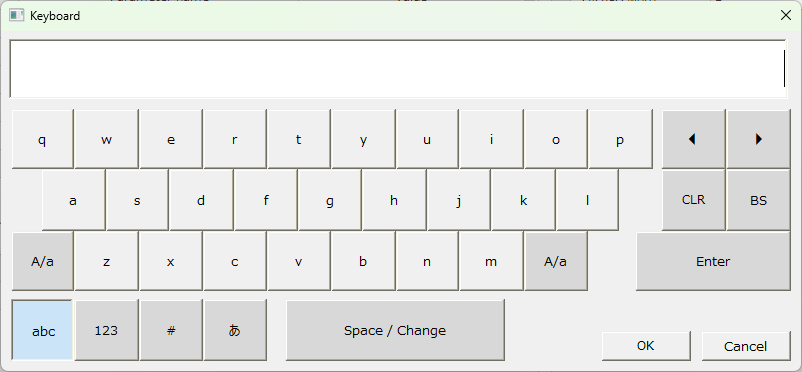
■ Form name
_sysTextKey
■Open parameters
name |
Parameter Name |
explanation |
||||||
Object to be notified of the selection result |
Target
|
Specifies the object that receives the processing results of the dialog. The processing results of the dialog will be received via the OnCommonEvent common event of the object specified here.
|
||||||
Event Notification Name |
CallerName
|
You can add any string to the event notification name (name) when receiving the results of a dialog box processing in a OnCommonEvent event. For details, see "Parameters received in OnCommonEvent (dialog box processing results)" below. |
||||||
Linking with edit boxes |
LinkEditBox |
Specifies whether to link with the calling edit box. If omitted, FALSE is used.
|
||||||
Edit box and related objects |
LinkEditBoxTarget
|
If LinkEditBox is set to TRUE, specify the Edit box control object to be linked. |
||||||
Initial display value |
Value
|
Specifies the string to be initially displayed in the dialog. If LinkEditBox is set to TRUE, this will be ignored. |
||||||
Input Text Type |
TextType
|
Specify the TextType property of Edit box control as a string. If TRUE is specified for LinkEditBox, it will be ignored.
|
||||||
Input Text Format |
TextFormat
|
Specifies the TextFormat property of Edit box control as a string. If TRUE is specified for LinkEditBox, it will be ignored. For details, please refer to Edit box control's TextFormat property. |
||||||
Linking with OS keys |
LinkOS
|
Specifies whether or not to link the key with the OS state. If omitted, FALSE is used.
|
■ Parameters received by OnCommonEvent (results of dialog processing)
name |
Parameter Name |
explanation |
Event Notification Name |
Name |
"_sysTextKey"
If you specify "CallerName" in the open parameters, the notification will be in the format of event notification name + ":" + the specified string. Example: If "ABC" is specified, "_sysTextKey:ABC" will be returned.
|
Dialog processing result |
Value |
The input string.
|
Display the calendar.
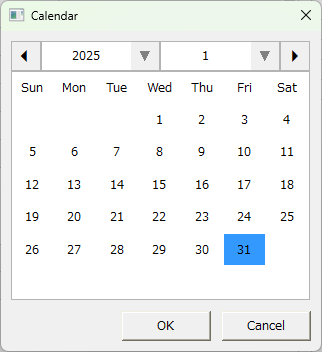
■ Form name
_sysCalendar
■Open parameters
name |
Parameter Name |
explanation |
||||
Object to be notified of the selection result |
Target
|
Specifies the object that receives the processing results of the dialog. The processing results of the dialog will be received via the OnCommonEvent common event of the object specified here.
|
||||
Event Notification Name |
CallerName
|
You can add any string to the event notification name (name) when receiving the results of a dialog box processing in a OnCommonEvent event. For details, see "Parameters received in OnCommonEvent (dialog box processing results)" below. |
||||
Initial display start date |
StartDate
|
Specify the start date to be initially displayed on the calendar. If omitted, the current day (#day#) will be initially displayed. |
||||
Initial display end date |
EndDate
|
Specify the end date to be initially displayed on the calendar. If omitted, the current day (#day#) will be initially displayed. |
||||
Selection method |
SelectArea |
Specifies the method for selecting dates on the calendar. If omitted, "DAYS" will be used.
|
||||
Year combo past years displayed |
PastComboYears
|
Specify the number of past years to display in the year combo box. If omitted, 5 years will be displayed. |
||||
Year Combo Future Year Display |
FutureComboYears
|
Specify the number of future years to display in the year combo box. If omitted, 5 years will be displayed. |
■ Parameters received by OnCommonEvent (results of dialog processing)
name |
Parameter Name |
explanation |
Event Notification Name |
Name |
"_sysCalendar"
If you specify "CallerName" in the open parameters, the notification will be in the format of event notification name + ":" + the specified string. Example: If "ABC" is specified, "_sysCalendar:ABC" will be returned.
|
Dialog processing result |
Value |
The time type data representing the selected date is passed as an array.
Value[0] - The selected start date. If January 13, 2025 is selected, it will be #2025/01/13 00:00:00#. Value[1] - The selected end date. If January 21, 2025 is selected, it will be #2025/01/21 00:00:00#.
When "DAY" is specified in SelectArea, the same date will be set to Value[0] and Value[1].
For information on time formats, please refer to "Time type format".
|
Displays the color selection.
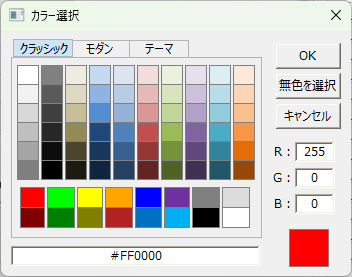
■ Form name
_sysColor
■Open parameters
name |
Parameter Name |
explanation |
||||
Object to be notified of the selection result |
Target
|
Specifies the object that receives the processing results of the dialog. The processing results of the dialog will be received via the OnCommonEvent common event of the object specified here.
|
||||
Event Notification Name |
CallerName
|
You can add any string to the event notification name (name) when receiving the results of a dialog box processing in a OnCommonEvent event. For details, see "Parameters received in OnCommonEvent (dialog box processing results)" below. |
||||
Default display color |
Color
|
Specify the default color to be displayed using a RGB color string (e.g. red: "#FF0000"). |
||||
Whether to display no color |
Colorless
|
Specifies whether to show or hide the colorless selection button.
|
||||
Whether to display classic colors |
ShowClassic
|
Specifies whether to show or hide the Classic Colors tab.
|
||||
Whether to display modern colors |
ShowModern
|
Specifies whether to show or hide the Modern Color tab.
|
||||
Whether to display theme colors |
ShowTheme
|
Specifies whether to show or hide the Theme Color tab.
|
■ Parameters received by OnCommonEvent (results of dialog processing)
name |
Parameter Name |
explanation |
Event Notification Name |
Name |
"_sysColor"
If you specify "CallerName" in the open parameters, the notification will be in the format of event notification name + ":" + the specified string. For example, if "ABC" is specified, "_sysColor:ABC" will be returned.
|
Dialog processing result |
Value |
Returns the color string of the selected color (e.g. red: "#FF0000").
|
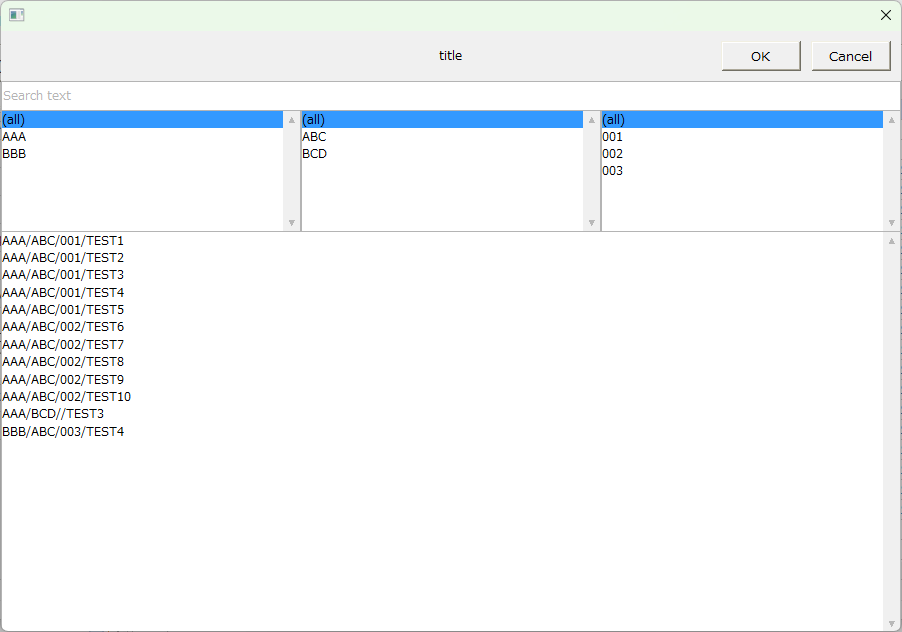
Displays the search dialog.
■ Form name
_sysSearch
■Open parameters
name |
Parameter Name |
explanation |
Object to be notified of the selection result |
Target
|
Specifies the object that receives the processing results of the dialog. The processing results of the dialog will be received via the OnCommonEvent common event of the object specified here.
|
Event Notification Name |
CallerName
|
You can add any string to the event notification name (name) when receiving the results of a dialog box processing in a OnCommonEvent event. For details, see "Parameters received in OnCommonEvent (dialog box processing results)" below. |
An array of strings to search for |
TargetData
|
An array of strings to search for. For example, if you specify the following array as the data to search, you can specify "/" as the separator string in TargetDataSeparator to narrow down the search to three categories: major, medium, and minor.
example: c( "AAA/ABC/001/TEST1", "AAA/ABC/001/TEST2", "AAA/ABC/001/TEST3", "AAA/ABC/001/TEST4", "AAA/ABC/001/TEST5", "AAA/ABC/002/TEST6", "AAA/ABC/002/TEST7", "AAA/ABC/002/TEST8", "AAA/ABC/002/TEST9", "AAA/ABC/002/TEST10", "AAA/BCD//TEST3", "BBB/ABC/003/TEST4" )
|
Title String |
Title
|
Specify the text to be displayed in the title area at the top of the screen. |
Separator |
TargetDataSeparator
|
A delimiter string (e.g. :"/") for classifying the character array specified in TargetData into three categories. |
Select all strings |
TextForSelectAll |
In the classified category, specify the keyword string to select all in the category. The keyword specified here will be displayed in the first line of the list for each category. Please make sure that the keyword does not overlap with the string of the search target data (e.g. "(all)"). |
Default selection character |
SelectedText
|
Specifies the string from the TargetData string array that will be selected when the item is initially displayed. In the above example, if you specify "AAA/ABC/001/TEST5", the initial display will show that row of data selected. |
Default search string |
SearchText
|
You can specify the search string to be displayed on initial display. |
Default Major Category |
SelectedCategory1
|
Among the major categories, specify the string that will be selected when initially displayed. |
Default intermediate classification |
SelectedCategory2
|
Among the intermediate categories, specify the string that will be selected when initially displayed. |
Default Subdivision |
SelectedCategory3
|
Among the minor categories, specify the string that will be selected when initially displayed. |
■ Parameters received by OnCommonEvent (results of dialog processing)
name |
Parameter Name |
explanation |
Event Notification Name |
Name |
"_sysSearch"
If you specify "CallerName" in the open parameters, the notification will be in the format of event notification name + ":" + the specified string. For example, if you specify "ABC", "_sysSearch:ABC" will be returned.
|
Dialog processing result |
Value |
Selection results. The following array is passed:
Value[0] - TRUE:OK When the button is clicked / FALSE: When the cancel button is clicked Value[1] - The selected string. If no selection is made, it will be an empty string. Value[2] - Search string Value[3] - Filter text 1 Value[4] - Filter text 2 Value[5] - Filter text 3
|
The tag selection dialog appears.
|
To use the tag selection dialog, you must check the tag information you want to allow viewing on the Viewing Information tab of the Panel Server application settings. For more information, see "Browser Information" in your Panel Server application settings. |
■ Form name
_sysSelectTag
■Open parameters
name |
Parameter Name |
explanation |
||||||
Object to be notified of the selection result |
Target
|
Specifies the object that receives the processing results of the dialog. The processing results of the dialog will be received via the OnCommonEvent common event of the object specified here.
|
||||||
Path of the tag to exclude from display |
ExcludedPath
|
You can specify the tag path of the tag you want to exclude from the display as a string. Multiple tags can be specified by separating them with commas. You can also specify "*" as a wildcard.
Example: "U01*,U02.F01*"
|
||||||
Whether to allow multiple selection of tags |
IsMultiSelect |
Specifies whether to allow multiple selection of tags. If omitted, FALSE is used.
|
||||||
Whether to expand the tag tree completely |
IsTreeOpen |
Specifies whether the tag tree is expanded when initially displayed. If omitted, FALSE is used.
|
||||||
Whether to hide the dialog when selecting |
IsHide |
When a tag is selected, you can specify whether the dialog should be hidden or closed completely. If omitted, FALSE is used. If the dialog is hidden, it will be redisplayed when the dialog is called again, and the tag tree and list will maintain their previous display state.
|
■ Parameters received by OnCommonEvent (results of dialog processing)
name |
Parameter Name |
explanation |
Event Notification Name |
Name |
"_sysSelectTag"
|
Dialog processing result |
Value |
Selection results. The following array is passed:
Value[0] - The tag path of the selected tag. Value[1] - The comment set for the selected tag. Value[2] - The engineering unit set for the selected tag.
If you specify TRUE in IsMultiSelect to select multiple tags at the same time, a two-dimensional array like the one below will be returned.
c(c("U01.F01.D0000","U01.F01.D0001"),c("TAG D0000 comment","TAG D0001 comment"),c("Unit0","Unit1"))
|
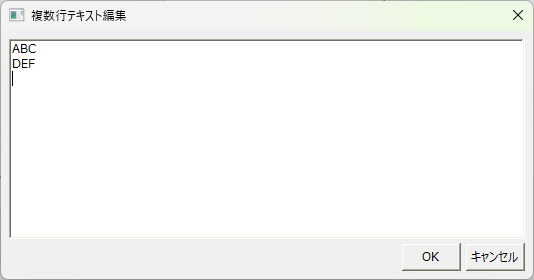
Displays a multi-line text edit dialog.
■ Form name
_sysEditMultiline
■Open parameters
name |
Parameter Name |
explanation |
Object to be notified of the selection result |
Target
|
Specifies the object that receives the processing results of the dialog. The processing results of the dialog will be received via the OnCommonEvent common event of the object specified here.
|
Multi-line text |
Text
|
Specifies the text string to be initially displayed. If you want to include a line break in the initial display, you can use the RET route method.
example:
var vText = "ABC" & ::RET() & "DEF";
|
■ Parameters received by OnCommonEvent (results of dialog processing)
name |
Parameter Name |
explanation |
Event Notification Name |
Name |
"_sysEditMultiline"
|
Dialog processing result |
Value |
The text string. The value of the Text property of the MultilineEditBox control in the common dialog is passed as is. Furthermore, if the received text contains line breaks, you can convert it to an array using the CStrToArray root method.
example:
ABC In the case of two lines of DEF,
var vValue = ::CStrToArray(Value); //vValue stores c("ABC","DEF").
|
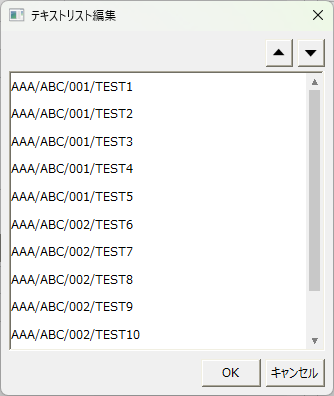
Displays the Edit Text List dialog.
You can edit the display order of the list specified in the array using the up and down buttons.
■ Form name
_sysEditTextList
■Open parameters
name |
Parameter Name |
explanation |
Object to be notified of the selection result |
Target
|
Specifies the object that receives the processing results of the dialog. The processing results of the dialog will be received via the OnCommonEvent common event of the object specified here.
|
Multi-line text |
TextList
|
Specify the strings to be displayed in the list as an array.
example: c( "1st line data", "2nd line data", "3rd line data", "4th line data", "5th line data" )
|
■ Parameters received by OnCommonEvent (results of dialog processing)
name |
Parameter Name |
explanation |
Event Notification Name |
Name |
"_sysEditTextList"
|
Dialog processing result |
Value |
The edited list display order is returned as a two-dimensional array. The first column of the two-dimensional array stores the list display string, and the second column stores the index numbers (starting from 0) that indicate the row numbers at the initial display.
For example, if you swap the second and third lines of the five-line TextList in the open parameter example above, the following array will be returned.
example:
c( c("1st line data","3rd line data","2nd line data","4th line data","5th line data"), c(0,2,1,3,4) )
|
Displays a locale selection dialog.
■ Form name
_sysLocale
■Open parameters
name |
Parameter Name |
explanation |
Object to be notified of the selection result |
Target
|
Specifies the object that receives the processing results of the dialog. The processing results of the dialog will be received via the OnCommonEvent common event of the object specified here.
|
Initial display locale |
Value
|
Specify the initial locale as a string (e.g. "ja"). |
Filtering conditions (locale) |
FilterList
|
You can specify the locales you want to display in the list as a string array. If omitted, all locales will be displayed.
Example: c("ja","en")
|
■ Parameters received by OnCommonEvent (results of dialog processing)
name |
Parameter Name |
explanation |
Event Notification Name |
Name |
"_sysLocale"
|
Dialog processing result |
Value |
Returns the string of the locale selected in the common dialog (e.g. "ja").
|
Displays a dialog for selecting the time zone.
■ Form name
_sysTimeZone
■Open parameters
name |
Parameter Name |
explanation |
Object to be notified of the selection result |
Target
|
Specifies the object that receives the processing results of the dialog. The processing results of the dialog will be received via the OnCommonEvent common event of the object specified here.
|
Initial display time zone |
Value
|
Specify the initial time zone to be displayed as a string (e.g. "Tokyo Standard Time"). |
Filtering conditions (time zone) |
FilterList
|
You can specify the time zones you want to display in the list as a string array. If omitted, all time zones will be displayed.
Example: c("Tokyo Standard Time","US Eastern Standard Time","Pacific SA Standard Time")
|
■ Parameters received by OnCommonEvent (results of dialog processing)
name |
Parameter Name |
explanation |
Event Notification Name |
Name |
"_sysTimeZone"
|
Dialog processing result |
Value |
Returns the string of the time zone selected in the common dialog (e.g. "Tokyo Standard Time").
|
Displays a dialog for selecting a file or folder.
■ Form name
_sysSelectFile
■Open parameters
name |
Parameter Name |
explanation |
||||||
Object to be notified of the selection result |
Target
|
Specifies the object that receives the processing results of the dialog. The processing results of the dialog will be received via the OnCommonEvent common event of the object specified here.
|
||||||
Dialog Type |
DialogType
|
Specifies the type of dialog to display as a string.
|
||||||
Initial display folder |
DefaultDirectory
|
Specify the path of the folder to be displayed by default as a string.
Example: "C:\work"
|
||||||
Display allowed drives |
EnabledDrive
|
Specify the drive letter of the drive you want to allow to display. You can specify multiple drives separated by commas. If omitted, all drives will be displayed.
Example 1) "C:" Example 2) "C:,D:"
|
||||||
Default File Extensions |
DefaultExt
|
You can specify the default file extension as a string. If you enter a file name without an extension in the "File name" edit box at the bottom of the common dialog, the extension specified by this parameter will be automatically added.
Example: "csv"
|
||||||
Initial display file name |
FileName
|
You can specify the file name to be initially displayed in the "File name" edit box at the bottom of the common dialog as a string.
Example: "test.csv"
|
||||||
File Name Filter Conditions |
FileFilter
|
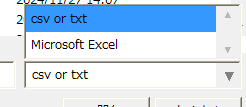
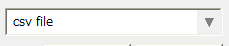
You can specify the filter conditions to display a narrowed down list of files as strings. The conditions specified here are displayed in the combo box at the bottom right of the common dialog. If you specify multiple filter conditions, you can switch the file types to display from the combo box.
(Example of a Combox display)
The filter conditions are specified in the following format:
Condition name | File extension || ... Always end with "||"
To specify multiple conditions, write them consecutively as follows:
condition name 1|file extension|condition name 2|file extension||
If you want to specify multiple file extension types at the same time, list them separated by semicolons.
Condition name | File extension 1; File extension 2... ||
The file extension should be written as "*.csv", "*.txt", etc.
Example 1) "csv file|*.csv||"
The combo box will display as below, with only csv files displayed.
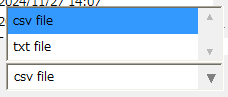
Example 2) "csv file|*.csv|txt file|*.txt||"
The combo box will be displayed as shown below, and if you select "csv file" only csv files (*.csv) will be displayed, and if you select "txt file" only text files (*.txt) will be displayed.
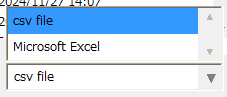
Example 3) "csv file|*.csv|Microsoft Excel|*.xls;*.xlsx||"
The combo box will be displayed as shown below, and if you select "csv file" only csv files (*.csv) will be displayed, and if you select "Microsoft Excel" only the target files (*.xls or *.xlsx) will be displayed.
|
||||||
Whether to use the last display state |
UseLastState
|
Specifies whether to use the last displayed state (whether to open the folder that was last displayed last time). If omitted, FALSE is used. Furthermore, if you have specified an initial display folder using DefaultDirectory, that folder will be used.
|
||||||
How to open a tree |
ToggleOpenType
|
Specifies how to open the folder tree. If omitted, "CLICK" is used.
|
||||||
Whether to check the existence of the selected file/folder |
CheckExistence
|
Specifies whether or not to check whether the file name in the file name edit box at the bottom of the common dialog actually exists. If omitted, FALSE is used.
|
■ Parameters received by OnCommonEvent (results of dialog processing)
name |
Parameter Name |
explanation |
Event Notification Name |
Name |
"_sysSelectFile"
|
Dialog processing result |
Value |
Selection results. The following array is passed:
Value[0] - TRUE: When the "Open" button is clicked / FALSE: When the Cancel button is clicked Value[1] - Returns the path string of the selected file or folder (e.g. "C:\work\test.csv").
|
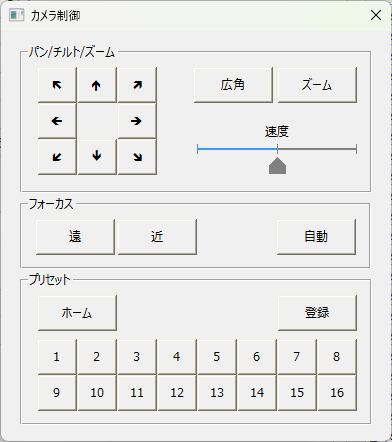
Displays a dialog for controlling the camera connected to NECAROC.
For more information about Nekaroku, please refer to "Collaboration with Mitsubishi Electric's "Nekaroku"".
■ Form name
_sysCameraControlNecaroku
■Open parameters
name |
Parameter Name |
explanation |
||||
IP address |
IPAddress
|
Specify the IP address set in the Nekaroku. |
||||
Unit Number |
UnitNo
|
Specify the unit number of the Nekaroku. |
||||
Camera Number |
CameraNo
|
Specify the camera number of the Nekaroku.
|
||||
Whether to allow editing of camera state presets |
EditPresetting
|
Specifies whether or not to enable editing of camera preset settings from the screen. If omitted, TRUE is used.
|