overview
To receive processing results from an extended common dialog such as a message box with Yes/No buttons, receive them via an event called OnCommonEvent. Here, we will explain how to use extended common dialogs and how to receive processing results using OnCommonEvent, using as an example how to display an exit confirmation screen using the extended common dialog's "_sysYesNoMsg".
|
The information that can be received in the parameters of OnCommonEvent varies depending on the type of common dialog. For details, see "Extended Common Dialog Reference". |

Create an exit confirmation dialog using Extended Common Dialog
This is an example of creating a system shutdown confirmation dialog using the extended common dialog "_sysYesNoMsg".
(Exit confirmation dialog)
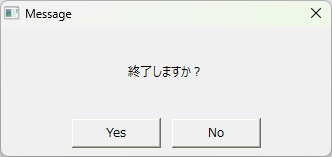
In this example, we will add Button control to the form and display an exit confirmation dialog (Yes/No) when the button is clicked.
If the answer is Yes, Panel Browser will be terminated; if the answer is No, the process will be canceled.
1.Paste Button control into the form.
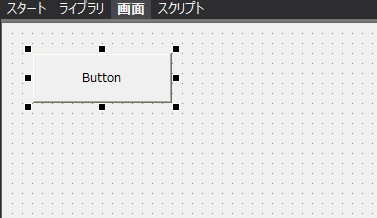
2.Add a OnMouseUp event to the button.
Select the
Button object and click the Script tab to display the Script Editor.
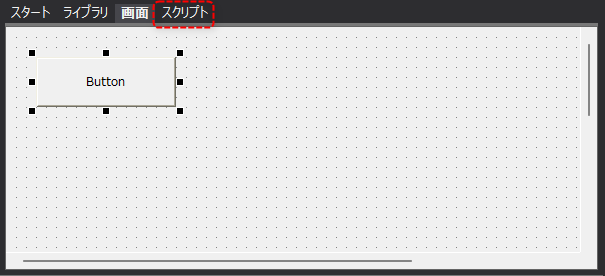
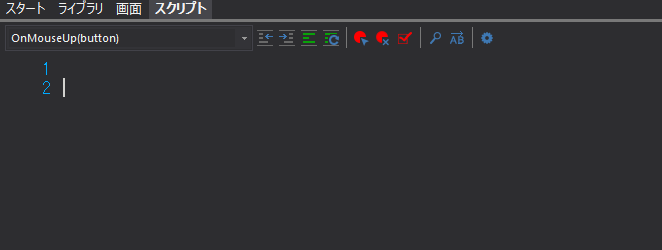
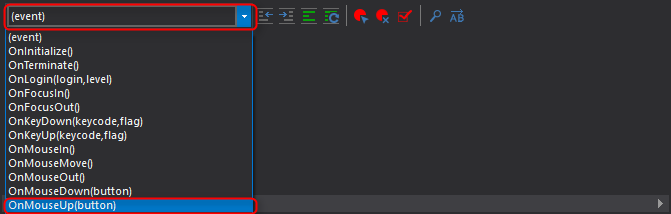
Select "OnMouseUp(button)" from the event combo box in the upper left of the script editor.
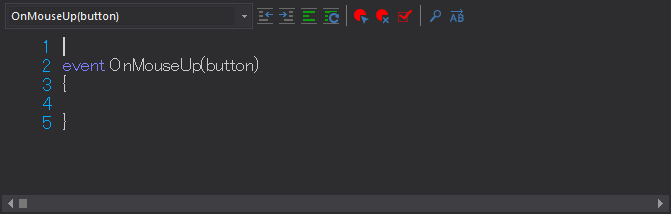
The OnMouseUp event has been added to the script editor. The processing content is written within the range enclosed in curly brackets “{” “}”.
3.Describe the button event processing.
Write the following code in the OnMouseUp event of the button.

The contents to be written are as follows:
if( button == 1 ) { this.OpenDialog("_sysYesNoMsg", "",c( "Text:Do you want to exit?","Target:" & ::CStr(this))); } |
The "button == 1" written above determines whether the left mouse button was clicked. The "button" of the OnMouseUp event passes which mouse button was used for mouse up (whether the mouse was clicked and released) when the event occurred. The value of button is "1" for the left mouse button, "2" for the middle button, and "3" for the right button.
The first argument specifies the form name of the extended common dialog to be displayed "_sysYesNoMsg".
The second argument, the system parameter, is omitted as "" because it is not used this time.
The third argument is an array of open parameters for the extended common dialog. Here, the string "Text" to be displayed as a message is specified, and "this" is set as the object "Target" that will receive the processing results of the dialog.
|
For details about the OnMouseUp event, see "OnMouseUp". |
4.Describes the processing to be performed when Yes is pressed.
Select "OnCommonEvent(name, value)" from the event combo box in the upper left of the script editor.
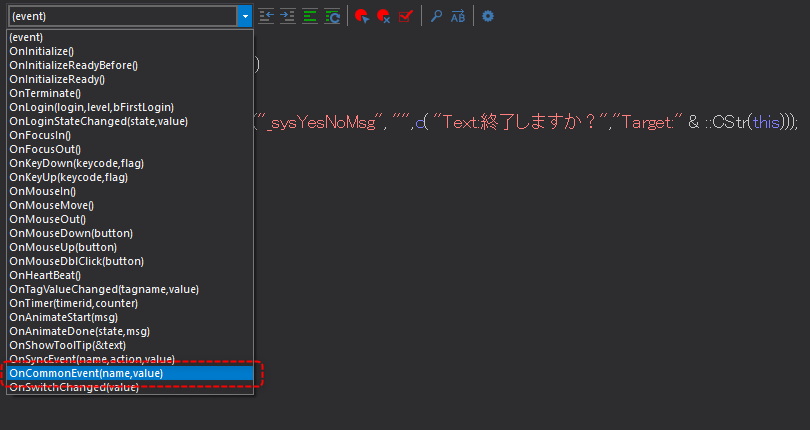
Then, the OnCommonEvent event was added to the script editor.
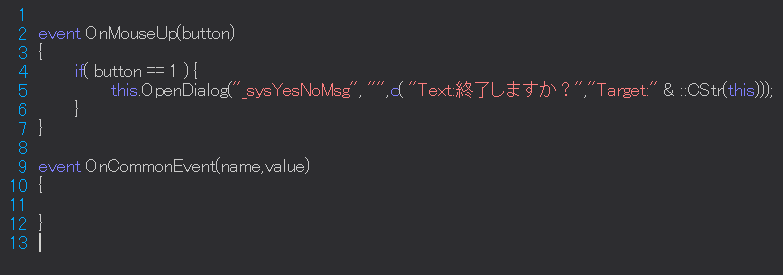
Write the following code in the OnCommonEvent event of the End button.
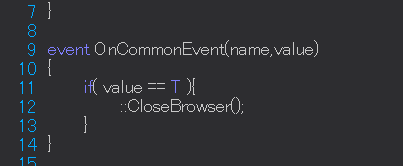
The contents to be written are the following three lines.
if( value == T ){ |
The above processing means that if the condition "value == T" is met, then "::CloseBrowser()" will be processed.
OnCommonEvent is designed to be called when the Yes/No button is pressed in the Extended Common Dialog. When the event is called, whether Yes or No was pressed is entered into the value variable as TRUE/FALSE. In other words, "value == T" (T is an abbreviation for TRUE) is the conditional expression for when the Yes button is pressed in the Extended Common Dialog.
Also, "::CloseBrowser()" is the root method that closes Panel Browser.
5.Describe the process to close the common dialog.
If the screen that called the common dialog is switched to another screen while the common dialog is still displayed, only the common dialog will remain displayed. Therefore, when using a common dialog, be sure to write a process to close the dialog itself in the event (OnTerminate) that occurs when the button that called the dialog is destroyed.
Therefore, add the "OnTerminate" event to the button and write the process to close the common dialog.
First, select "OnTerminate()" from the event combo box in the upper left of the script editor.
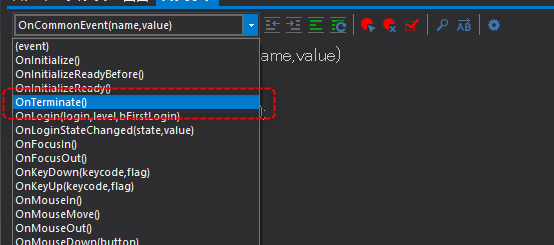
Then, a script for the OnTerminate event was added to the script editor.
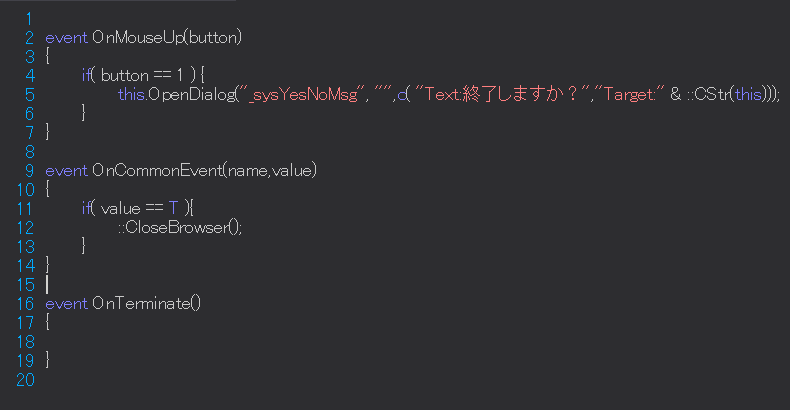
Write the following code in the button's OnTerminate event.
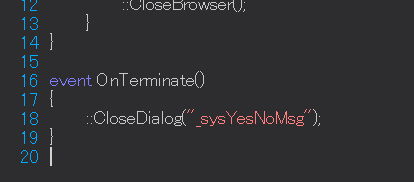
The content to be written is the following single line.
::CloseDialog("_sysYesNoMsg"); |
The above "::CloseDialog()" is a method for closing a dialog. Specify the view name of the dialog as the method argument.
This completes the event description.
Due to the above process, the following confirmation dialog will be displayed when you click the Finish button.
If you click the "No" button, the dialog box just closes and nothing happens.
Clicking the "Yes" button will exit Panel Browser.
|
Do not close the form containing the object specified in the open parameter "Target" before closing the extended common dialog. If there is a possibility that it may be closed, close the dialog in the OnTerminate event of that object. This process ensures that the dialog is automatically closed when the form containing the Target object is closed. If this process is not implemented, when the dialog is closed after the parent form is closed, the Target object does not exist, andApplication errors may occur. |
