Setting custom properties
Each grouped object has its own properties, just like a normal object. In many cases, you may want to change the properties of the grouped objects as a whole. Typical examples of this are setting the display color and switching between visible and hidden. For example, you may want to switch the color of the entire pump symbol to Red/Green in a batch depending on the ON/OFF of the DI signal obtained from PLC.
This is where "Custom Properties" come in handy. Custom properties are properties that all controls can have, and are used when you want to operate the properties of each component of a group all at once.
Here we will introduce an example of setting custom properties to change the fill color of a group of pump objects as shown below.
1.First, to identify individual objects from their custom properties, you must specify a name for each object in the group. The name of an object is specified in the Name property (the Name property is blank by default).
Double-click the pump while holding down the Ctrl key to put the group into edit mode.
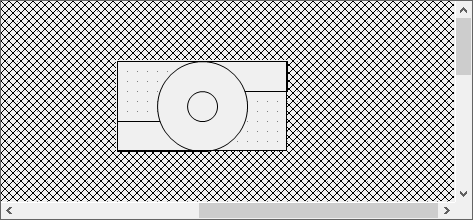
Name the Name property of all the objects that make up the pump as follows:
First, select one of the target objects.
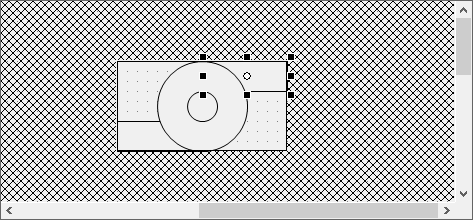
Enter a name in the
Name property.
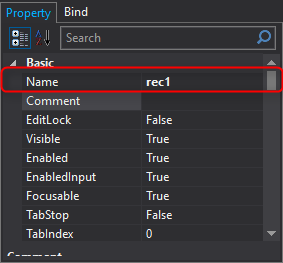
Name each object in the same way as above. Below is a setting example.
(Example)
Rectangle (upper) |
rec1 |
Rectangle (bottom) |
rec2 |
Large oval |
cir1 |
Oval (small) |
cir2 |
After you have set names for all objects in the Name property, cancel the editing state of the group object and select the pump group. To cancel the editing state, double-click the area other than the group object (the shaded area).
|
The name of an object must be unique within a group. |

2.With the group object selected, set the "Customize" property in the Properties view.
Clicking the selection button displayed in the property input area will display an editor like the one below. Custom properties can be defined from this editor.
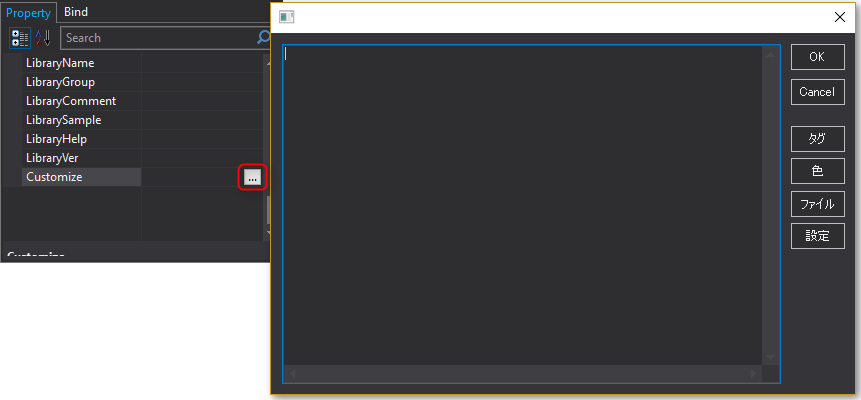
Enter the following content in the
editor and click the OK button.
AllFillColor=rec1.FillColor, rec2.FillColor, cir1.FillColor, cir2.FillColor |
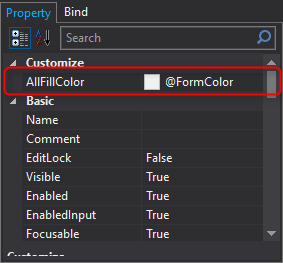
A new custom property called "AllFillColor" was then generated on the group object.
This definition means that the FillColor property of each object is aggregated into a custom property called AllFillColor.
3.Try changing the value of the AllFillColor property.
Currently, the value of the "AllFillColor" property is "@FormColor".
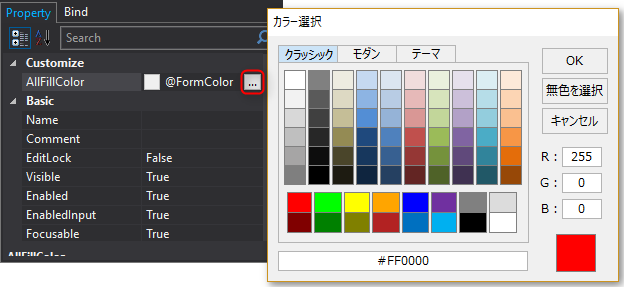
Here, as an example, specify "#FF0000".
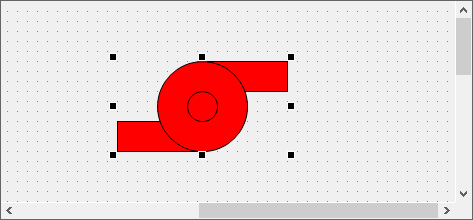
Then, the paint color of the entire pump changed to red all at once.
|
Any name can be used for a custom property (only letters and underscores "_" can be used), but we strongly recommend that you create the name following rules such as putting "_" at the beginning to avoid duplication with property names that already exist in the object. |
|
Custom properties will disappear when you ungroup, so be careful not to set custom properties when ungrouping.
|

|
For more information about custom properties, seeIt is described in "Common Properties (Custom Properties)".
|