Grouping Objects
You can group multiple objects together.
When you group, an object called a "group control" is generated, and the components of the group become child objects of the group control.
To group objects, select multiple objects, right-click to display the menu, and select "Group".
|
|
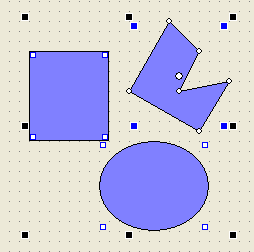
The objects have been grouped. After grouping, you can treat multiple objects as a single part.
|
|
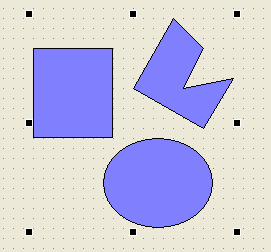
Note that grouping can be hierarchical, meaning that you can group controls that are already grouped together, or even group other controls together.
|
For more information about grouping, see "Group Controls" in the Control Reference.
|

|
Custom properties allow you to freely add your own properties. For example, you can unify the FillColor properties of each child object as a property called "_FillColor" in a group object, and then change the fill color of each child object all at once just by making changes to _FillColor. This function is extremely useful when creating your own graphic components. For more information on custom properties, see "Setting Custom Properties" and "Please refer to the description in Common Properties (Custom Properties). |
Grouped objects can be edited as if they were a single object - for example, editing the size of a grouped object will also resize each of the individual objects that make up the group.
|
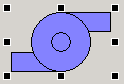
The group object is selected (this is the symbol representing the pump). As an example, let's try reducing the vertical size of an object. |
|
The editing operation has changed the shape of all the objects.
|
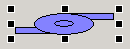
You can also edit individual objects in a group without ungrouping them. To edit an individual object,Ctrl keyDouble-click the group object.
|
When the desired group is selected, double-clicking while holding down the Ctrl key will put the selected group into edit mode. When the group is in edit mode, the outside of the rectangle of the target group object will be shaded. |
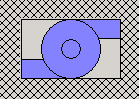
|
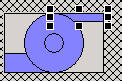
Select the rectangle object and try reducing its height. To take a group out of editing state, double-click anywhere on the screen that is shaded. |
|
Of the pump components, only the upper rectangle has changed shape. |
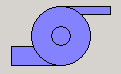
To ungroup, select Ungroup from the Edit menu.
|
Right-click to display the menu and select "Ungroup." |
|
The group has been removed. |
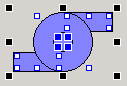
|
Groups can also be hierarchical, with group objects allowing you to drill down to the group element you want to edit by holding down the Ctrl key and double-clicking further, allowing you to edit individual components without having to ungroup them. |
|
All settings for grouped objects are erased when you ungroup them. Please note that all scripts and custom property settings written for grouped objects will also be erased. If you accidentally ungroup an object, you can restore it by selecting "Undo" from the Edit menu. |
