Control search and replace operation (property replace)
This article explains the property replacement operation of the Panel Editor control search function.
The control search and replace function (property replace) provides the ability to replace the property setting value with any string.
The property replacement operation is performed from the following parts (※ The display of the following parts will change by operating the icon for switching the processing target below).

|
Enter the replacement string.
|
|
This icon switches the replacement process target. To replace properties, select the icon on the left. *Selecting the icon on the right will switch to "Replace control." |
|
Specifies the conditions for processing property replacement.
You can choose from the following: •Replace entire text... Replaces the entire text set in the target column with the search string. •Replace search string portion... Replaces only the part that matches the search string.
|
|
Replaces the line selected in the search list with the selected line. After the replacement, the selected line remains.
|
|
Replace all lines displayed in the search list at once.
|
|
Replaces the line selected in the search list with only one line, then moves to the next line. This operation is useful when you want to check the lines to be replaced one by one.
|
|
Moves to the next line from the currently selected line in the search list. No replacement is performed.
|
|
Moves from the currently selected line in the search list to the previous line. No replacement is performed.
|
|
Cancels and undoes the replacement.
|
|
Cancels the undo of a replacement (redo).
|



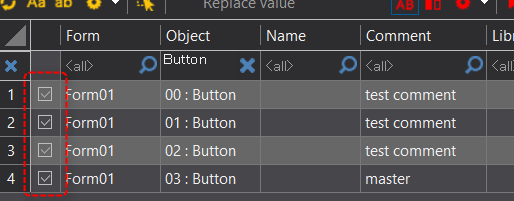
You can also select whether or not to include a line in the replacement by checking the following columns in the search list. Clicking the check mark with the mouse will switch the check between ON/OFF, and unchecking it will exclude it from the replacement process. For example, if the line is unchecked, even if you perform the operation "Replace only one line and move to the next line", the replacement process will not be performed and you will move to the next line.
The following explains how to perform the replace operation.
1.Perform an object search.
As an example, we will use the following search criteria:

•Object... Button
•Search criteria: Search within the selection form
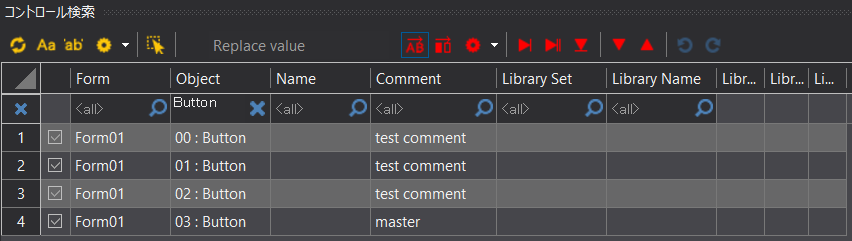
The search results are displayed in a list. The list shows all the button objects placed on Form01.
|
You can freely customize the columns in the search list. For example, you can add any properties other than those displayed by default. To customize the columns, right-click on the column title on the right side of the search list and select Custom. |

2.Set the conditions for the replacement process.
Click the icon (red gear) to set the replacement conditions. In this example, we will set it to "Replace entire text."
To avoid unintended consequences, be sure to check the following settings before making any substitutions:
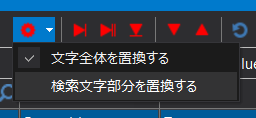
Setting items |
Commentary |
Replace an entire character |
Among the strings displayed in the column to be replaced,Replaces the entire displayed string with the replacement string..
|
Replace part of search string |
Among the strings displayed in the column to be replaced,Replaces only the part that matches the search string with the replacement string..
|
3.Replace only one line
To replace only one line, first enter the replacement string in the following section. In this example, enter "modified".
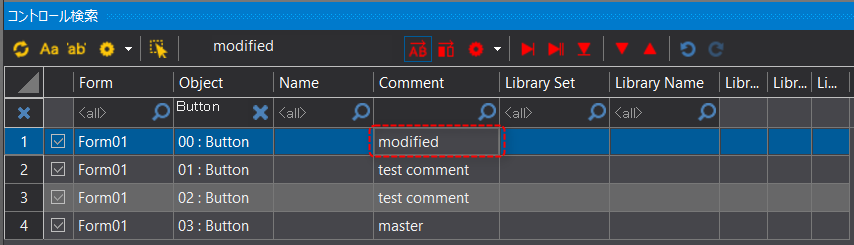
And in the search results listBe sure to select the column you want to replace in the row you want to replace.Click the Replace One Line icon. In this example, select the Property Value column.
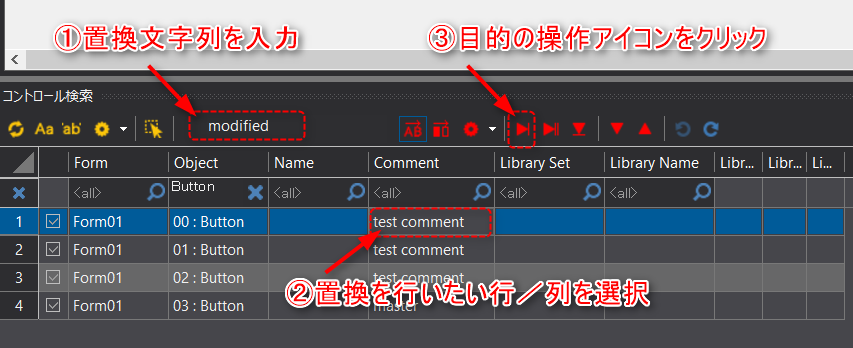
The value in the desired row/column was then replaced with "modified".
4.Global Replace
To perform a bulk replacement, first enter the replacement string in the following area. In this example, we enter "modified".
And in the search results listMake sure to select the column you want to replace (the row position is optional)Click the Bulk Replace action icon.
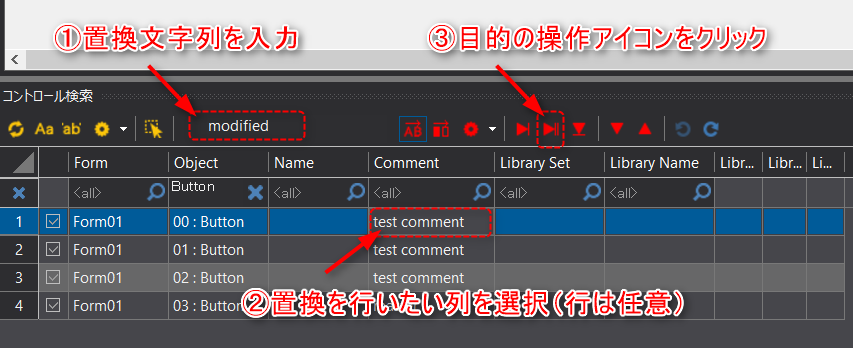
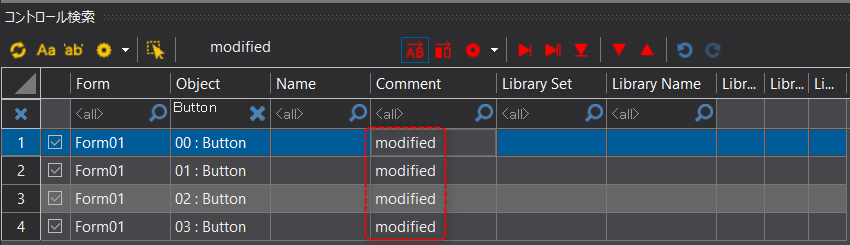
The contents of the selected column ("Comment" in this example) for all rows displayed in the search result list will then be replaced with the specified replacement string ("modified" in this example).
5.Cancel (undo) a replacement
To cancel the replacement (revert to the state before replacement), you can undo it by performing the following operations.
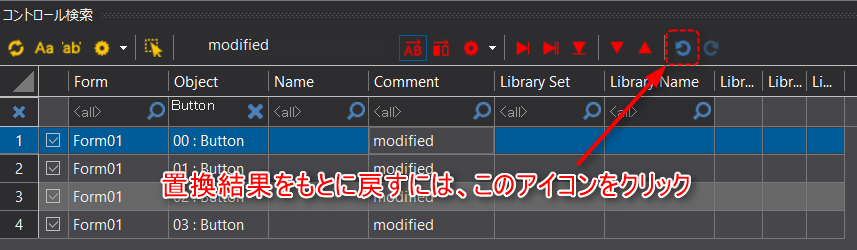
This will cancel the replacement process and revert it to its original state.
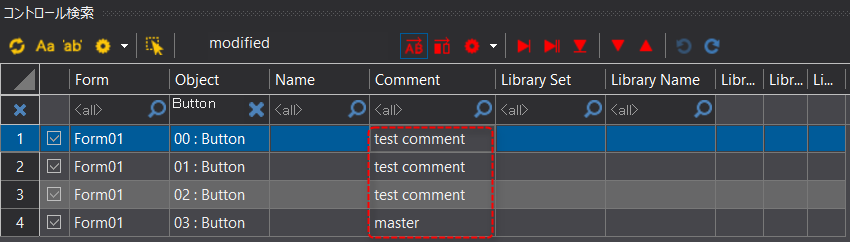
|
You can cancel (undo) a replacement operation only until a search for a different keyword is performed in the property search (i.e., while the replaced item is displayed in the search result list). |