Property Search Search Operation
This article explains the search operation of Panel Editor's property search function.
1.Set the search scope.
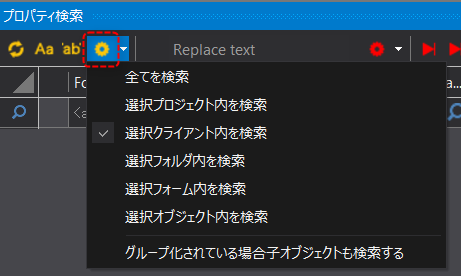
You can set the scope of your search by clicking the settings icon (yellow gear) at the top of the property search screen. Set the desired search scope.
Setting items |
Commentary |
Select All |
The process will apply to all objects contained in the project currently open in Panel Editor. For projects that consist of multiple projects, all objects in all projects will be searched.
|
Search in selected project |
The processing will target all objects in the project currently selected from the tree in the Workspace view.
|
Search in selected client |
The process applies to all objects in the client configuration file currently selected from the tree in the Workspace view.
|
Search in selected folder |
The processing will target all objects contained in the folder currently selected in the tree in the Workspace view.
|
Search within the selection form |
The processing will target all objects contained in the form currently selected from the tree in the Workspace view.
|
Search within selected object |
The object currently selected in the main view will be processed. If multiple objects are selected at the same time, all selected objects will be processed.
|
Search child objects when grouped |
If there are grouped objects, the search will also include the child objects of the group. Check this option as necessary.
|
You can also set search condition options using the icons below.
|
Click this icon to switch between case sensitivity and non-sensitivity. Each time you click, it toggles between on and off. When enabled, a selection frame is displayed and case sensitivity is enabled. |
|
Clicking this icon will switch between exact match and partial match. Each time you click it, it will be toggled on/off. When enabled, the selected frame will be displayed and the search will be for an exact match.
|


2.Perform a property search.
To search for a property, enter the search string you want to search for in each input area displayed on the first line of the search list.

•Form ・・・ Form name
•Object - Type of control (for example, for a button, specify "Button")
•Name ・・・ Object name
•Property Name ... property name
•Property Value ・・・ Property setting value
•Property Bind ・・・ Binding setting value
Search conditions can be specified for each column, and multiple conditions can be specified at the same time. When multiple conditions are specified, the results are narrowed down using the AND method.
As an example, enter "Enabled" for Property Name.
To confirm your search criteria, press Enter or click the refresh icon in the upper left.

Then the search results were displayed in a list.
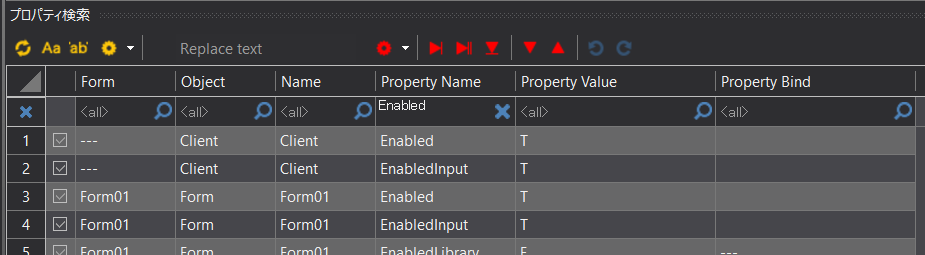
In this example, when "Enabled" was specified as the search keyword for the property name, the partial match "EnableInput" was also displayed as a result. If you want to narrow your search to only exact matches, click the exact match icon "'ab'" in the upper left to switch the search criteria to exact match and run again.
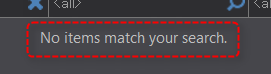
If no script code matching the conditions is found, the list will display as follows:
|
You can freely edit the display column settings of the search list, for example to customize it to include the comment property as a column.
|

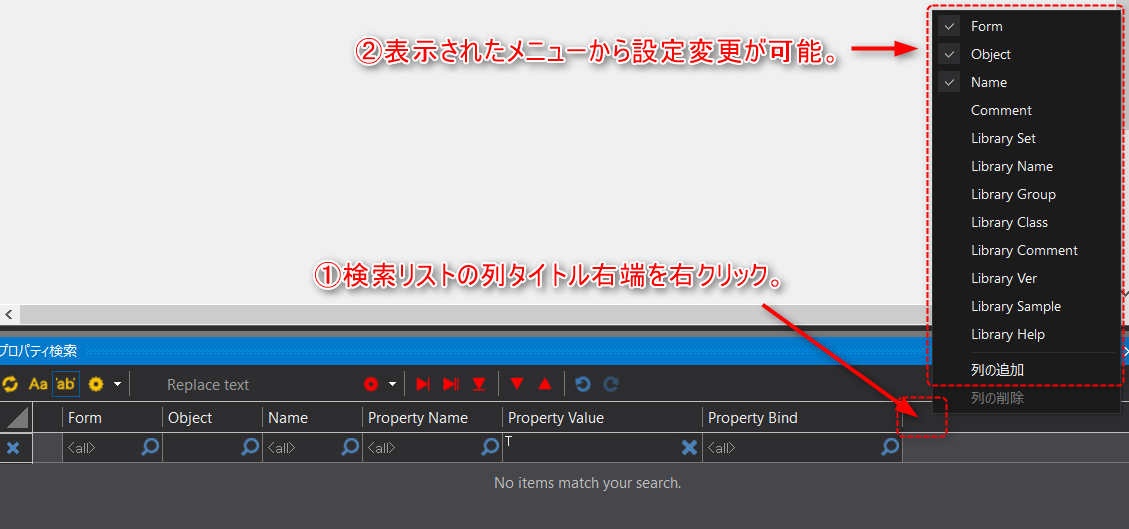
|
The search keywords supported are as follows:
For example, if you want to list properties that have a bind expression defined, specify "--notnull" as the search keyword. On the other hand, if you want to search for properties that do not have a bind expression defined, specify "--null".
|
3.Try selecting a row in the search list.
You can select an object that contains a property by clicking on the row in the list.
As an example, try clicking on a row of search results below.
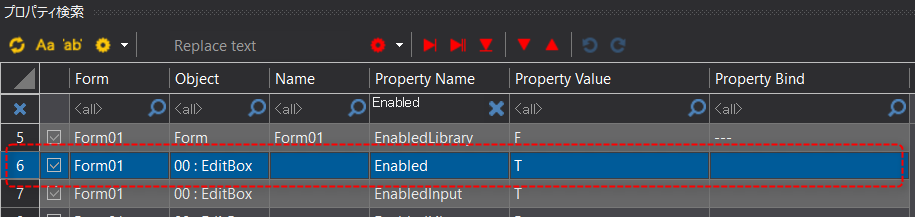
This will cause the control to be selected on the form.
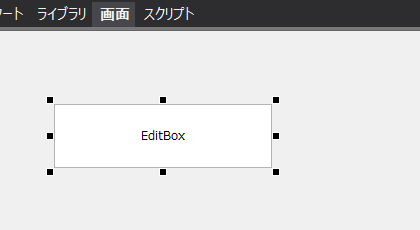
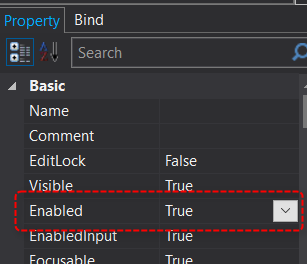
Additionally, the property page will show the control's Enabled property selected.