Direct editing of property search results
This article explains how to directly edit search results using the property search function in Panel Editor.
You can edit property and binding settings directly from the search results list.
1.Edit the properties directly from the list.
As an example, we will edit the property setting value for the search result of the Enabled property.
To edit a value from the list, click in the Property Value column in the row of the property you want to edit.
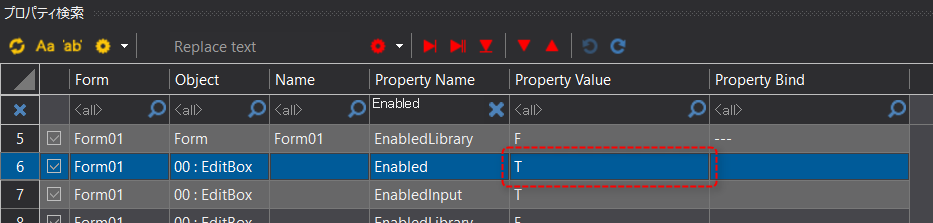
The Property Value fields will then become editable.
Try changing the value from "T" to "F".


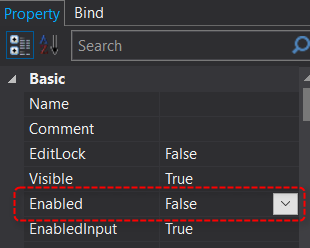
This will write the value to the property, and if you look at the property page you will see that the value has changed from True to False.
2.Edit the binding settings directly from the list.
As an example, we will edit the binding settings for the search result of the Enabled property.
To edit a value from the list, click in the Property Bind column in the row of the property you want to edit.
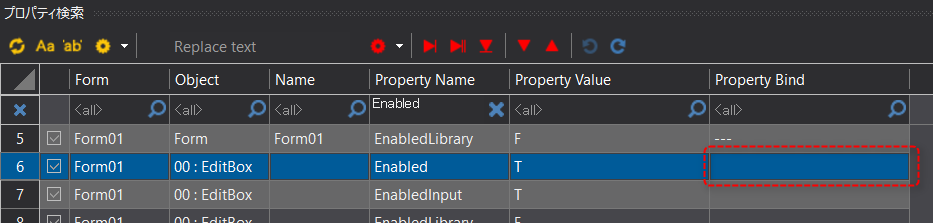
The Property Bind fields will then become editable.
Try entering "U01.F01.T01" as the bind expression.

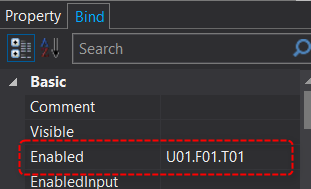
This action writes the value to the binding for the target property, and you can see that the binding expression is set by looking at the Binding tab of the Properties page.