Various icons are located at the top of the Panel Editor for easy access to frequently used functions.

|
Create a new client.
|
|
Open the project file or client configuration file.
|
|
Save the file.
|
|
Perform a cut operation.
|
|
Perform a copy operation. |
|
Perform a paste operation.
|
|
Perform the Undo operation.
|
|
Perform the Redo operation.
|
|
The area selected with the mouse is enlarged.
|
|
Cancels zoom and displays at actual size. |
|
Enlarges/shrinks the screen to fit the form display area. |
|
Displays the grid. For details, see "About the grid".
|
|
Displays the guide. For details, see "About the Guide". |
|
Locks the movement of the control. This prevents the control from being moved accidentally when it is selected. |
|
Shows or hides the mini property box and configures the mini property box settings. For details, see "Mini Property Box". |
|
Opens the Help (reference manual).
|
|
Launches Panel Browser, a runtime execution with the currently opened client configuration file.
|
|
Start Panel Server. Opens the server configuration file registered in the currently selected project, or opens the server configuration file set in the PSFilePath root property. If neither of these apply, Panel Server will be launched with a blank status. If Panel Server is already running, that Panel Server will be brought to the front. |
|
Opens the Explorer, displaying the folder that contains the item currently selected in the Workspace view (either the client or server configuration file). |
|
Call the client setup. For details on setup, please refer to "System Installation and Operation". |
|
You can directly edit the Text and TextFont properties of the currently selected control.
|


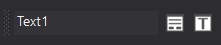
|
When a form is displayed in Panel Editor, you can zoom in and out by holding down Ctrl and using the mouse wheel. |
