Panel Editor screen description
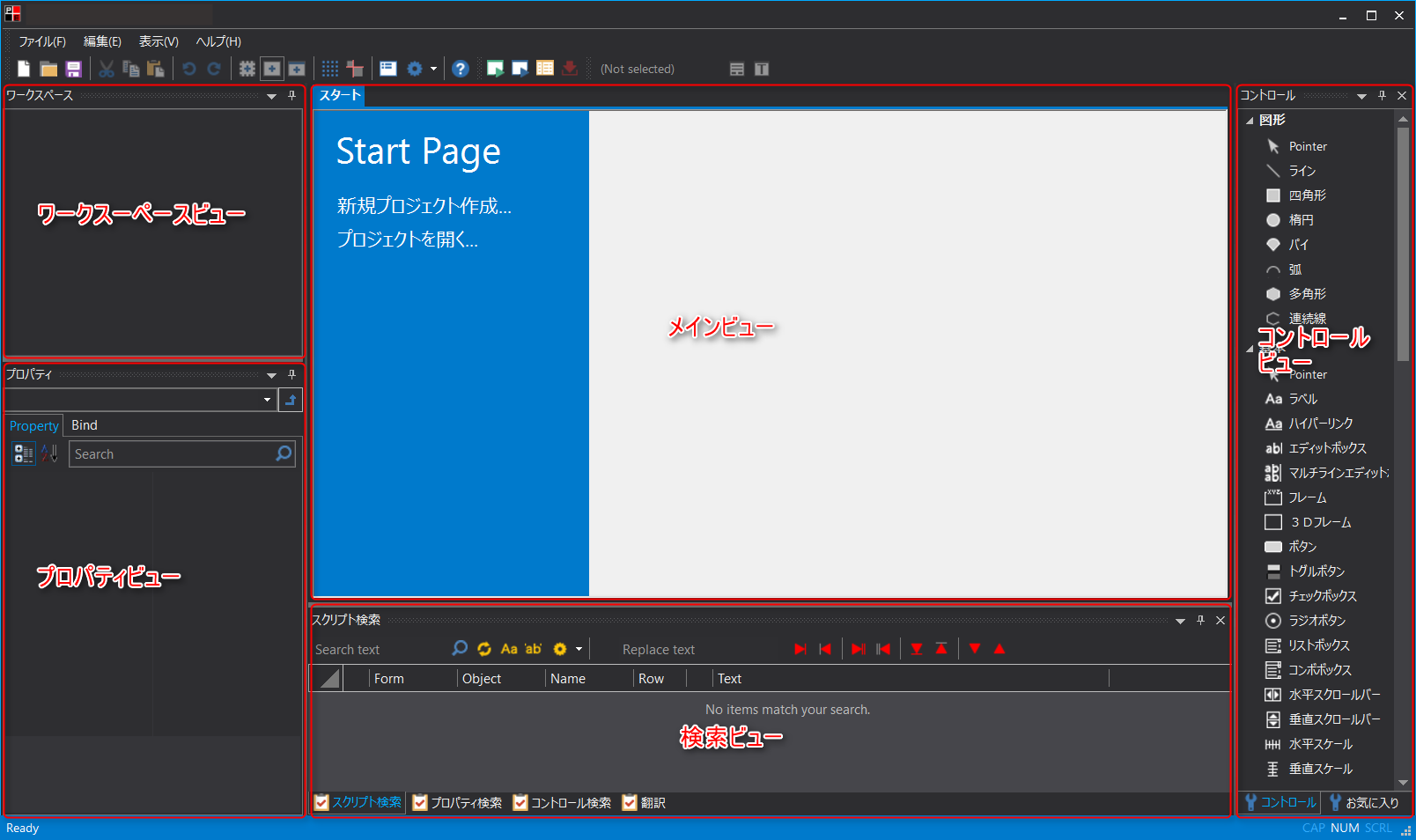
Here we will explain the screen layout of Panel Editor.
■Workspace View
The workspace view is where you select and manipulate projects, client configuration files, and server configuration files.
You can also add configuration files to your project and change their names from here.
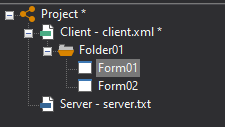
You can also use the mouse in the workspace view to add new forms, change names, delete forms, and perform other operations. When editing a form, you can simply select the form from the workspace view, and the contents of the selected form will be displayed in tandem on the main view screen tab.
■Property View
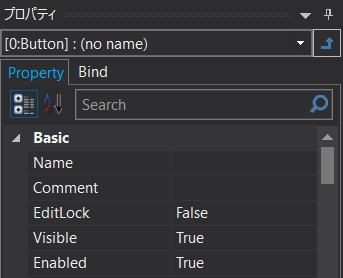
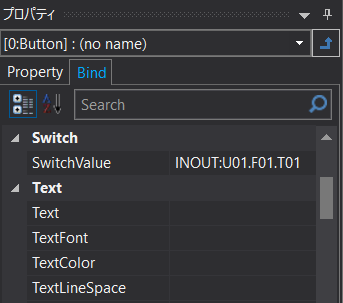
The Properties view consists of the Property tab (Property) and the Binding tab (Bind).
Properties are parameters such as color and font that each control has. By changing the properties, you can change the color of the control, the text to be displayed, etc. Binding is used when assigning tags to controls.
The Properties tab displays a list of properties for the currently selected control. Properties are parameters such as color and font that a control (a part placed on the screen) has. By editing the value of the desired property from the Properties tab, you can change the control's color, the text you want to display, and so on.
(Properties tab)
|
For information on how to edit the properties of controls, see "Pasting and Editing Controls".
Furthermore, you can select the root object (root object) by clicking the arrow icon shown below in the property view.
|
 (Route selection icon)
The Bindings tab lists the bindings for the control's properties. Bindings are the ability to link tags (PLC values) in real time.
(Binding tab)
|
Details about binding are described in "Binding". |
■Main view
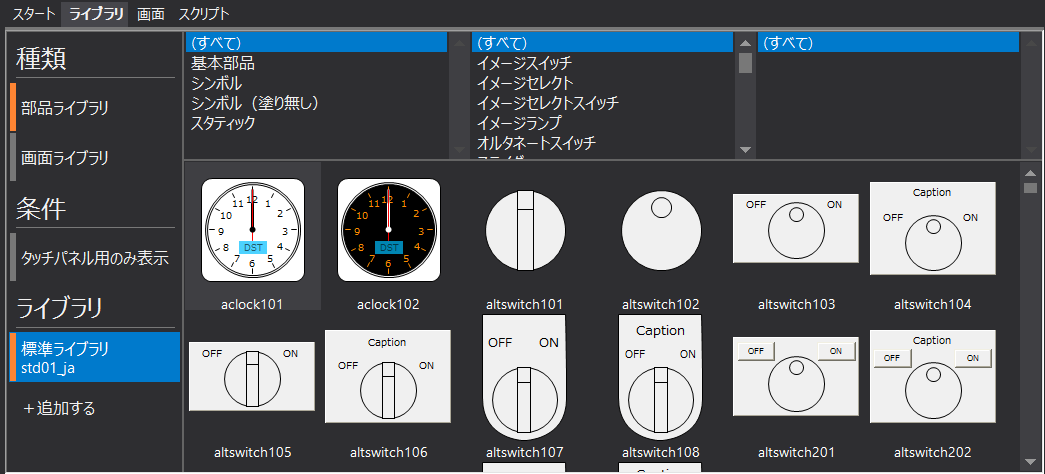
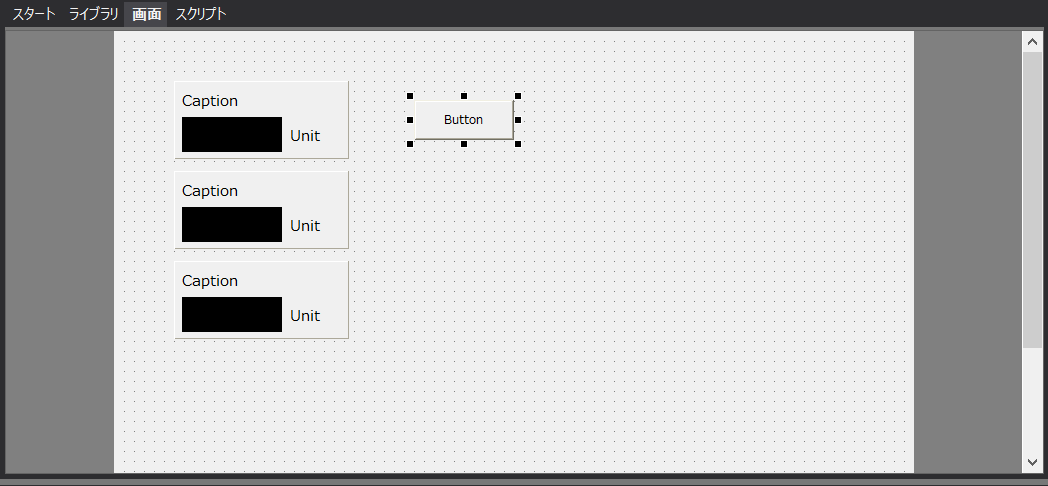
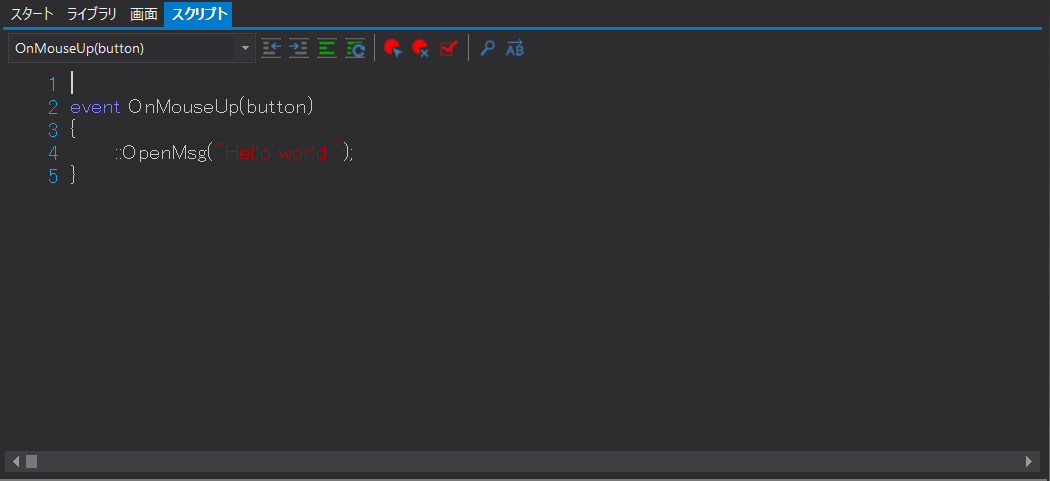
The main view consists of the Start tab, Library tab, Screen tab, and Script tab. To switch between tabs, click the tabs in the following areas at the top of the view.
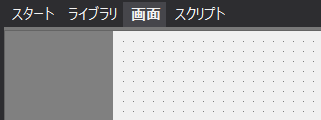
(Start tab) |
|
|
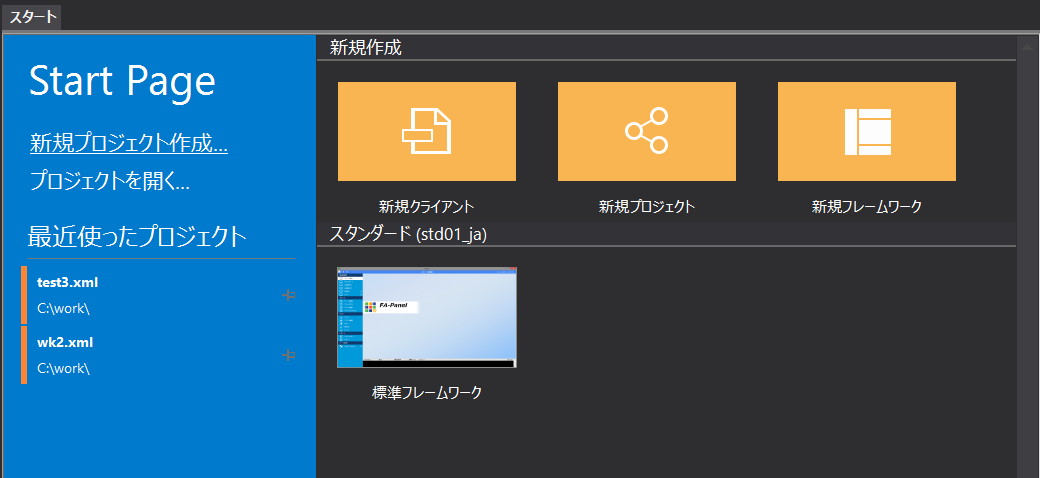
The Start tab displays the Start page.
It supports the introductory part, such as creating a new project and creating a project skeleton using a frame library.
It also displays the history of projects you have edited in the past and allows you to select a project from the history.
|
(Library tab) |
|
|
The Library tab is used to import part libraries and screen libraries.
|
(Screen tab) |
|
|
The Screens tab displays the currently selected form.
For instructions on how to edit a form, please refer to "Form Editing Operations". |
(Script tab) |
|
|
The Script tab is a view for writing scripts for each control object. It displays the script page of the currently selected object.
For more information about scripts, see "Scripts". |
■ Search view
A view for searching and replacing scripts, properties, and objects.
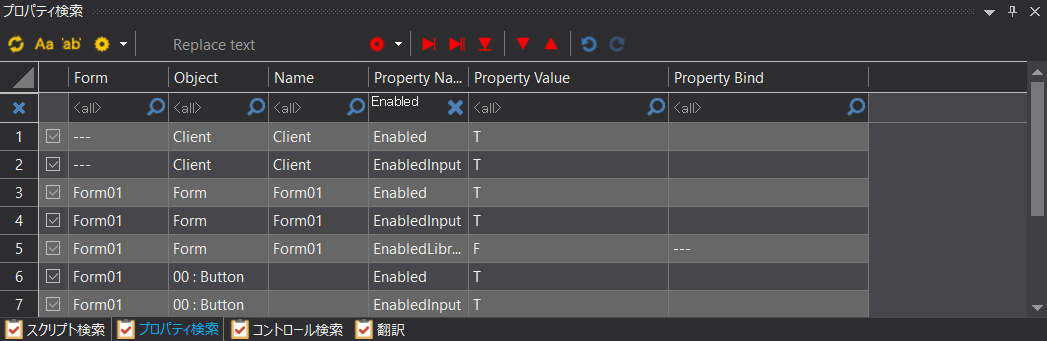
In the Search view, you can search for and replace scripts and controls in addition to properties. In particular, by using the Replace Object function, you can replace a control object or library part pasted on a form with another object.
|
The search function has been significantly improved in FA-Panel Ver6 and later. Understanding and using the search function of Panel Editor will definitely improve the efficiency of your development work with FA-Panel. For details on the search function, please refer to "Advanced editing functions of Panel Editor". |

■Control View
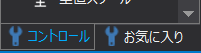
The Control View consists of the "Control Tab" and the "Favorites Tab". To switch between tabs, click the tabs at the bottom of the view.
|
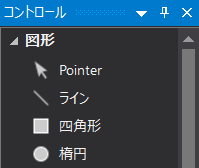
In the Controls tab, you can select the desired control from the controls displayed in the view and paste it onto the form.
For more information on how to use controls, see "Pasting and Editing Controls".
|
|
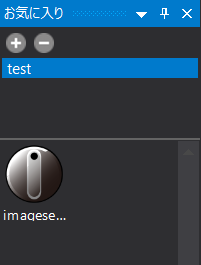
The Favorites tab allows you to register frequently used part libraries as favorites.
For details on how to use the Favorites tab, see "Adding Part Library Favorites".
|