Switching screens with scripts
This section explains how to write a script that switches the display of two forms by clicking a button.
To summarize the process, the "OnMouseUp" event is used to switch forms by calling the "OpenForm" method when the event occurs.
How to write a script
1.When you first start up Panel Editor, a form called "Form01" is already prepared. So, we will add another new form.
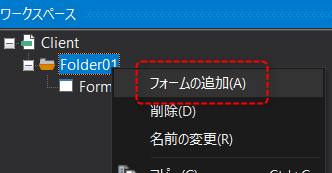
To add a form, right-click the target folder in the workspace (in this example, "Folder01") to display the menu and select "Add Form".
|
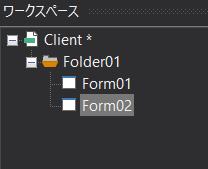
"Form02" has been added.
|
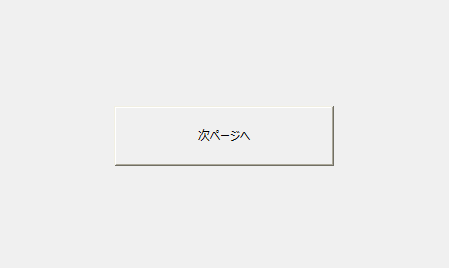
2.Paste Button control into Form01 and Form02.
Form01
|
Form02
|
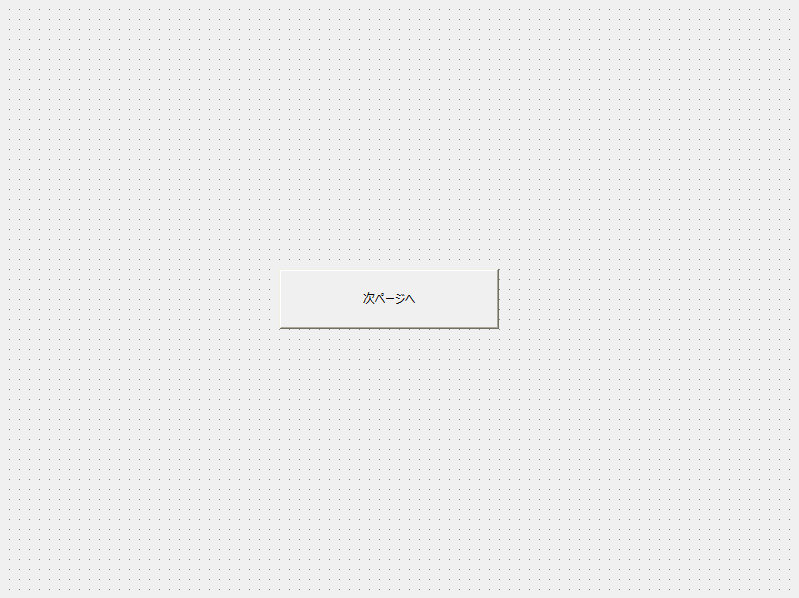
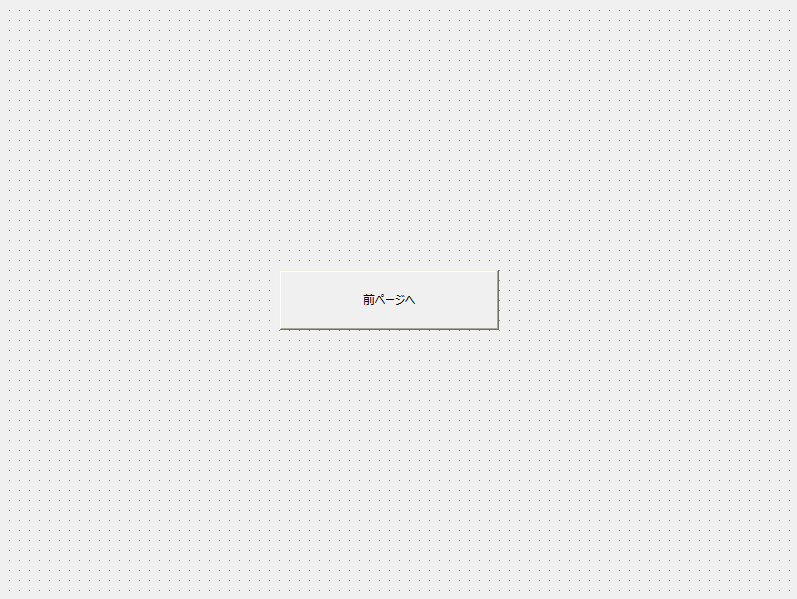
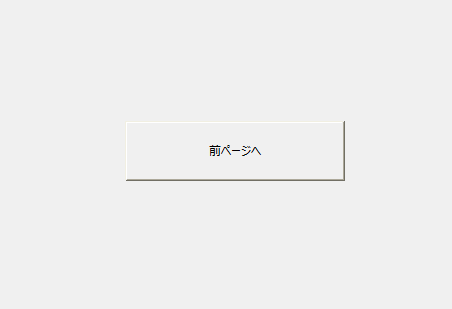
Here, the Text property of Button control is set to "Next Page" and "Previous Page" to distinguish the difference between the two forms.
3.Write the script on the button of Form01.
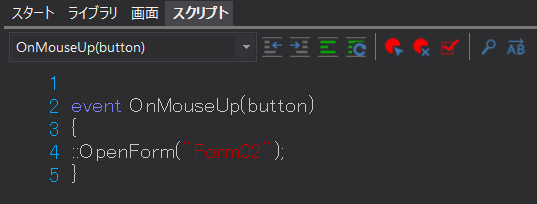
Here,
::OpenForm("Form02");
It is written as follows.
4.Next, write the script on the button of Form02.
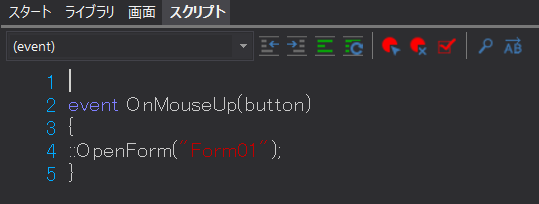
Here,
::OpenForm("Form01");
It is written as follows.
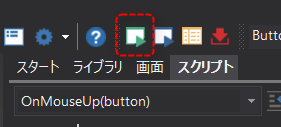
5.Let's run it and check that it works. Click the following icon (the Run icon) at the top of Panel Editor.
6.The Form01 form is now displayed. Please click the button in the center.
The display has switched to Form02 form. Clicking the center button will switch the screen to Form01.