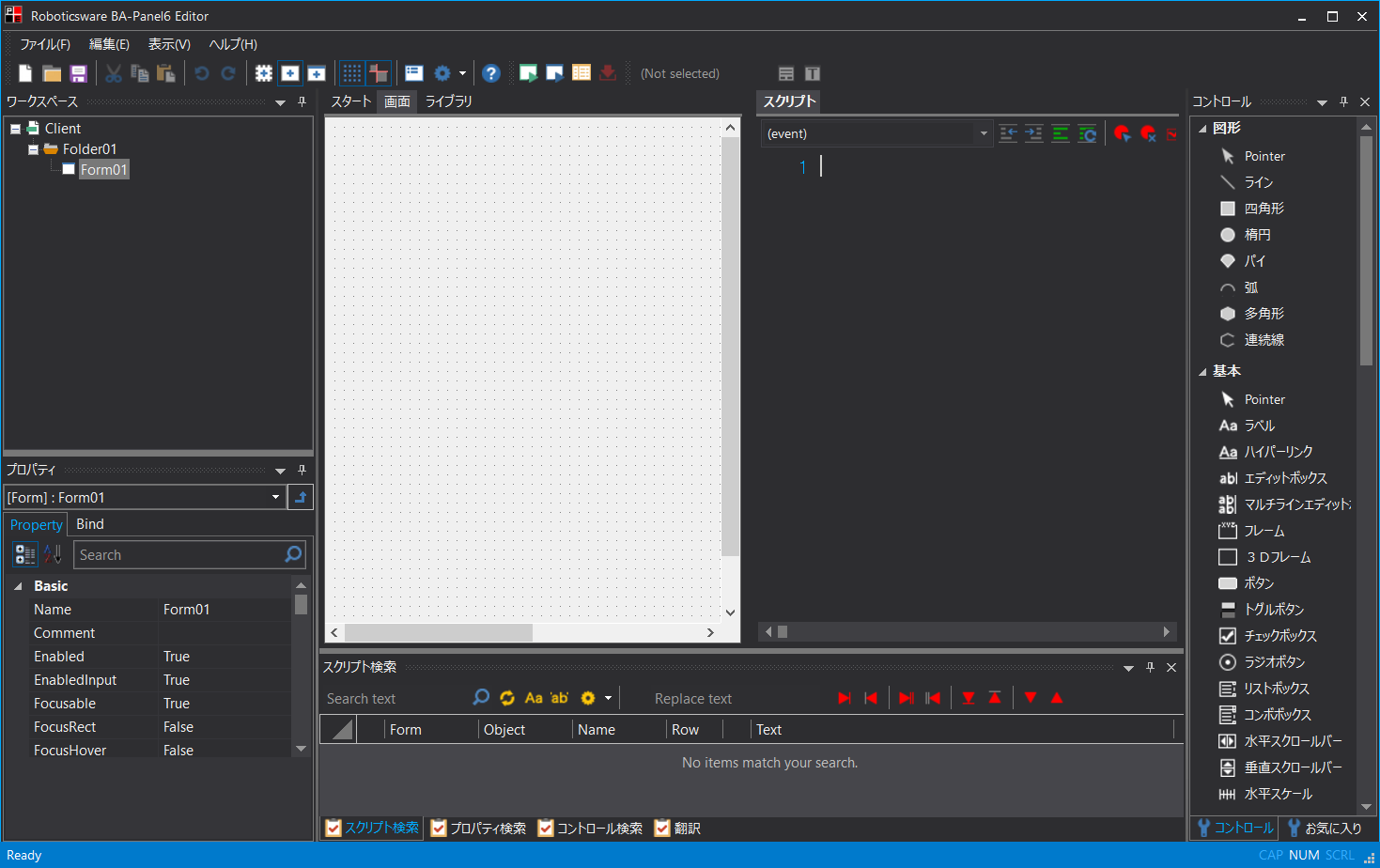
Script Editor View Mode
The script editor has three main display modes:
•Script tab display (center area)
•Show as Dialog
•Split display (center area)
The display methods for each mode are as follows:
1)Script tab display (center area)
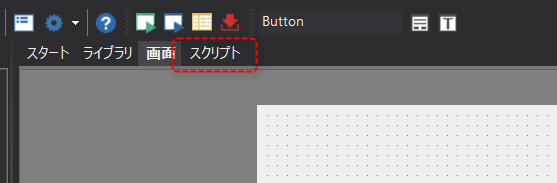
The script editor is usually displayed in the script tab state. With the object for which you want to write a script selected, select the "Script" tab at the top of Panel Editor to open the target script page.
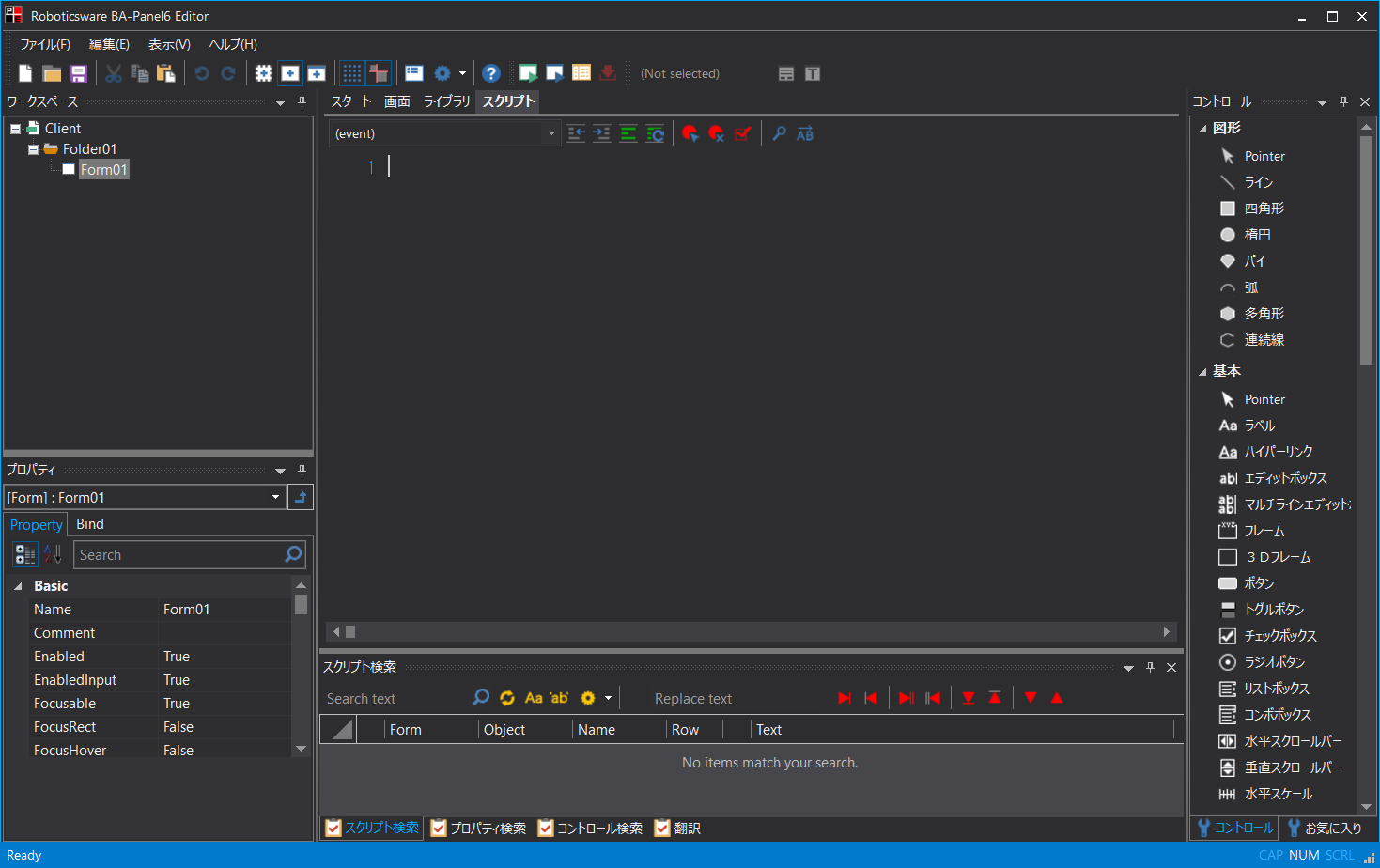
The editing area in the center of the screen has switched to the script editor.
2)Show as Dialog
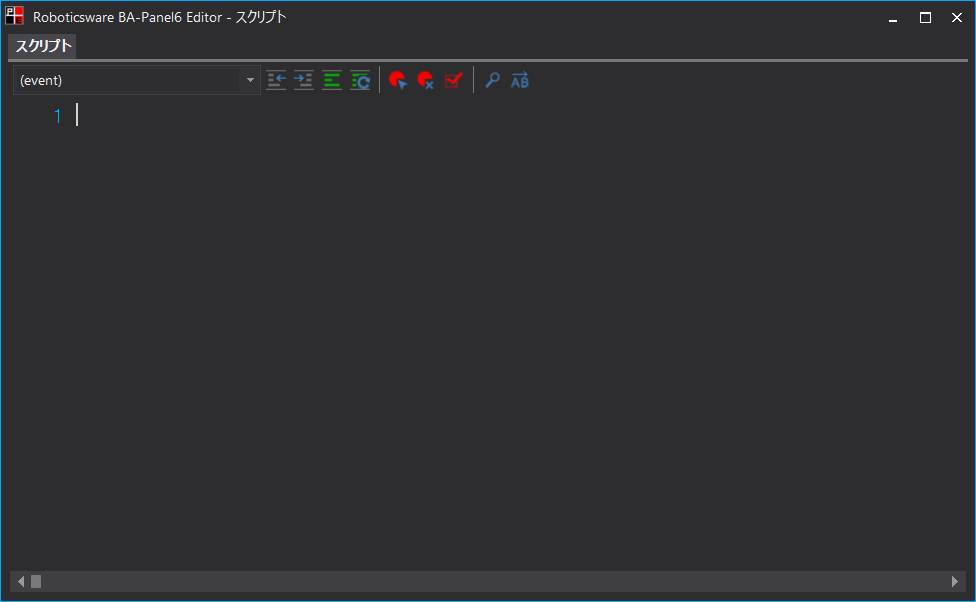
The script editor can also be displayed as a dialog screen. By dragging and moving the "Script" part of the tab in the image above with the mouse, it can be displayed as a pop-up dialog in a separate screen. When the selection of the target object is switched while the script editor is displayed in a dialog, the script page of the selected object will be automatically displayed.
In a multi-monitor development environment, the script editor can be displayed in a dialog box on the extended display, allowing you to edit scripts more efficiently.
Below is the script editor displayed in a dialog.
3)Split display (center area)
The script editor and form area can be split vertically or horizontally. In particular, in development environments with high screen resolution, splitting the display vertically can make script editing more efficient.
To use the split view, right-click on the script tab to display the following menu and select the desired split view.
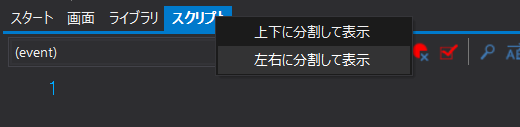
Here is an example of splitting the view side-by-side. The editing area in the center of the screen has been switched to a split view of the form and script editor.