Object Hierarchy
Objects have a hierarchical structure. A hierarchical structure is the parent-child relationship of objects. For example, a form has multiple controls, but the form is the parent object of the controls, and the controls are the child objects of the form. Every object has properties, methods, and events.
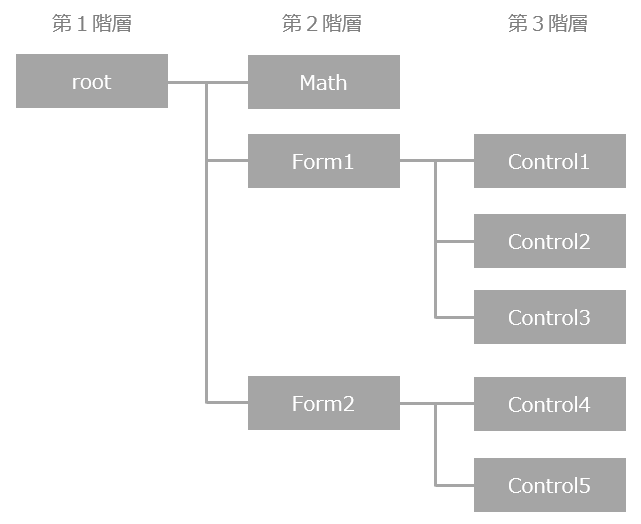
Here, the "root" (root) object at the first level is the most important object, with properties and methods that affect the entire system. For example, system-wide settings, such as connection information to Panel Server, are made to the root object. The properties and methods of the root object can be accessed from the entire system. In addition, if a user writes a function (user-defined function) in a root object using a script, that function becomes available as a general-purpose user-defined function that can be freely called from the entire system.
Next, at the second level, there are form objects and Math objects.
A form object is the screen on which you paste controls, and in addition to displaying it as a normal screen, it can also be opened on top of the screen as a dialog (pop-up). To access a form object, specify the form name after "::", which represents the route, and specify the method name or property name separated by "." (period).
event OnMouseUp(button)
{
	::Form01.FillColor = "#FF0000"; // Set the FillColor (background color) property of Form01 to red
	::Form02.FillColor = "#00FF00"; // Set the FillColor (background color) property of Form02 to green
}
The Math object is a special object that contains a collection of methods for performing arithmetic operations such as averaging, summing, etc. When using the Math object, you can call a Math method at any time by writing "::Math." followed by the method name as shown below.
event OnMouseUp(button)
{
	var a = 12.34;
	var b = ::Math.Abs(a); // Find the absolute value of 12.34
}
|
When operating a form object, the target form must be currently open. If the form is currently displayed, you can operate the methods and properties of that form from any level. For example, if Form02 is opened as a dialog above Form01, you can access the methods of Form02 and the controls pasted on Form02 from the controls of Form01. Form objects become valid immediately after the OpenForm or OpenDialog method is called. |

|
From Ver6 onwards, it has become possible to manage forms with the same name in separate folders. For information on how to open a form by specifying the folder name, please refer to the description in "About form names and view names". |
|
If you open a form by specifying a folder name, you will not be able to access the form using a format that references a normal form (such as "::Form01"). For information on how to reference a form when specifying a folder name, see the description in "About form names and view names". |

The third-level control object is the control itself that is pasted onto the form, such as an edit control or Label control on the form. Add the form name and control name after "::", and specify the method name or property name separated by a "." (period).
event OnMouseUp(button)
{
	::Form01.Control1.FillColor = "#FF0000"; // Set the FillColor (background color) property of Control1 to red
	::Form01.Control2.FillColor = "#00FF00"; // Set the FillColor (background color) property of Control2 to green
}
|
The name (Name property) of each control object pasted on the form is initially left blank. It is not mandatory to name each control, so give it a name only if necessary. For example, if you want to access an object from a script using the above method, you will need a name to reference the object, so define a name in the Name property of the target control object. Also, make sure the name is unique within the same hierarchy. |
Absolute and relative paths
In the explanation of the object hierarchical structure, we mentioned the method of tracing subordinate objects from the root ("::") in order. This reference method is called "absolute path reference".
// Absolute path reference
event OnMouseUp(button)
{
	::Form01.Control1.FillColor = "#FF0000"; // Set the FillColor (background color) property of Control1 to red
	::Form01.Control2.FillColor = "#00FF00"; // Set the FillColor (background color) property of Control2 to green
}
In contrast, a reference method that uses the object in which the script is currently written as the base point and follows the hierarchy relatively is called a "relative path reference." Below is an example of a relative path reference when a script is written in the OnMouseUp event of the Control1 control in Form01.
// Relative path reference
event OnMouseUp(button)
{
	this.FillColor = "#FF0000"; // Set the FillColor (background color) property of Control1 to red
	parent.Control2.FillColor = "#00FF00"; // Set the FillColor (background color) property of Control2 to green
}
The "this" and "parent" keywords play an important role in relative paths.
"this" refers to the object itself. In the above example, it represents Control1 itself. This method is the smartest way to access the properties and methods of the control object itself. Note that while absolute path reference requires you to name the control object itself, it is not necessary to name the control object when using this.
"parent" refers to the parent object. In the above example, it refers to the form object Form01. Therefore, "parent.Control2" refers to the Control2 object in Form01. Note that you can reference the path of a form object immediately after it is opened (i.e., immediately after it is displayed as a screen or dialog).
Object Grouping and Hierarchy
Objects can be grouped. When grouping is performed, one object is created as a group control. The grouped controls are moved one level down as child objects of the group control.
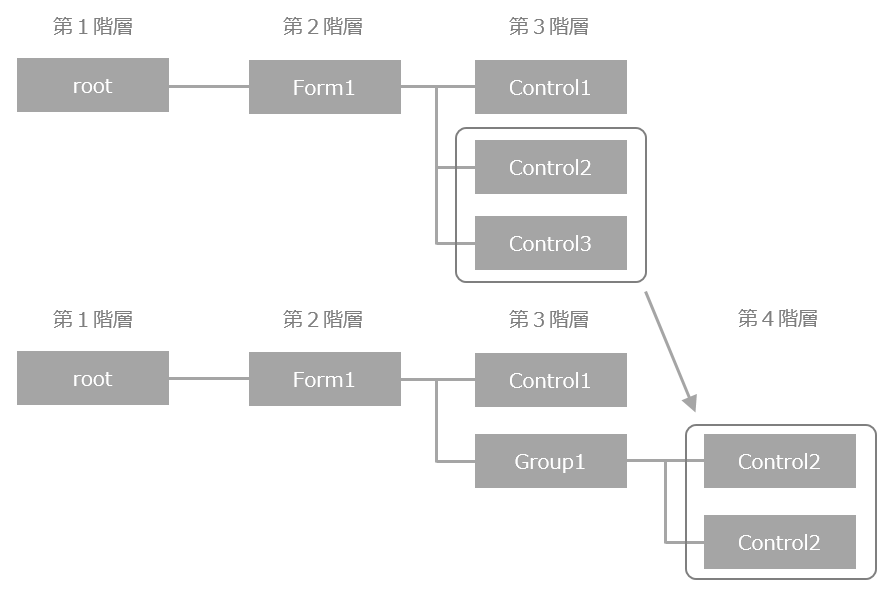
Group objects created through grouping can have scripts written on them, and each child object of the group can have scripts written on them as well.
|
Grouping moves the hierarchy down by one level. Be careful if you are using the "parent" keyword in a control and writing a script like the one below.
parent.FillColor
"parent" always refers to the parent object one level above itself. In other words, if an object was in the third level before grouping, "parent" would point to the Form object, but when that object is grouped, it will be one level below and "parent" will point to the group control. |
|
Group objects can also be further grouped. In that case, the controls contained in the group can be further down the hierarchy, from 4th to 5th to 6th. When referencing objects from a script, be aware of the parent-child relationships of objects and take care to use an appropriate object path. |
Object Path Reference
The object structure of FA-Panel is a hierarchical structure starting from the root, and several keywords are provided for referencing objects in the hierarchical structure from scripts. There are two ways to refer to objects: "absolute path reference," which refers to the top of the hierarchy, and "relative path reference," which refers relatively to the object itself.
How to reference |
keyword |
Commentary |
Absolute path reference |
:: |
Refers to the Root object. It is the same as "root.". It is represented by two colons.
Example 1) Referencing the PSUserLevel root property
if ( ::PSUserLevel == 10 ) {
・ ・ ・
}
Example 2) Calling the root method OpenForm ::OpenForm(“Form01”);
Example 3) Change the Enabled of the Btn01 button pasted in Form01 ::Form01.Btn01.Enabled = T;
When referencing an object with an absolute path, the object's Name property must be set.
|
Relative paths reference |
this |
Refers to the self object.
Example 1) Changing your own text from within the Btn01 script this.Text = “Button 1”;
Unlike absolute paths, the Name property does not necessarily have to be set.
|
parent |
Represents the parent object.
Example 1) When two buttons, Btn01 and Btn02, are pasted on Form01, change the Enabled of Btn02 from within the script of Btn01. parent.Btn02.Enabled = F;
|
|
Objects can be put into variables, however once put into a variable there is a restriction that you cannot access the variables defined within the object.
Example: If the variable "vData" is defined in the form Form scripts var vData = "ABCDEFG";
Script for Button control on the form
event OnMouseUp(button)
{
	// Variable can be accessed by direct specification
	::MsgBox(parent.vData);

	// Once an object is placed in a variable, it cannot be accessed
	var vFormObj = parent;
	::MsgBox(vFormObj.vData); // ← An error occurs at execution time
}
You cannot access variables within an object, but you can access methods. Therefore, you can access variables by creating a method as shown below. Form scripts
var vData = "ABCDEFG";

function fGetData()
{
	return vData;
}
function fSetData(data)
{
	vData = data;
}
Script for Button control on the form
event OnMouseUp(button)
{
	var vFormObj = parent;
	::MsgBox(vFormObj.fGetData());
}
|
Get parent/child of object
In addition to retrieving objects using a relative path from the parent-child relationship of FA-Panel objects, you can also retrieve objects using "GetParentObj" and "GetChildObj".
Get the parent object.
Example 1) When a button Btn01 is pasted on Form01, get the parent object (form object) from within the script of Btn01. var vFormObj = this.GetParentObj();
|
|||
Get the child object.
Example 1) When a button Btn01 is pasted on Form01, get the child object (button object) from within the script of Form01.
var vBtnObj = this.GetChildObj("Btn01");
|