The grid filter function includes "base filter," "search filter," "field filter," and "sort filter."
A base filter is a filter function that specifies the row (or column) index of the grid's source data and displays only the data of the specified index on the grid.
The base filter can be used simultaneously with other filter features (search filter, field filter, sort filter).For example, you can use this to narrow down the display of the entire grid using your own conditions in addition to the extraction conditions set by the search filter or field filter.
The diagram below shows how base filters are processed on a row-by-row basis.
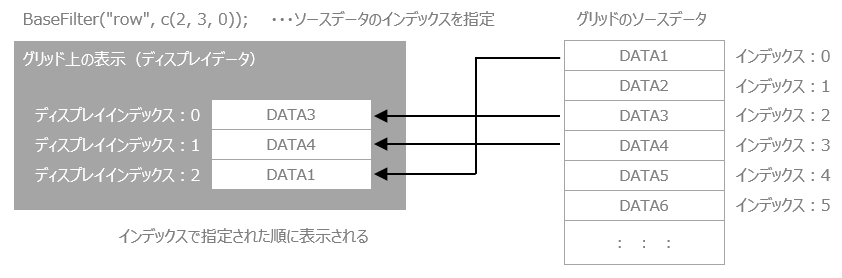
The base filter uses the following methods:
Methods |
explanation |
Set the base filter.The first parameter specifies the type, "col" (column unit) or "row" (row unit), and the second parameter specifies the index of the row (or column) to be displayed in the grid. |
|
Cancel the base filter.ClearAllFilterCalling this method will remove all filters at once. |
The search filter is a filter function that mainly targets the entire grid and allows you to narrow down the results by keyword. If even one search keyword is found in each field to be searched, it will be displayed.
By specifying search conditions based on "Search format", you can narrow down your search by exact match, backward match, range specification, etc.
To search the entire grid, use the column/row properties of the target grid.Columns (or rows) whose EnableSearchFilter property is TRUE will be searched.
Also, the search algorithm is performed according to the data type of the DataType property of the column/row property.
The search filter uses the following methods:
Methods |
explanation |
Set the search filter. |
|
Cancel the search filter.ClearAllFilterCalling this method will remove all filters at once. |
Field filters are primarily used to narrow down the results by keyword on a grid column (or row) basis. They are displayed when all search keywords are found in each search target field.
By specifying search conditions based on "Search format", you can narrow down your search by exact match, backward match, range specification, etc.
of the column/row properties of the target gridThe search will target columns (or rows) whose EnableFieldFilter property is TRUE.
Also, the search algorithm is performed according to the data type of the DataType property of the column/row property.
The field filter uses the following methods:
Methods |
explanation |
Set the field filter. |
|
Removes the field filter.ClearAllFilterCalling this method will remove all filters at once. |
|
By specifying "headerfilter" for the CellType of the cell property, you can make the header cell of the grid an edit box for entering the search string for the field filter. Using this method, you can easily implement the search function for the field filter.Samplecontains a working example of setting this property.
|


The sort filter is a filter function that allows you to sort the grid display.
You can specify the column (or row) you want to sort in ascending or descending order.
of the column/row properties of the target gridColumns (or rows) whose EnableSortFilter property is TRUE will be processed.
Also, the sorting algorithm is implemented according to the data type of the DataType property of the column/row property.
The sort filter uses the following methods:
Methods |
explanation |
Set the sort filter. |
|
Cancel the sort filter.ClearAllFilterCalling this method will remove all filters at once. |
|
By specifying "headerbutton" for the CellType of the cell property, you can call the sort filter by clicking on the header cell of the grid. Using this method, you can easily implement the sorting function of the sort filter.Samplecontains a working example of setting this property.
|
