Demand history setting screen
Measurement point registration screen
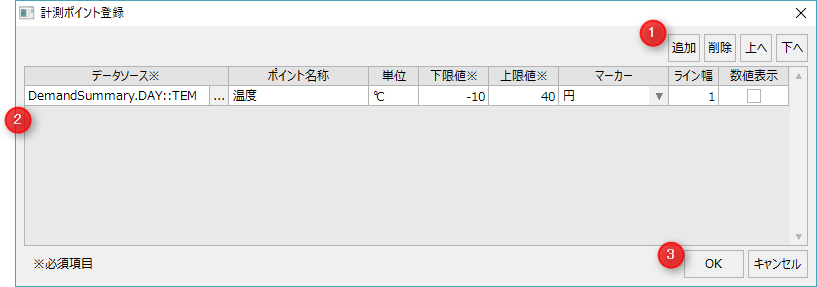
This is the point registration screen for displaying measurement data in the demand history.
#
|
name
|
explanation
|
1
|
Measurement point operation
|
Measurement points
addition
|
Add a measurement point.
|
Measurement points
delete
|
Delete the measurement point.
|
Up/Down
|
Change the display order of measurement points.
|
|
2
|
List of measurement points
|
Data Source
|
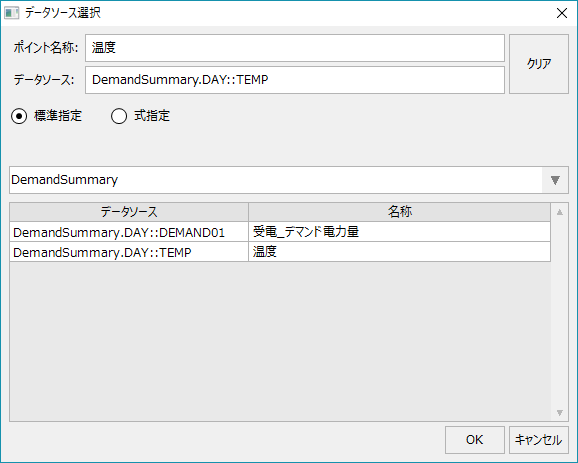
Specify the data source of the measurement point. Press the button to open the data source setting.
■ Data source
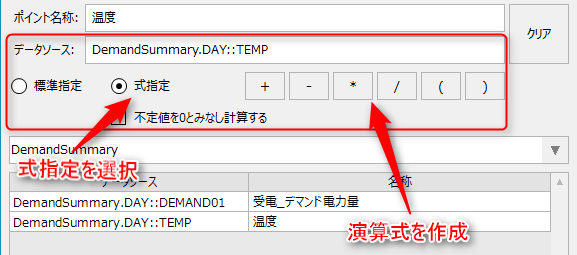
Enter the data source. "Standard specification" means that the data source selected from the data source list will be the data source.
"Expression specification" is used when you want to perform calculations between data sources.
If you check "Calculate assuming undefined values as 0", if the data source in the calculation formula is an undefined value (a value that cannot be obtained due to a communication failure, etc.), the calculation will treat it as 0.
|
Point name
|
Set the name of the measurement point.
|
unit
|
Set the units.
|
Lower limit/Upper limit
|
Set the lower and upper limits of the graph.
|
marker
|
Select the type of marker to plot on the graph.
•No marker
•circle
•triangle
•square

|
Line Width
|
Sets the width of the measurement point line.
|
Numerical display
|
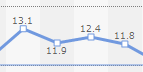
Set whether to display numerical values on the lines.
|
|
3
|
OK/
Cancel
|
OK
|
Saves the current edits and closes the settings screen.
|
cancel
|
Cancels and closes the current edits.
|
|