Demand Report Settings Menu
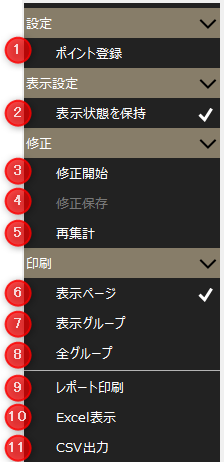
# |
name |
explanation |
|---|---|---|
1 |
Points Registration |
Displays the point registration screen.
|
2 |
Maintain Visibility |
Maintains the display state of the screen. |
3 |
Start of correction |
Once you start editing, you will be able to edit the list of form data. To edit, double-click the target cell in the list to enter edit mode.
|
4 |
Save edits |
Save the edits. Once you start editing, this item becomes selectable.
|
5 |
Recount |
Re-aggregate the report data. The currently displayed form data will be re-aggregated by the current form type (Daily/Monthly/Yearly Report).
|
6 |
Display Page |
The processing scope for "Report Print", "Excel Display", and "CSV Output" will be set to "Currently displayed page only".
|
7 |
Display Group |
The processing scope for "Report Print", "Excel Display", and "CSV Output" will be "Currently displayed group only".
|
8 |
All Groups |
The processing range for "Report Print", "Excel Display", and "CSV Output" is set to "All Groups".
|
9 |
Report printing |
Print to the printer.
|
10 |
Excel Display |
Generates Excel data and launches Excel. The layout of the generated Excel file is the same as the image when printed.
|
11 |
CSV Output |
Generate CSV data.
|