Settings screen

<< Click to Display Table of Contents >>

Manual > Library Reference > Screen Library > Screen Library Reference > Daily Report >

Settings screen

Daily report settings screen

Points registration screen


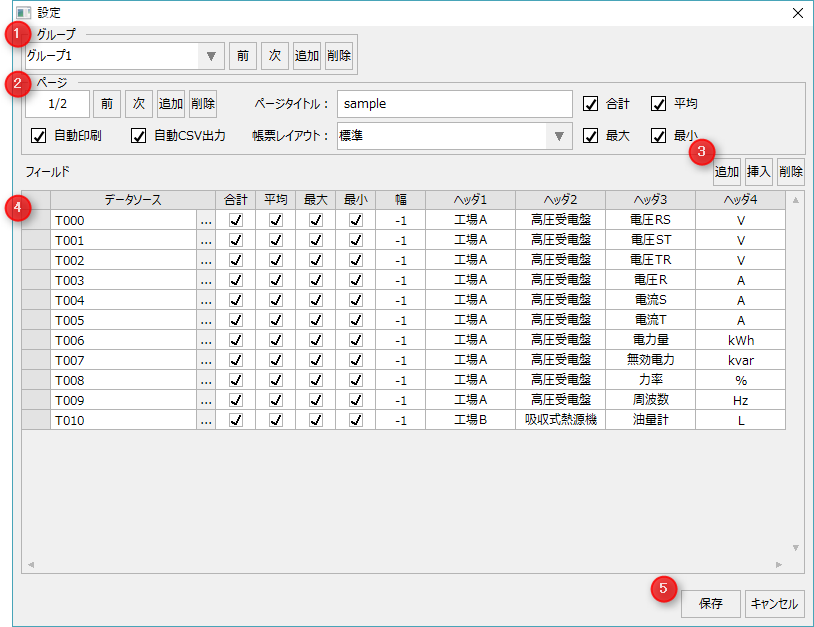
This is the settings screen for registering the data source to be displayed on the form. You can edit the form page settings and column settings for each page while the system is in operation.


form_summary_004


#

name

explanation

1

Group Operations


Group Name

Combo Box

Select the report group name you want to edit. You can edit the group name directly.

Previous / Next


Switches the registered report group name.

Addition/Deletion


Add/delete report groups. There is no limit to the number of groups.


2

Page Operations


Previous / Next


Switches the registered page.

Add a page


Add a page. There is no limit to the number of pages that can be set in one report group.

Delete page


Delete the page.

Automatic printing

Specifies whether the page is to be automatically printed. To automatically print, you must register PRINTREPORT in the Panel Server event.


The following Scheduled event is set in advance in the sample. For details about the format of the execution parameters, see "Event Settings" in the Summary Action Reference.


Scheduled event name

Default setting date and time

Action execution parameters

PRINTREPORT_DAY

Everyday at 00:05

PRINTREPORT(reportmaster.csv,DAY,

DAY-1D,DAY,-1,-1,,F,0,F,1)

PRINTREPORT_MONTH

00:06 on the first day of every month

PRINTREPORT(reportmaster.csv,MONTH,

MONTH-1MO,MONTH,-1,-1,,F,0,F,1)

PRINTREPORT_YEAR

Every year at 00:07 on January 1st

PRINTREPORT(reportmaster.csv,YEAR,

YEAR-1Y,YEAR,-1,-1,,F,0,F,1)


Automatic CSV output

Specifies whether the page is to be automatically output to CSV. To print automatically, you must register CREATESUBREPORT in the Panel Server event.


The following Scheduled event is set in advance in the sample. For details about the format of the execution parameters, see "Event Settings" in the Summary Action Reference.


Scheduled event name

Default setting date and time

Action execution parameters

CREATECSV_DAY

Everyday at 00:10

CREATESUBREPORT(reportmaster.csv,csv_header2,

CSV\DAY\DAYSUB_[GROUPID2]_[PAGEID2]_%Y%m%d.csv,

DAY,DAY-1D,DAY,-1,-1,0,F,2)

CREATECSV_MONTH

1st of every month at 00:11

CREATESUBREPORT(reportmaster.csv,csv_header2,

CSV\MONTH\MONTHSUB_[GROUPID]_[PAGEID]_%Y%m%d.csv,

MONTH,MONTH-1MO,MONTH,-1,-1,0,F,2)

CREATECSV_YEAR

Every year at 00:12 on January 1st

CREATESUBREPORT(reportmaster.csv,csv_header2,

CSV\YEAR\YEARSUB_[GROUPID]_[PAGEID]_%Y%m%d.csv,

YEAR,YEAR-1Y,YEAR,-1,-1,0,F,2)


Page Title


Sets the title of the page.

Form Layout


Specifies the page layout. The layouts that can be specified are set in the "_LayoutType" custom property.

Aggregate value


Select the aggregate values you want to include on the page.


3

Report field operations


field

addition

Add a report field. There is no limit to the number of report fields that can be set on one report group page.

field

Insert

Insert a form field.

field

delete

Delete the report field.


4

Report Field List


Data Source

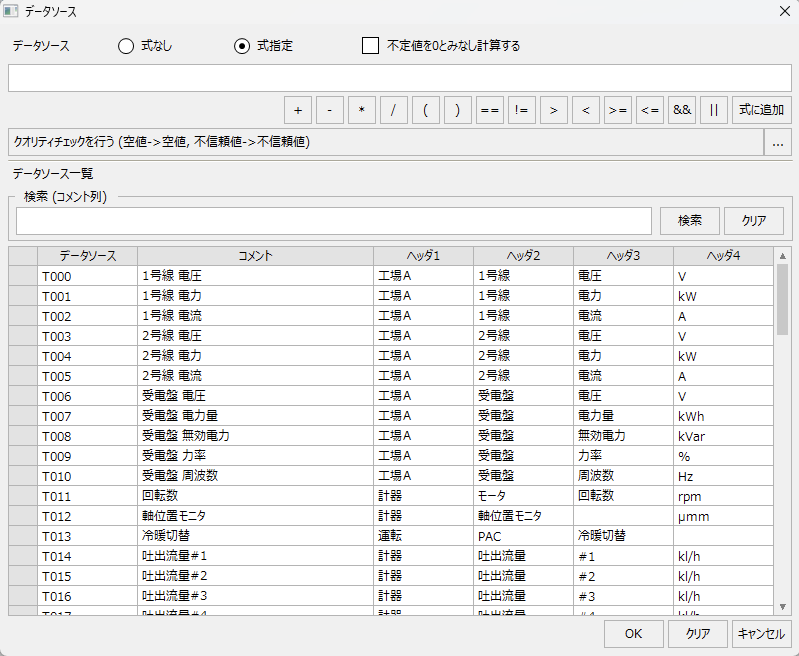
Specify the data source of the form field. Press the button to open the data source settings.


form_summary_005


If you select No Expression, you can assign one field.


form_summary_010


If you select the formula specification, you can specify an arithmetic expression, such as arithmetic operations. An arithmetic expression can also be used to calculate multiple fields.

If you check "Consider undefined values as 0 and perform calculations", if the value of the field is undefined (NULL value), it will be calculated as 0.

For more information about field calculations, see "Using the Field Calculation Function."


form_summary_007


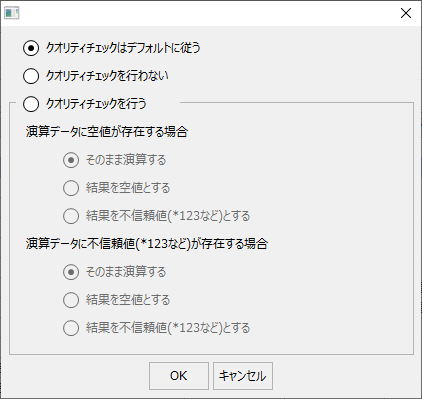
Click the button below to display the setting screen for quality check during calculation.


form_summary_008


The quality check settings screen allows you to set the conditions for the quality check.


form_summary_009


For more information about the quality check function, see "Using the quality check function".


Sum/Average/

Max/Min

Set whether to display the summary value for each form field.

width

Sets the display width of the form data list on the screen. -1 displays it at the default width.


Header 1-4

Sets headers 1-4.


5

keep/
Cancel


keep

Saves the current edits and closes the settings screen.


cancel

Cancels and closes the current edits.