overview
The alarm function of FA-Panel has the "Alarm server (ODBC)" action.
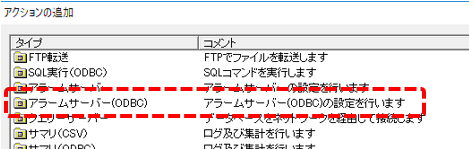
By using this action, alarm data can be saved to a table in a database via ODBC, instead of saving in CSV file format.
For information on building alarm functionality using Alarm server (ODBC) actions, see the content below.
content |
overview |
Change the standard framework's Alarm server from CSV to ODBC
|
The alarm function of the standard project built using the standard framework uses Alarm server (CSV). The content on the left explains the procedure for changing the alarm function of the standard project from CSV to ODBC.
The sample content on the left includes a SQL file (DDL) for creating tables for each DBMS that is compatible with Alarm server (ODBC). Please use this as a reference for the data types to be used in the tables of the desired DBMS.
|
Add an alarm field to a DB-based alarm
|
Alarm server provides a function to include and save the value of any tag in an alarm message. The content on the left uses an example to explain how to use Alarm server (ODBC) to include tag values of various data types, such as numeric types (integers, floating point), character types, and bit types, in an alarm message and save them in a database.
As mentioned above, the sample content on the left includes SQL files (DDL) for creating tables for each DBMS. Please use them as a reference when creating tables in the desired DBMS.
|
|
The names of data types of fields defined in the table on the database side (for example, "INT", "INTEGER", "NUMBER", "FLOAT", "DOUBLE", etc.) vary depending on the type of DBMS. For actions that require you to manually create a table in advance, such as Alarm server (ODBC), you must define the table appropriately on the connected DBMS side. For recommended data types for each connectable DBMS, see "Setting up a connection to the database" in the Appendix. |

|
For actions that connect to a database, you must configure the data source from the ODBC settings screen for each action. ODBC settings can be configured using common operations for each DBMS. For instructions on configuring ODBC settings, see the description in "ODBC Settings" in the common settings for actions. |
|
The latest information on supported database types, versions, etc. can also be found in the FAQ on our website, "What database products are supported?". |