What is an alarm summary/alarm history?
An alarm is a general term for a warning monitoring function that notifies an operator that an abnormality has occurred in monitored equipment, such as when a breakdown occurs in the monitored equipment or when values such as temperature, pressure, or water volume differ from normal values.
Generally, monitoring and control systems require the ability to display currently occurring alarms on screen, to sound an alarm when an alarm occurs, and to search and display the history of alarms that have occurred.
Below are some specific examples based on the standard framework.
|
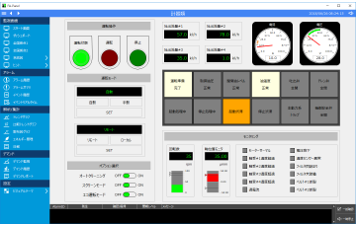
On the normal monitoring screen, operators can display various graphic screens, trend graphs, report screens, etc. according to their purpose to operate the target equipment and check the operating status of the facilities.
In this way, you will not notice the alarm during normal times.
|
|
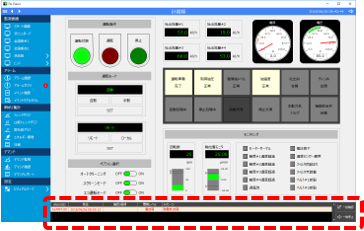
When an alarm occurs, the currently active alarm will flash at the bottom of the screen and an alarm will sound to immediately notify you that an alarm has occurred.
Here, the mechanism for displaying currently occurring alarms is called the "alarm summary."
|
|
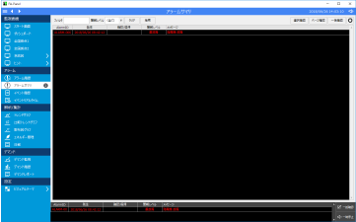
Selecting Alarm Summary from the menu on the left side of the screen will display the Alarm Summary screen in the main area. From this screen, you can understand the alarm occurrence status, confirm the alarm, and perform various other operations.
|
|
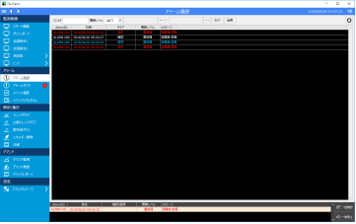
When you select Alarm History from the menu on the left side of the screen, the Alarm History screen will be displayed in the main area. From this screen, you can check the history information of alarms that have occurred in the past.
|
Alarm Summary Screen
The function that displays currently occurring alarms in a list format is called "alarm summary."
The alarm summary provides the following information:
•What alarm occurred and when?
•What alarms are currently occurring? (Are they still occurring or have they already been resolved?)
•Importance of the alarm that occurred (alarm level)
The alarm summary of the standard framework has a common area at the bottom of the screen and an alarm summary screen in the main area. The common area is displayed on all screens, so the operator will not miss the occurrence of an alarm even when a screen other than the alarm is displayed.
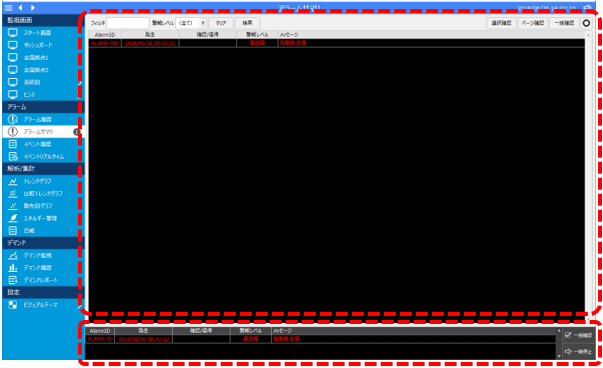
When an alarm occurs, the alarm summary at the bottom of the screen will look like this:

In the above, the "Message" column displays the alarm message (warning content), while the "Occurrence" column displays the date and time the alarm occurred. Additionally, the "Warning Level" column displays the importance of the alarm that occurred. Additionally, the "Acknowledge/Recovery" column is blank, and the line displaying the target alarm flashes to indicate that the alarm is still occurring.
An alarm is considered to have "occurrence" and "recovery", where an alarm is considered to have "occurred" when the detection conditions for the alarm are met, and "recovery" when the detection conditions are no longer met. The date and time when an alarm occurred or recovered is recorded in the alarm summary and history.
■ How to check an alarm
When an alarm occurs on a monitored facility and causes the facility to stop, it is necessary to identify the alarm that caused the facility to stop. However, some alarms occur only for a moment and then immediately return to normal. In the case of such types of alarms, if the alarm immediately disappears from the alarm summary display due to the return of the alarm, the operator will not be able to know what happened.
Therefore, a function is required to keep an alarm displayed in the alarm summary until an operator acknowledges it. This function is called "alarm acknowledgment." The alarm function of FA-Panel allows you to individually define whether or not each alarm is "acknowledged."
In the alarm summary of the standard framework, when an alarm defined as "acknowledged" is restored in an unacknowledged state, the alarm summary will display the alarm restoration date and time in the "Acknowledged/Restored" column and will be displayed in a flashing light blue color, as shown below.

Then, by clicking the "Confirm all" button at the bottom of the screen, all returned and unacknowledged alarms will be marked as acknowledged and will disappear from the alarm summary list.

On the other hand, if an "acknowledged" alarm is occurring (and has not yet been restored) and you click the "Confirm all" button at the bottom of the screen, the confirmation date and time will be displayed in the "Acknowledged/Restored" column and the display color will change from flashing to lit.

If the alarm subsequently resolves, it will automatically disappear from the alarm summary list since it was previously acknowledged.

Alarm History Screen
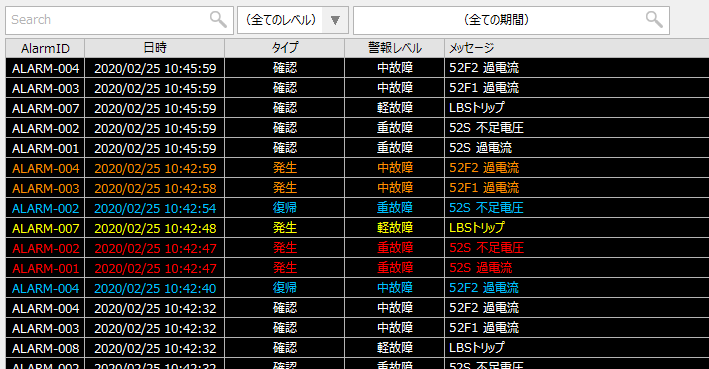
Alarm history is a function that displays past history information such as alarm occurrence, recovery, and confirmation in a list format. For example, when multiple alarms occur, you can find out which alarm caused other alarms to occur in a chain reaction by checking the order in which the target alarms occurred from the alarm history. You can also search to find out what alarms have occurred in the past on a target device.
In the alarm history of FA-Panel, it is possible to display the alarm message, warning level, as well as the date and time of occurrence, recovery, and confirmation in chronological order, so that you can know when the target alarm occurred, was recovered from, or was confirmed. You can also narrow down the history information of alarms that occurred in the past by specifying any character string in the filter, or search by specifying a date range.
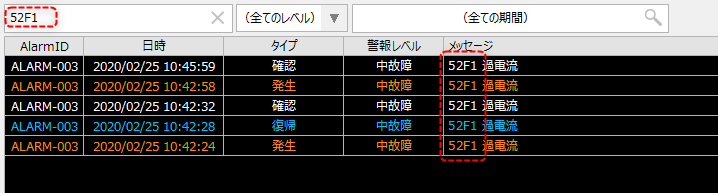
For example, if you have the following history displayed and want to narrow down the search to only alarms that contain "52F1" in the message, enter "52F1" in the filter and perform a search.
The list was then narrowed down to only alarm histories that contained "52F1" in the message.
You can also select a range by date and narrow down the results by alert level.