overview
Demand report page settings (point registration) are done from the settings screen while the client is running.
The operation to register groups, pages, and points in the demand report can be performed in the same way as in the daily report screen. For details on the page setting operation in the daily report screen, please refer to "Registering points in the daily report (page setting)".
The following instructions are specific to demand reports only.
Form layout settings
■ Report layout for demand reports
The report layout can be selected from the demand report settings screen.
The form layout can be selected from the following combo box.
The standard project comes with two pre-defined layouts: "Standard" and "Demand".

For information on the form layout of the demand report, please refer to "Form layout of the demand report".
■Setting automatic printing and automatic CSV output
Demand reports can also be automatically printed or output to CSV format. This setting can be made for each page.
Checking the following check boxes will enable automatic printing and automatic CSV output.

Furthermore, the above automatic processing is carried out by Scheduled event registered on the Panel Server side.
If you want to change the time when automatic processing occurs, you can do so by changing the date and time of Scheduled event.
(Scheduled event settings screen)
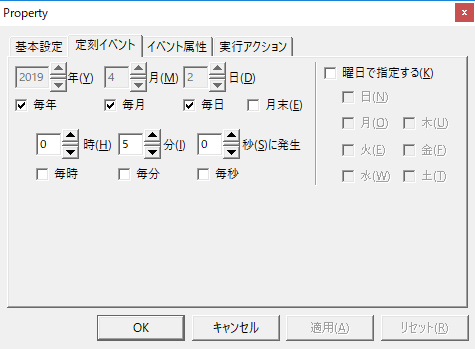
In addition, in the standard project, the following Scheduled event is registered in the event "DemandSummary" folder to call the "DemandSummary" action at the time of automatic printing processing.
What happens |
Scheduled event name |
Default setting date and time |
Parameters of the Run Event action |
Automatic daily report printing |
PRINTREPORT_DAY |
Everyday at 00:05 |
PRINTREPORT(reportmaster.csv,DAY,DAY-1D,DAY,-1,-1,,F,0,F,1) |
Automatic monthly report printing |
PRINTREPORT_MONTH |
00:06 on the first day of every month |
PRINTREPORT(reportmaster.csv,MONTH,MONTH-1MO,MONTH,-1,-1,,F,0,F,1) |
Automatic printing of annual reports |
PRINTREPORT_YEAR |
Every year at 00:07 on January 1st |
PRINTREPORT(reportmaster.csv,YEAR,YEAR-1Y,YEAR,-1,-1,,F,0,F,1) |
Daily report CSV automatic output |
CREATECSV_DAY |
Everyday at 00:10 |
CREATESUBREPORT(reportmaster.csv,csv_header2,CSV\DAY\DAYSUB_[GROUPID2]_[PAGEID2]_%Y%m%d.csv,DAY,DAY-1D,DAY,-1,-1,0,F,2) |
Monthly report CSV automatic output |
CREATECSV_MONTH |
1st of every month at 00:11 |
CREATESUBREPORT(reportmaster.csv,csv_header2,CSV\MONTH\MONTHSUB_[GROUPID]_[PAGEID]_%Y%m%d.csv,MONTH,MONTH-1MO,MONTH,-1,-1,0,F,2) |
Annual report CSV automatic output |
CREATECSV_YEAR |
Every year at 00:12 on January 1st |
CREATESUBREPORT(reportmaster.csv,csv_header2,CSV\YEAR\YEARSUB_[GROUPID]_[PAGEID]_%Y%m%d.csv,YEAR,YEAR-1Y,YEAR,-1,-1,0,F,2) |
|
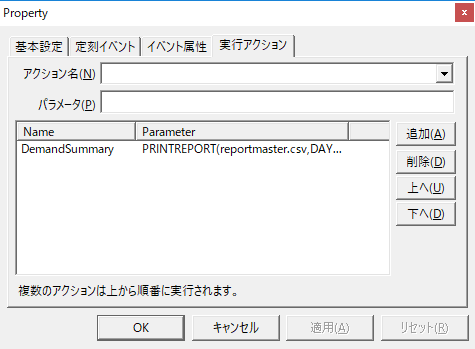
To use the automatic printing and automatic CSV output features, the above events must be registered in Panel Server. If the event is not registered, manually add Scheduled event, specify the "DemandSummary" action in the event execution action specification, and specify the above "Event execution action parameters."
(Execution Actions tab)
|