Demand monitoring screen operation
This section describes how to operate the demand monitoring screen.
|
For details about the items displayed on the demand monitoring screen, see "Demand Monitoring" in the screen library. |

■ Demand monitoring selection operation
Select the demand monitoring target from the combo box below. If multiple demand monitors (demand actions) are registered, you can select and switch between them from here.

■ Show/hide the settings menu
|
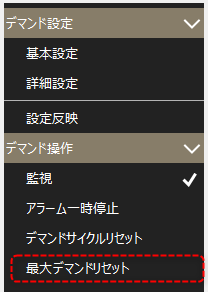
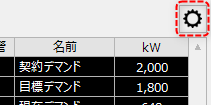
Click the settings icon (gear) displayed in the upper right corner of the demand monitoring screen to show/hide the settings menu.
Various operations on the demand monitoring screen are performed from this menu.
|
■ Displaying the basic settings/detailed settings screen
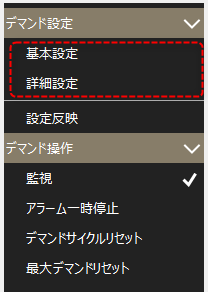
Click the following from the settings menu to display the settings screen.
|
There are two types of settings screens: "Basic Settings" and "Advanced Settings". The basic settings screen contains only important settings. The advanced settings screen allows you to configure all settings.
For details on setting up demand monitoring, please refer to "Setting up demand monitoring (advanced demand settings)".
|
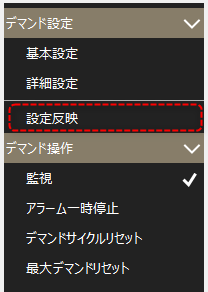
■ Setting reflected
This operation is used to immediately reflect settings when you change them from the settings menu.
|
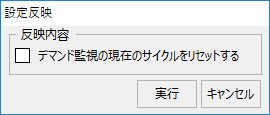
When you click "Reflect Settings" from the menu, the following confirmation dialog will be displayed.
If you want to reset the current demand monitoring cycle itself, check the box above and click Execute. If you want to maintain the display of the forecast line of the current monitoring cycle, leave the box unchecked and execute.
|
■ Stopping demand monitoring
|
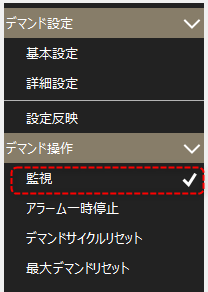
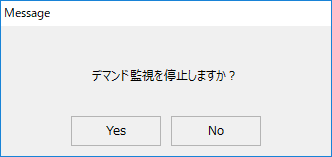
Clicking the "Monitoring" check box in the settings menu will stop the current demand monitoring. Clicking the menu again will resume monitoring.
When you stop the operation, the following confirmation dialog will be displayed.
|
When demand monitoring stops, the lamp display in the upper left corner of the screen will change to "Stopped" as shown below.

|
The function to stop demand monitoring is provided in anticipation of cases where you want to temporarily disable demand monitoring during equipment maintenance, etc. Monitoring will remain disabled until you resume it, so please use this operation with care. |
■ Pausing the alarm
|
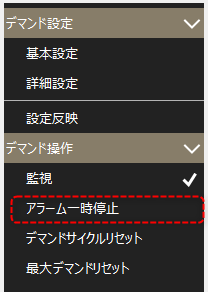
You can pause any currently occurring demand warning by clicking "Pause Alarm" from the settings menu.
If you pause while an alarm is occurring, the currently occurring alarm will be restored. If you cancel the pause when the demand monitoring forecast status is in an alarm state, the alarm will occur again at the update cycle when the graph is refreshed.
|
■ Resetting the demand cycle
|
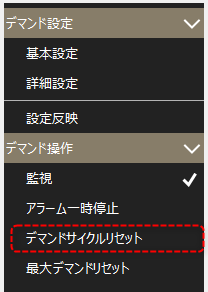
Clicking "Demand Cycle Reset" from the settings menu will reset the demand cycle currently being monitored.
When a reset is performed, it will immediately reset the current demand monitoring status and restart monitoring from the beginning of the demand cycle.
|
■Resetting maximum demand
|
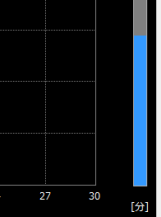
Clicking "Maximum Demand Reset" from the settings menu will reset the maximum demand bar graph display.
(Maximum demand displayed on demand graph)
|