overview
Conversion coefficients are registered from the coefficient registration screen. This must be done from the settings screen while the monitoring system is running.
The following explains how to register coefficients. Please note that the following operations should be performed while both Panel Server and Panel Browser are running online.
•Display coefficient registration screen
•New registration of conversion factor
•Copy of conversion coefficients from other years
|
"Energy Management in Practice" provides a sample of a typical setting example. The sample has conversion coefficients registered, so you can use it as a reference when actually using it. |

|
The flow of the energy management conversion process is described in "Energy types and conversion process". |
Display of coefficient registration screen
Energy types are registered on the Energy Type Registration screen.
This setting screen can be called up from the Energy Management screen menu.
To display the menu, click the settings icon (gear icon) in the top right corner of the screen.
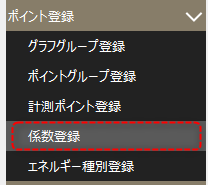
From the menu displayed on the right side of the screen, open "Point Registration" and select "Coefficient Registration."
The settings screen is displayed.
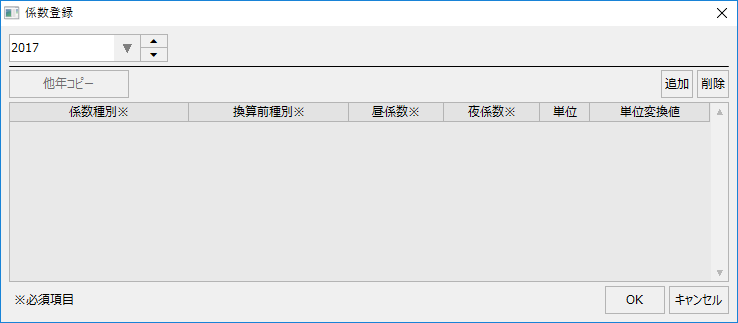
New registration of conversion factor
When registering conversion coefficients, you register the coefficients, units, and unit conversion values to convert the amounts of each energy type (electricity, gas, heavy oil, water, etc.) into the desired units.
Below is the state where nothing has been registered yet.
■Select the year
Conversion coefficients are registered on a yearly basis. By using the up and down buttons below, you can change the target year in the combo box.
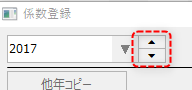
If a conversion factor has already been registered, you can select it from the combo box.
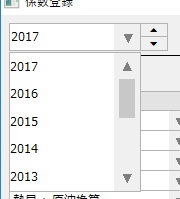
■ Editing conversion factors
To add a conversion factor, click the Add button.
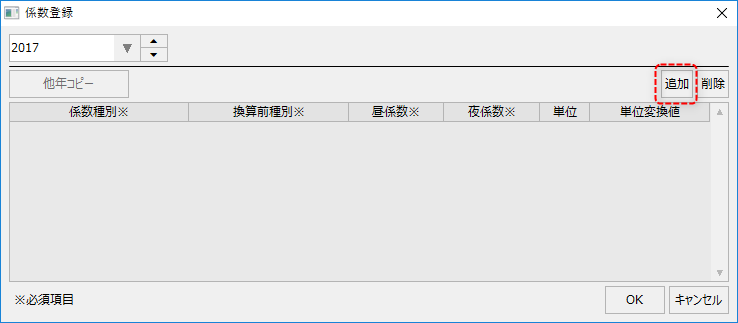
A new row will then be added to the list.

First, select the coefficient type. Select the coefficient type from the combo box in the list.

The type you select here is either conversion from usage to heat, conversion from usage to CO2, or conversion from heat to crude oil.
Next, select the type of pre-conversion. Select the type of pre-conversion from the combo box in the list.

The combo box displays a list of the energy types you have registered. Select the energy type to be converted.
Next, register the coefficients. You can enter coefficients directly by double-clicking the target cell to make it editable.

You can specify the day coefficient and the night coefficient separately. If you do not separate day and night in the daily report aggregation, or if the day coefficient and the night coefficient are the same value, please register the same value for both.
When you enter a day coefficient, the value you entered is automatically displayed in the night coefficient. If you want to set a different value for the night coefficient, edit the night coefficient.
Next, register the units. Units can be entered directly by double-clicking the target cell to make it editable.
The units specified here will be used for display on the graph.

Next, register the unit conversion value. Units can be entered directly by double-clicking the target cell to make it editable.

This setting is used when you want to convert the display unit according to the number of digits of the numerical value when displaying the energy management graph. When specifying multiple values, separate them with a ";" (half-width semicolon).
You can specify it as follows:
Example: Heat conversion
If you specify "J" as the unit and set the unit conversion value to "M=1;G=1000;",
A value of 1 will be displayed as "MJ" and a value of 1000 will be displayed as "GJ".
Example: CO2 conversion
If you specify "-CO2" as the unit and set the unit conversion value to "kg=1;t=1000",
When the value is 1, it will be displayed as "kg-CO2", and when it is 1000, it will be displayed as "t-CO2".
Example: Crude oil equivalent
If you specify "L" as the unit and set "k=1000;" as the unit conversion value,
A value of 1 is displayed as "L" and a value of 1000 is displayed as "kL".
Follow the above procedure to register the coefficients for the necessary conversion processing, one line at a time. When you have finished registering, click the OK button to save the settings.
Below is an example of registration.
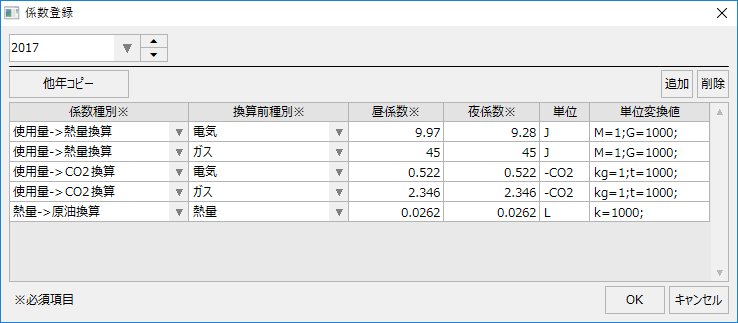
|
When displaying the energy management graph, it is also possible to display it in so-called "fiscal" units. The start month of the year can be changed on the energy management period setting screen.
(Period setting screen)
|
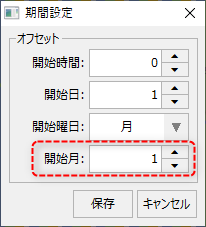
Conversion coefficients for other years
When registering conversion factors, you can copy them from other years' registrations.
In most cases, the conversion coefficients will be similar to those of the previous year. When registering a new year, you can quickly register by copying the data from the previous year.
To copy from another year, follow the steps below.
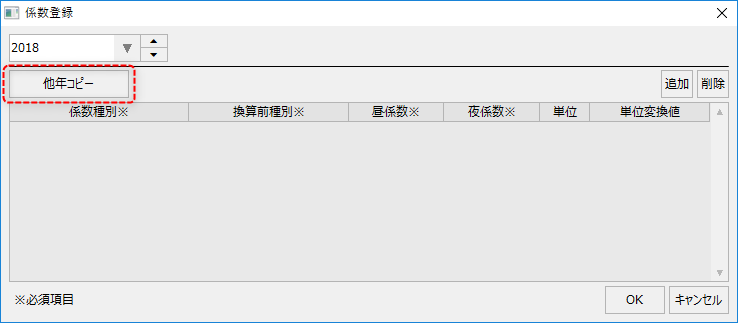
Below is the state where nothing has been registered yet. To copy from another year, click the "Copy from other year" button.
The following selection screen will then be displayed.
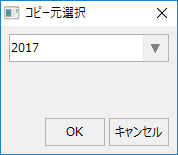
In the above example, the year 2017 is selected. To copy, select the year to copy from and click the OK button.
The copy has been completed. If necessary, edit the coefficients that need to be changed.
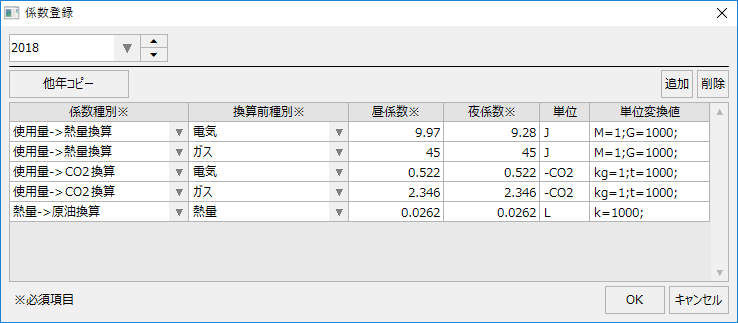
Be sure to click the OK button at the end to save.