Creating a new standard project
The following explains how to create a new project that includes the demand monitoring function by using the wizard function of the standard framework.
For detailed instructions on creating a standard project using the wizard, please refer to "Creating a Standard Project".
|
The standard project comes with samples, which you can open in Panel Editor. For more information on how to open the samples, see "Frame Library Help/About the Samples". |

■ Work procedure
1.From the start page, select "Create a new project"
From the Panel Editor start page, click "Create New Project."
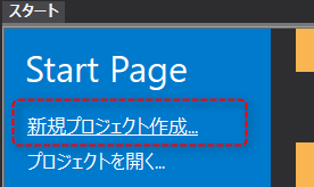
2.Select the standard framework and open "Create"
Click "Standard Framework" from the list displayed on the start page, and then click the "Create" button displayed at the bottom of the screen.
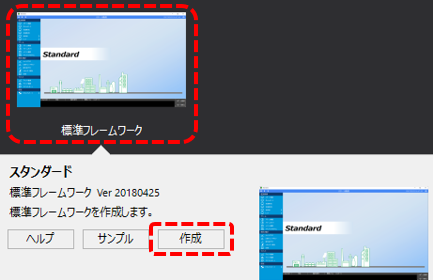
3.Setting the display style of the project's basic information and display frame
Follow the on-screen instructions to set basic project information (project name, project folder, etc.).
4.In Select standard features to include in your project, select the features you want.
You can select the features you want to include in your project from the selection screen below.
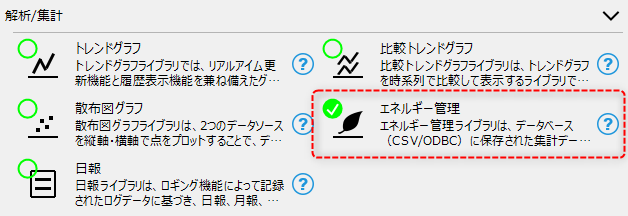
You can include the features you want to include in your project by checking the boxes next to them.
(enabled state)
|
(Disabled state)
|
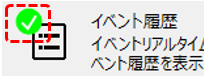
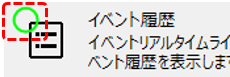
In this example, check "Energy Management" and click the Finish button.
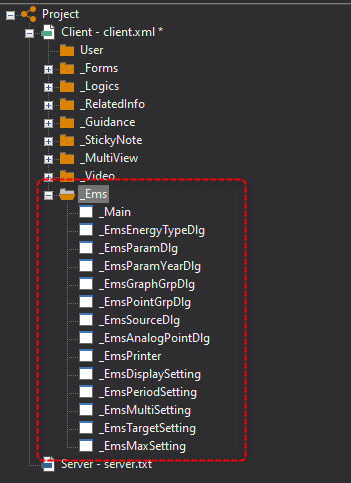
If you view the automatically generated project in the Panel Editor workspace tree, you can see that it contains the following folders:
|
_Ems...Energy management screen
|
5.Setting the connection summary name
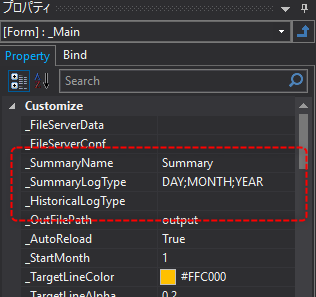
If necessary, change the settings such as the summary name to be connected from the energy management screen.
|
Settings such as the connection destination are made in the following custom properties of the main form "_Main" on the energy management screen.
|
Server settings for standard projects
The standard project generated by the above procedure has the following summary action "Summary" defined by default.
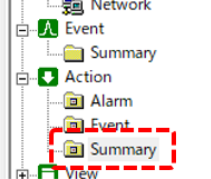
And in the "Summary" folder under events, an Scheduled event called "LOG" is registered as an event to call the above.
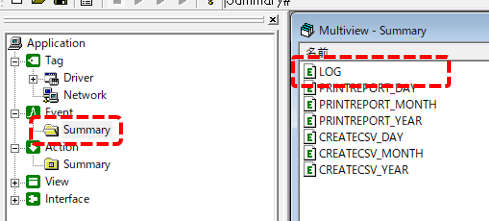
The method for building these actions and events is similar to building a daily report using summary actions.
For information on how to build the daily report function, please refer to "Building the daily report function".