overview
In a monitoring screen system, you may want to display image data, such as photographs of the actual equipment or perspective drawings, in the background of the screen.
Here, we will introduce the following two methods.
content |
overview |
This involves setting an image to Image control and placing it at the back.
|
|
This is how to specify an image file as the form's background image (ImageFile property).
|
Background display using Image control
The advantages of this method are that you can easily and directly edit the background image's position, size, etc., that you can place multiple images in the background at the same time (for example, if you want to display different images on the left and right halves of the screen), and that you can easily control whether the image is shown or hidden while the application is running by using the control's Visible property.
1.Paste Image control
On the target form, paste Image control at any size you want the background to appear at.
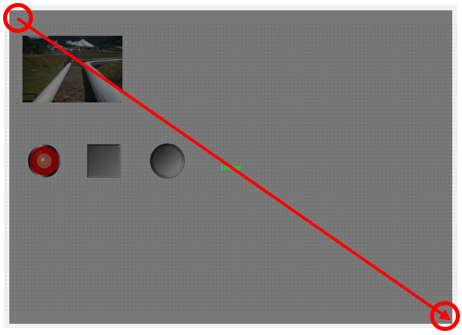
After pasting Image control, move the image object to the back in the display order.
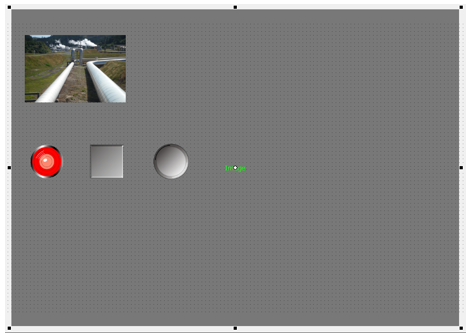
2.Set Image control
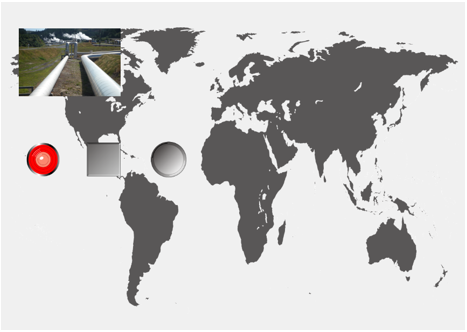
Specify the path of any image file in the image path (FileNormal property) of Image control.
As an example, an image file of a world map is specified here.
3.Locking Controls
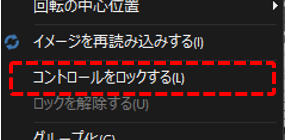
In the above state, when editing other objects in Panel Editor, the background Image control may be unintentionally selected, interfering with your editing. In such cases, you can exclude the control from selection by locking it.
To lock a control, right-click on the control to display a menu, and select "Lock Control" from the menu.
Specify a background image for the form
You can display an image as the form's background by specifying the image in the form's ImageFile property.
1.Edit form properties
Double-click anywhere on the desired form to display the settings dialog.
In the dialog that appears, if you specify an image file in "Image" (ImageFile property) under "Basic Settings," the specified image will be displayed as the background of the form.
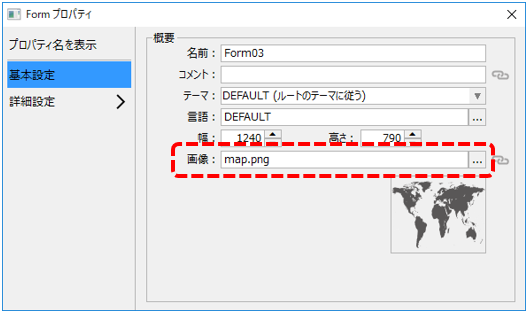
The image will now be displayed across the entire background of the form.
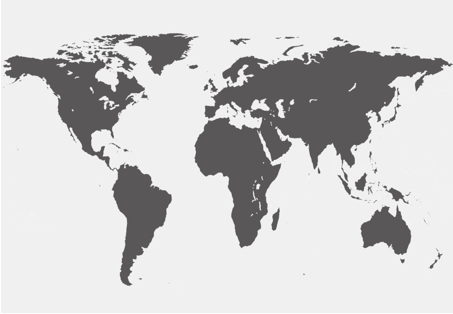
Furthermore, if you want to specify margins on the top, bottom, left, and right of the form's display area, you can display the background image with margins by using the form's ImageSpaceTop, ImageSpaceBottom, ImageSpaceLeft, and ImageSpaceRight properties.