Displaying images using standard controls
This article provides a brief overview of how to display image files using standard controls.
The standard controls include several parts that support image display.
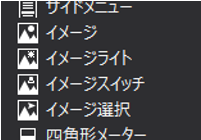
This section introduces examples of using the following three controls.
content |
overview |
Use this when you want to display a single image file.
|
|
Two image files are switched and displayed depending on the conditions.
|
|
Up to 10 images can be displayed by switching them according to conditions.
|
|
Detailed specifications for each control are described in "Control Reference". |

Image display by Image control
This article explains the steps to display image files using Image control.
1.Paste Image control
From the control view displayed on the right side of Panel Editor, select Basic > Image and paste it anywhere on the form.
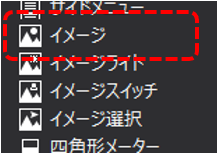
I have pasted Image control.
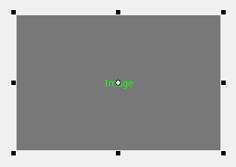
2.Configure the image
Double-click Image control to display the settings dialog and specify the path of the image file you want to display as the Image Path (FileNormal property).
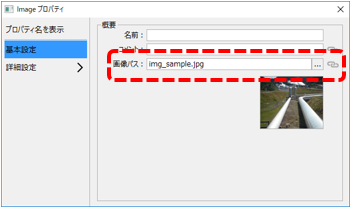
Then the specified image was displayed.

In this way, you can easily display images by using Image control.
Furthermore, the size of the displayed image will be automatically enlarged or reduced to fit the size of the Image control pasted into the form.
If you want to display the image at the original size, change the size of Image control to match the size of the image file.
Image display by Image light control
This article explains the steps to display image files using Image light control.
1.Paste Image light control
From the Control View, select Basic > Image Light and paste it anywhere on the form.
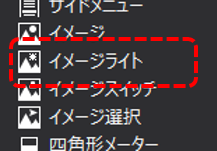
I have pasted Image light control.

2.Setting the image light
Double-click the image light attached to the form to display the settings dialog, and specify the paths of the image files in the ON Image Path (FileOn property) and OFF Image Path (FileOff property).
As an example here, we have specified "img_lamp02.png" as the ON image and "img_lamp01.png" as the OFF image.
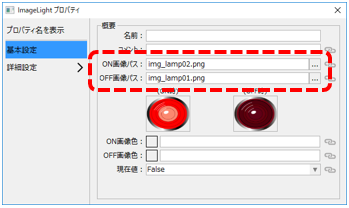
The specified image (OFF image) has been displayed.

The image light switches between the ON image and the OFF image depending on the "current value" (LightValue property).
Change the current value to True/False in the settings dialog and confirm that the image changes according to the value.
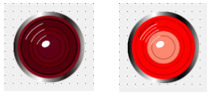
Furthermore, by binding a tag to the "current value" of Image light control (the LightValue property), you can automatically switch the image display depending on the tag value (False/True).
Image display by Image select control
This article explains the steps to display image files using Image select control.
1.Paste Image select control
From the Control view, select Basic > Select Image and paste it anywhere on the form.
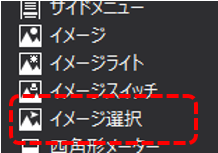
I have pasted Image select control.
2.Setting Image select control
As an example, we will set four images to Image select control.
Double-click the image selection pasted on the form to display the settings dialog, and specify the path of each image file for Image01 (File01 property), Image02 (File02 property), Image03 (File03 property), and Image04 (File04 property).
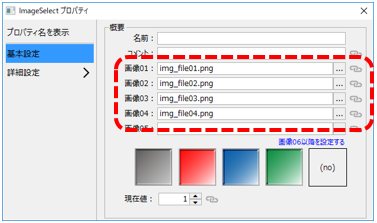
As an example, the following image is set.
•Image 01: "img_file01.png"
•Image 02: "img_file02.png"
•Image 03: "img_file03.png"
•Image 04: "img_file04.png"
The specified image will change depending on the value of the "Current Value" (SelectValue property).
Try changing the current value in the settings dialog between 1 and 4 and see how the image changes according to the value.
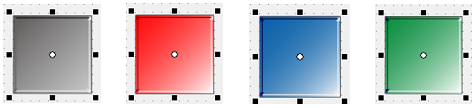
Furthermore, by binding a tag to the "current value" of Image select control (the SelectValue property), you can automatically switch the image display depending on the tag value (1, 2, 3, etc.).