overview
The Guidance Viewer can be displayed from a script such as a button placed on the graphic screen.
This section explains how to use the OpenDialog method or the OpenModalDialog method to display the desired guidance information in the Guidance Viewer.
(Example of displaying the Guidance Viewer from a form button)
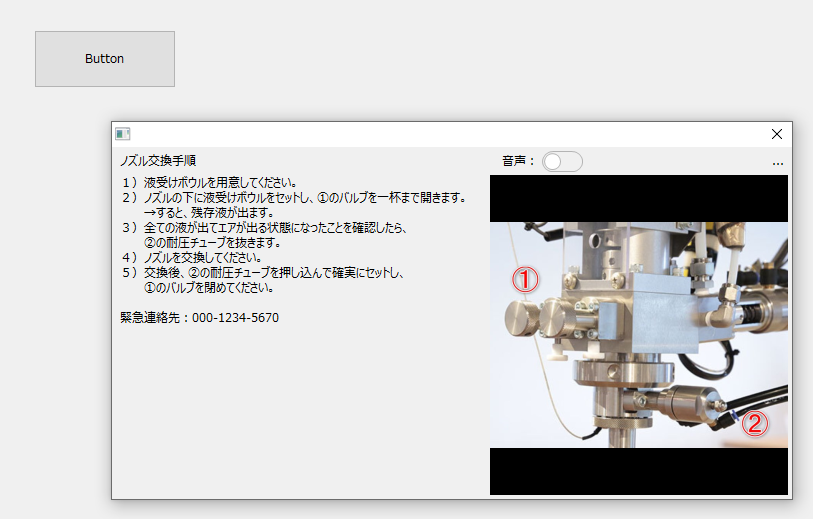
To pop up the Guidance Viewer, call the OpenDialog method or the OpenModalDialog method by specifying the following form name.
Target screen |
Call Form Name |
Guidance Viewer |
_Guidance._GuidanceViewer
|
In the OpenDialog and OpenModalDialog methods, you can specify open parameters in the third argument. By specifying a keyword or unique ID in the parameter, you can specify and display guidance that meets the conditions. Details of the open parameters of the guidance viewer are described in "Open Parameters".
KeyOpen guidance by specifying a keyword
If you specify a keyword in the open parameter "Key", you can open the guidance that matches the specified keyword. Guidance information that matches any one of the following will be displayed: tag, alarm ID, data source, or custom. If there are multiple targets, the first guidance found will be displayed.
The following is an example of how to code the OnMouseUp event for a button object.
Example: Open by specifying a tag keyword
To open a guidance information tag keyword by specifying it, write as follows. The following is an example where the tag path is set to "Samples.F06.NUM01".
When specifying a tag keyword, pass the keyword with "tag:" at the beginning.
// Example of opening by specifying tag keyword
event OnMouseUp(button)
{
	var vOpenParam = ::MAP(
				"Key", "tag:Samples.F06.NUM01"
				);

	this.OpenModalDialog("_Guidance._GuidanceViewer","",vOpenParam);
}
Example: Open by specifying an alarm ID keyword
To open a guidance information message by specifying an alarm ID keyword, write as follows. The following is an example where the alarm ID keyword "ALARM001" is set.
When specifying an alarm ID keyword, pass the keyword with "alarmid:" at the beginning.
// Example of opening by specifying alarm ID keyword
event OnMouseUp(button)
{
	var vOpenParam = ::MAP(
				"Key", "alarmid:ALARM001"
				);

	this.OpenModalDialog("_Guidance._GuidanceViewer","",vOpenParam);
}
Example: Opening a data source by specifying a keyword
To open a guidance information file by specifying its data source keyword, write it as follows. The following is an example where the data source keyword "Summary.RAW::T000" is set.
When specifying a data source keyword, pass the keyword with "datasource:" at the beginning.
// Example of opening by specifying a data source keyword
event OnMouseUp(button)
{
	var vOpenParam = ::MAP(
				"Key", "datasource:Summary.RAW::T000"
				);

	this.OpenModalDialog("_Guidance._GuidanceViewer","",vOpenParam);
}
Example: Open by specifying a custom keyword
To specify a custom keyword for guidance information to open, write as follows. The following is an example where the custom keyword "GD001" is set.
When specifying a custom keyword, there is no need to preface the keyword with anything; just specify the keyword as is and pass it through.
// Example of opening with a custom keyword
event OnMouseUp(button)
{
	var vOpenParam = ::MAP(
				"Key", "GD001"
				);

	this.OpenModalDialog("_Guidance._GuidanceViewer","",vOpenParam);
}
|
With the OpenDialog and OpenModalDialog methods, you can display a dialog by specifying various parameters such as the title of the dialog, its display size, whether it can be resized, etc. These parameters are passed in the second argument of the method, "systemParam". For details about systemParam, refer to the description of the relevant method in the Control Reference. |

Open guidance by specifying a unique ID
If you specify a unique ID in the open parameter "UniqueId", you can open the guidance with the specified ID.
The following is an example of how to code the OnMouseUp event for a button object.
Example: Opening by specifying a unique ID
To specify the unique ID of the guidance information to open, write as follows. The following is an example where the unique ID "UID0001" is set.
// Example of opening by specifying unique ID
event OnMouseUp(button)
{
	var vOpenParam = ::MAP(
				"UniqueId", "UID0001"
				);

	this.OpenModalDialog("_Guidance._GuidanceViewer","",vOpenParam);
}
Open the guidance as non-editable
If you specify FALSE for the open parameter "IsConfig", the guidance viewer's setting button will be hidden when it is opened. By hiding the setting button, you can open the guidance without being able to edit it.
(There is a settings button)
|
(No settings button)
|
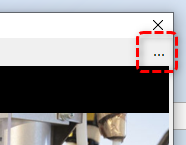
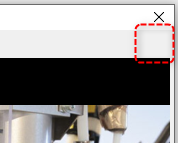
Below is an example of how to code the OnMouseUp event for a button object. In this example, a unique ID is specified to call the event, but if you specify a keyword to open the event, the event will also be displayed as uneditable.
Example) Open the guidance as non-editable
The following is an example where a unique ID "UID0001" is specified and the settings button is opened hidden.
// Example of opening guidance as non-editable
event OnMouseUp(button)
{
	var vOpenParam = ::MAP(
				"UniqueId", "UID0001",
				"IsConfig", FALSE
				);

	this.OpenModalDialog("_Guidance._GuidanceViewer","",vOpenParam);
}