overview
Standard projects come pre-installed with "Summary Actions," which are the logging and aggregation feature of FA-Panel. Summary Actions' logging and aggregation processes are run by being called from "Scheduled event," and the tag values are written to the log data when they are called from an event. Therefore, the cycle of the time series saved in the log data depends on the occurrence conditions of the event defined in the event that calls the summary action. Also, the Scheduled event that calls the summary action of the standard project is set to "every second," so logging occurs every second.
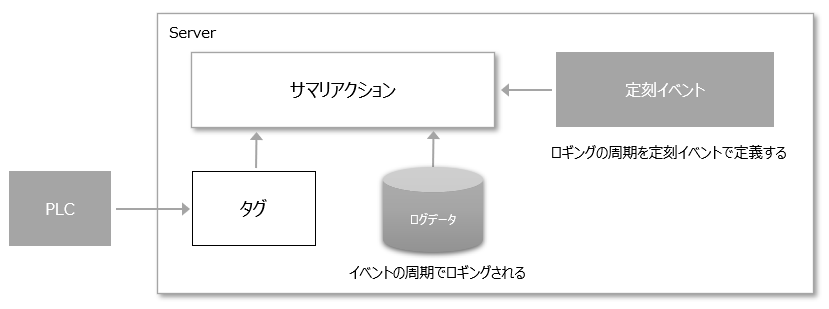
This article describes how to customize the logging cycle of summary actions.
Customization details
•Change the logging cycle to 1 minute (set the cycle for Scheduled event)
•Change the logging cycle to 10 seconds (set multiple Scheduled event)
Change the logging interval to 1 minute (set the interval for Scheduled event)
The following steps explain how to make changes to a standard project as an example.
■ Changing the settings of Scheduled event
1.Opening the Server Configuration File
From Panel Server, open the target project's "server.txt" (server configuration file).
2.Open the properties of Scheduled event "LOG"
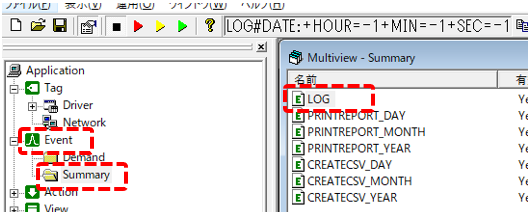
From the left tree of Panel Server, open the "Summary" folder under "Event".
A Scheduled event named "LOG" is pre-registered in the Summary folder.
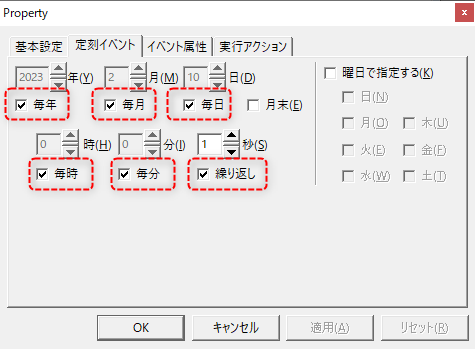
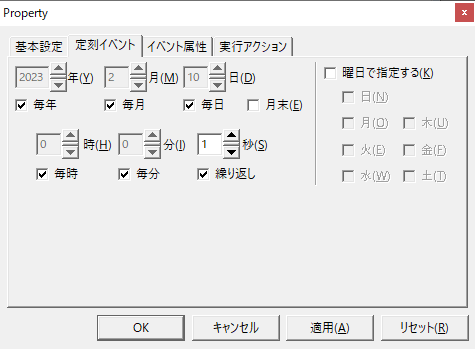
When you open the properties of LOG, you will see that the current settings of Scheduled event have Yearly, Monthly, Daily, Hourly, Minute, and Repeat checked, and "1 second" is set. This setting causes this event to occur every second.
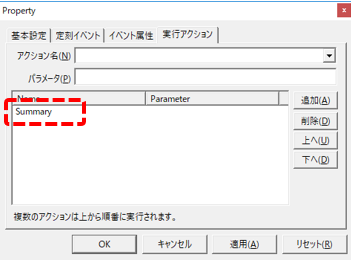
Additionally, if you view the Execution Actions tab for this event, you will see that the "Summary" action is registered. With this setting, Summary will be called every second, resulting in logging at one-second intervals.
3.Change the Scheduled event "LOG" settings
To change the logging frequency to 1 minute, set the settings on the Scheduled event tab to occur every minute.
In other words, just uncheck "Repeat" under Seconds on the Scheduled event tab.
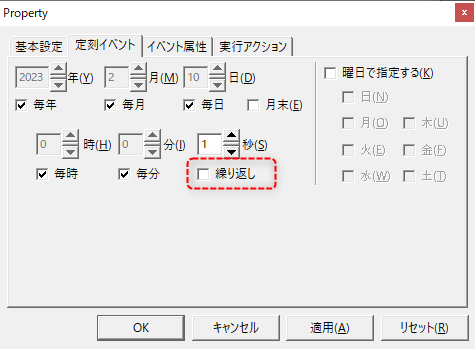
With this setting, events will occur every year, every month, every day, every hour, and at 0 seconds of every minute, resulting in logging in one-minute cycles (0 seconds of every minute).
Change the logging period to 10 seconds (define multiple events)
Next, we will introduce how to change the logging cycle of summary actions to 10 seconds.
■ Changing the settings of Scheduled event
1.Opening the Server Configuration File
From Panel Server, open the target project's "server.txt" (server configuration file).
In the standard project, Scheduled event "LOG" is registered, which occurs every second.
2.Change the Scheduled event setting
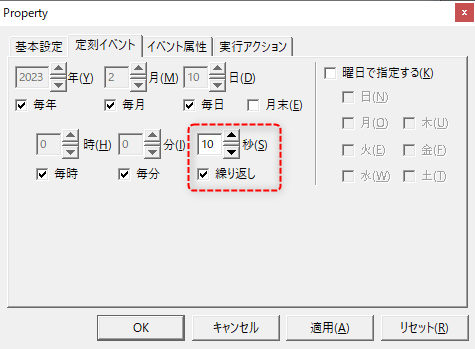
If you want to log at 10-second intervals, set the number of seconds in Scheduled event"LOG" to "10" and check "Repeat".
(Scheduled event settings screen)