Where to save the pen settings file
The pen settings for the Trend Graph screen and Comparative Trend Graph screen are saved in a pen setting file.
By default, the pen setting file is saved on the server side (Panel Server). This function allows you to share the pen settings of all clients when connecting from multiple clients at the same time to display trend graphs.
On the other hand, the pen settings can also be saved on the client side. If you want to use different pen settings on multiple clients, you can select this method.
The location where the pen settings are stored is defined by the following property:
(_Trend._Main form)
|
Save position (_PenFilePosition) You can choose SERVER (server) or CLIENT (client).
Local Path (_PenLocalPath) Specify the save folder. The default is "config".
File name (_PenFile) The file name of the pen settings file.
|
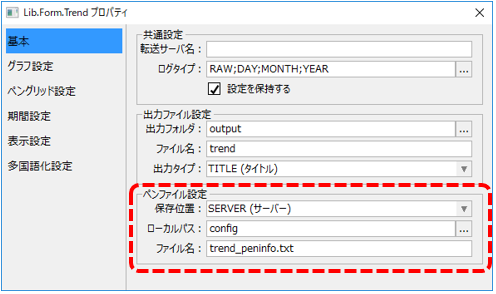
The pen setting file is saved in the following location:
If the save location is "SERVER"
(Project folder)\server_data\config\trend\trend_peninfo.txt
If the save location is "CLIENT"
(Project folder)\config\trend_peninfo.txt
Editing the pen configuration file directly
The trend graph pen setting file is a text file and can be edited using Notepad or similar.
Normally, pen registration is done from the pen settings dialog, but if, for example, you want to register a pen before starting operation of the system, you can do so by directly editing the pen settings file.
Below is the pen settings file opened in Notepad.
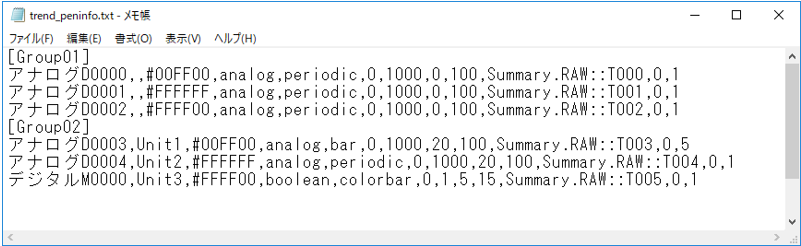
The pen setting file is written in the following format:
[Group name] Title, Unit, Display color, Data type, Plot type, Minimum value, Maximum value, Display lower limit, Display upper limit, Data source, Decimal digits, Size |
The display color is specified in RGB format. For example, red is "#FF0000".
If you want to set the initial display period, specify the number of seconds separated by a comma after the group name.
For example, if you want to set the initial display period for Group02 to 5 minutes (300 seconds), write it as follows.
[Group02,300]