overview
This section explains how to manually import the Panel Server side settings from the sample of the operation monitoring screen library.
In addition, for projects generated using the standard framework, the settings for the operation monitoring summary action (MachineStatus.Summary) and Server Script 2 action are usually pre-built in, so there is no need to import each setting manually.
The steps introduced here should be performed in the following cases:
•For your own projects that do not use standard frameworks.
•When using the standard framework, necessary action and event settings, or necessary settings such as shared folders have been deleted. (For example, when adding operation monitoring functionality after implementation.)
|
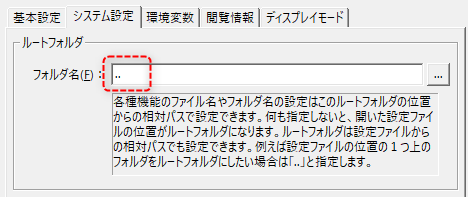
The steps introduced on this page assume that the root folder of the Panel Server application settings/system settings is set as follows. Also, when importing actions from a sample, the settings for each action are set with a relative path. This setting allows the project to continue working even if the folder name or folder hierarchy of the project folder changes. If you do not specify a root folder, such as when importing a screen library into your own project, make adjustments according to the project environment, such as making sure the relative path reference locations match, or defining the reference destination of each file with an absolute path. For details, see "System Settings" in the Panel Server application settings.
(system settings root folder)
|

Manually importing server settings
Below are the steps to manually import the Panel Server side settings from the screen library sample.
■ Work procedure
1.Open Panel Server
With the project you are currently working on open, right-click "server.txt" in the Panel Editor tree to display the menu, and select "Open Server" from the menu.
This will start Panel Server with the target server configuration file open.
2.Open the Screen Library sample
Select the library tab of the Panel Editor you are currently working in and select the "Operation Monitoring" thumbnail from the screen library.
|
When you select a thumbnail, a description of the screen library's functions will be displayed, so click the "Sample" button at the bottom.
|
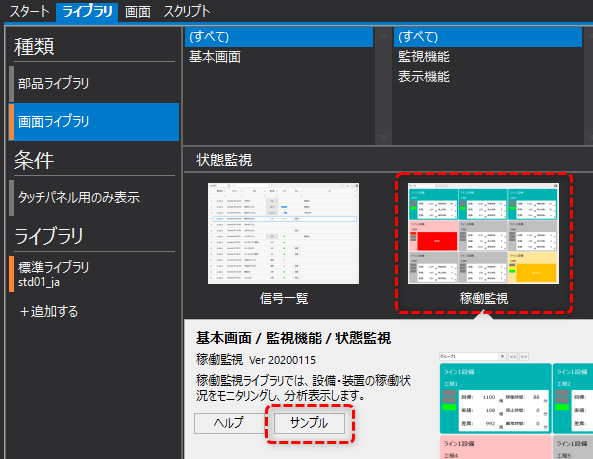
This will start a new Panel Editor separate from the Panel Editor you are currently using, with the sample project open.
3.Open the sample project's server configuration file in edit mode
Right-click on "server.txt" in the left tree of the newly opened Panel Editor to display the menu and select "Open Server (Edit Mode)."
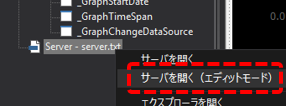
This will start another Panel Server in edit mode with the sample server configuration file open.
|
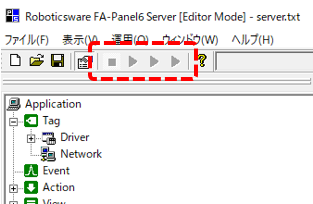
In edit mode on Panel Server, the various icons for online operations are in a dim state as shown on the left, and online operation cannot be performed.
By opening a sample server configuration file in this mode, you can copy settings such as actions and events between Panel Server.
|
|
Panel Server cannot be started multiple times at the same time in normal mode. You can start another one only if you open it in edit mode. |
4.Import "MachineStatus" related actions from the sample
First, arrange the windows so that both the Panel Server you are currently working on and the Panel Server with the sample open in edit mode are visible, as shown in the image below.
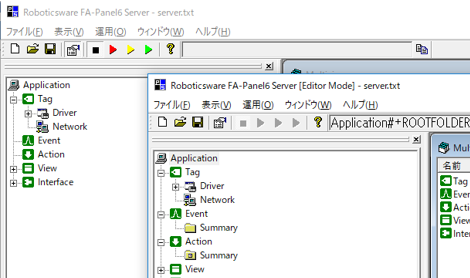
In this state, drag and drop the "MachineStatus" folder registered under the Action of the sample Panel Server onto the "Action" of the Panel Server you are currently working on.
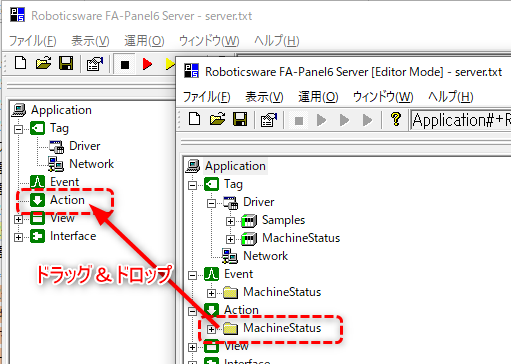
The required action folder will then be copied under Action on the Panel Server side you are currently working on.
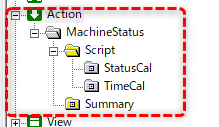
5.Capture "MachineStatus" related events from the sample
Next, we'll import the events we need.
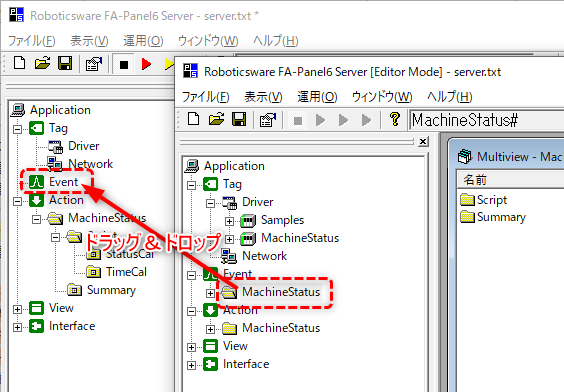
First, click and open "Event" on the sample Panel Server side. Several events will be registered under the "MachineStatus" folder registered under the event. These events are the events that call each action of the operation monitoring.
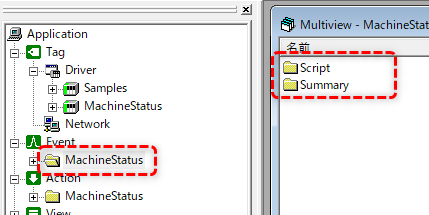
Similar to the procedure for importing the action, drag and drop the "MachineStatus" folder registered in Event of the sample Panel Server onto the "Event" of the Panel Server you are currently working on.
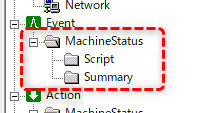
The target folder was then copied along with the event to the Panel Server event you were currently working on.
6.Get the units you need from the sample
Next, copy the necessary units from the sample project.
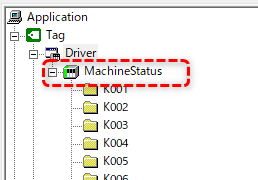
First, click and open "Driver" on the sample's Panel Server side. You will see a memory device unit called "MachineStatus" registered under Driver. This unit is required for the internal processing of operation monitoring.
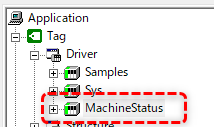
Similar to the procedure for importing the action, drag and drop the "MachineStatus" unit registered in the Driver of the sample Panel Server, along with the folder, onto the "Driver" of the Panel Server you are currently working on.
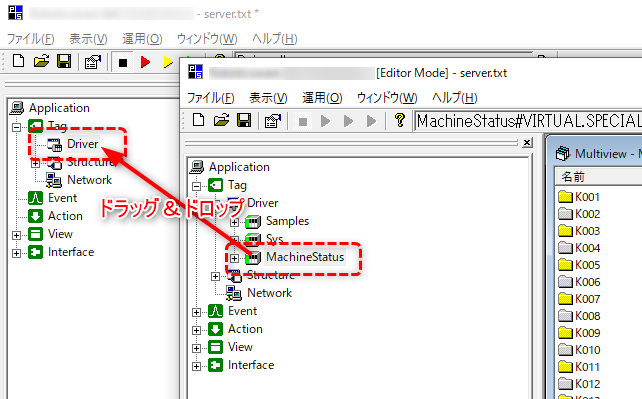
The "MachineStatus" unit was then copied to the Driver of the Panel Server you are currently working on.
7.Import the necessary folders from the sample
Next, copy the necessary files and folders from the sample project. In the Panel Editor where the sample project is open, right-click "server.txt" in the tree on the left to display the menu, and select "Open Explorer".
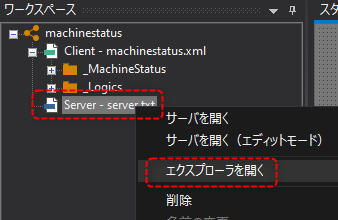
This will launch Explorer with the location where the sample server configuration file is stored.
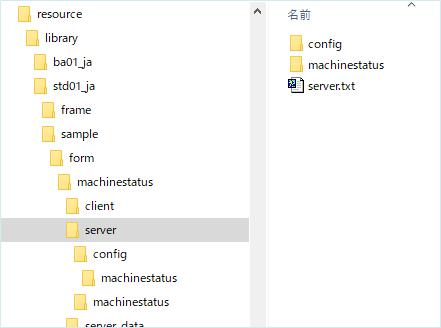
The folders that need to be imported here are the following two folders under the server folder of the sample project.
From Explorer,Copy each folder into the server folder of the project folder you are currently working on, so that they are in the same folder hierarchy.
"machinestatus" folder
"config\machinestatus" folder
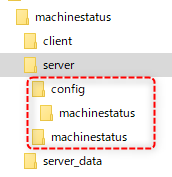
This completes the import of the necessary settings.
Server settings for operation monitoring
Below are the configuration steps on the Panel Server side required for the operation monitoring screen library.
■ Work procedure
This screen library requires that a public folder is set on the Panel Server side. In addition, browsing information must be set in the Application settings of Panel Server. Refer to the following procedure and set it if it has not been done yet.
1.Open Panel Server
2.Set up the public folder for Panel-Interface
Various setting information registered from this library screen is saved on the server side via the "public folder" defined in Panel Server's Panel-Interface. For operation monitoring, three definitions are required for the public folder name in Panel-Interface: "server_cnf", "server_data_cnf" and "server_data_cnf_readonly". If a public folder has not been created, please refer to the following to create a public folder from the Panel-Interface settings screen of Panel Server. For information on how to register a public folder, please refer to "Panel-Interface Basics".
(Panel-Interface public folder settings: server_cnf)
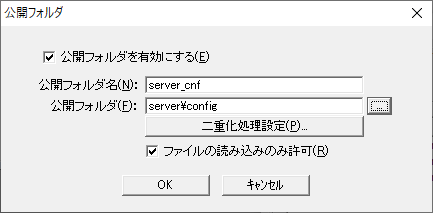
•Enable public folder: Check
•Public Folder Name: server_cnf
•Public folder: server\config
•Allow reading of files only: Check
(Public folder settings for Panel-Interface: server_data_cnf)
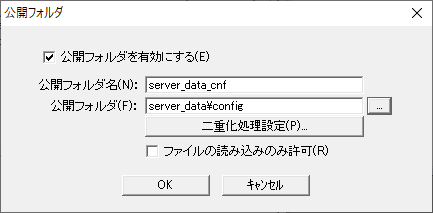
•Enable public folder: Check
•Public Folder Name: server_data_cnf
•Public folder: server_data\config
•Allow file reading only: Uncheck
(Panel-Interface public folder settings: server_data_cnf_readonly)
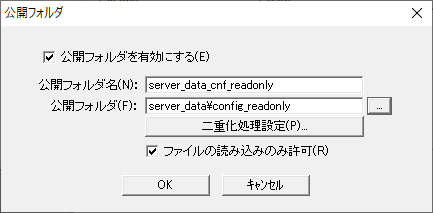
•Enable public folder: Check
•Public Folder Name: server_data_cnf_readonly
•Public folder: server_data\config_readonly
•Allow reading of files only: Check
3.Set browsing information from Panel Server application settings
Next, go to the Application settings of Panel Server and configure the settings required for this screen library.
In the left tree of Panel Server, right-click "Application" and display its properties.
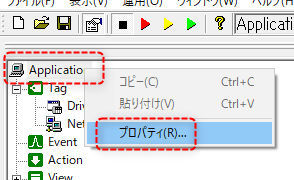
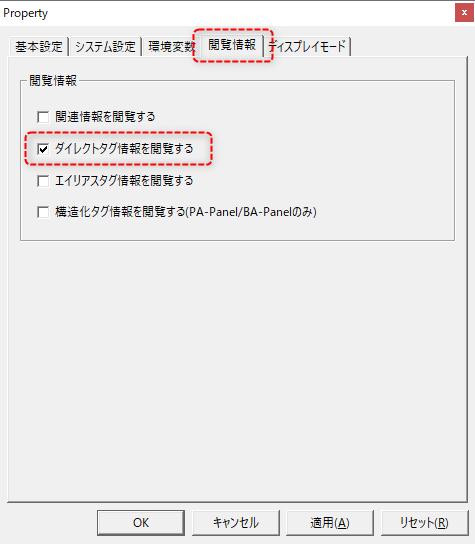
Select the "Viewing Information" tab in the Properties dialog, check "View direct tag information" and click the OK button. Note that if other setting items are already checked, do not uncheck them as they may be used in other function settings.
For subsequent configuration procedures, please refer to the individual contents described in "Standard project operation monitoring construction".