overview
The base date for operation monitoring refers to the settings for the start time of the day and the start date of the month.
This setting affects the calculation of various aggregated data, such as the time and number of times displayed on each screen.
To change the base date setting, follow the steps below.
Step 1) Edit the summary master of the operation monitoring summary action
Before running the operation monitoring application, you must change the settings in the summary master file.
Step 2) Edit the operation monitoring system configuration file
Edit the operation monitoring system configuration file (systeminfo.cfg) with a text editor and change the base date parameters.
|
If you change the base date after the operation monitoring system is already running, the summary data before the base date was changed will already have been created by the summary action, so the past summary values displayed on each operation monitoring screen will be the summary results based on the base date before the settings were changed. |

Procedure for changing the base date
Step 1) Edit the summary master of the operation monitoring summary action
Before running the operation monitoring application, you must change the settings in the summary master file.
The summary master is a text file and can be freely edited using a text editor such as Notepad.
The summary master for the operation monitoring summary action "MachineStatus.Summary" is stored below.
(Project folder) \server\machinestatus\summary\master.txt
Open the summary master in a text editor and change the following parts:
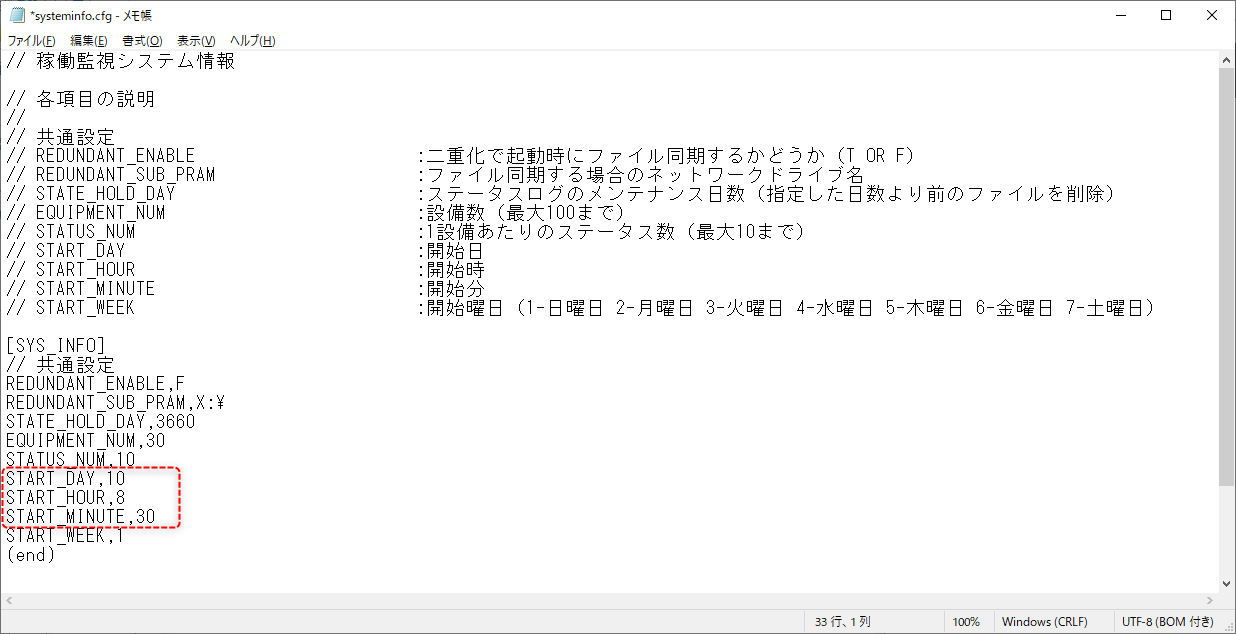
In this example, the start date of the month is set to the 10th, and the start time of the day is set to 8:30 AM.
1.Editing the [MIN1::DAY] section
Add a SummaryOffset setting in the [MIN1::DAY] section to define the minute at which the day begins.
(Example of editing the [MIN1::DAY] section)
[MIN1::DAY] SummaryUnit=1HOUR SummaryOffset=30 SummaryType=[SummaryType2] SummaryParam=[SummaryParam2] CalculationType=[SummaryType1] TimeRangeType=TYPE1 DecimalNum=[DecimalNum1] CsvFileName=DB\DAY\SMR_DAY_.csv CsvFileUnit=DAY ... |
2.Editing the [DAY::MONTH] section
Add a SummaryOffset setting in the [DAY::MONTH] section to define the hour at which the day begins.
Similarly, add the ReportOffset setting to define the offset value for the start day of the month.
(Example of editing the [DAY::MONTH] section)
[DAY::MONTH] SummaryUnit=1DAY SummaryOffset=8 ReportOffset=9 SummaryType=[SummaryType2] SummaryParam=[SummaryParam2] CalculationType=[SummaryType1] DecimalNum=[DecimalNum1] CsvFileName=DB\MONTH\SMR_MONTH_.csv CsvFileUnit=MONTH ... |
*For ReportOffset, specify the number of days you want to offset, so specify 9 instead of 10 (i.e., 1 day + 9 = 10 days).
|
Details about Summary Master are described in "About Summary Master". |

Step 2) Edit the operation monitoring system configuration file
Open the operation monitoring system configuration file "systeminfo.cfg" in a text editor and change the base date parameters.
The system configuration files for operation monitoring are stored in:
(Project folder)\server\config\machinestatus\systeminfo.cfg
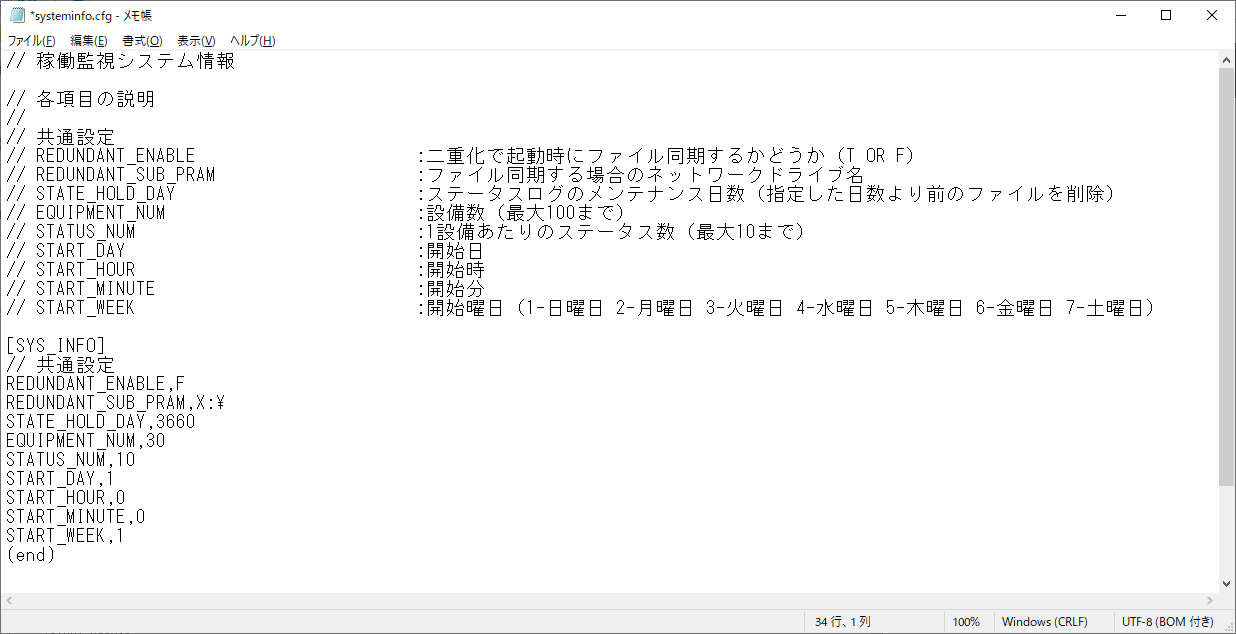
Below is an example opened in Notepad. The default settings are as follows:
(Default setting)
Below is an example where the start date of the month is set to the 10th and the start time is set to 8:30 AM.
•Set START_DAY to "10".
•Set START_HOUR to "8".
•Set START_MINUTE to "30".
(Example of change)