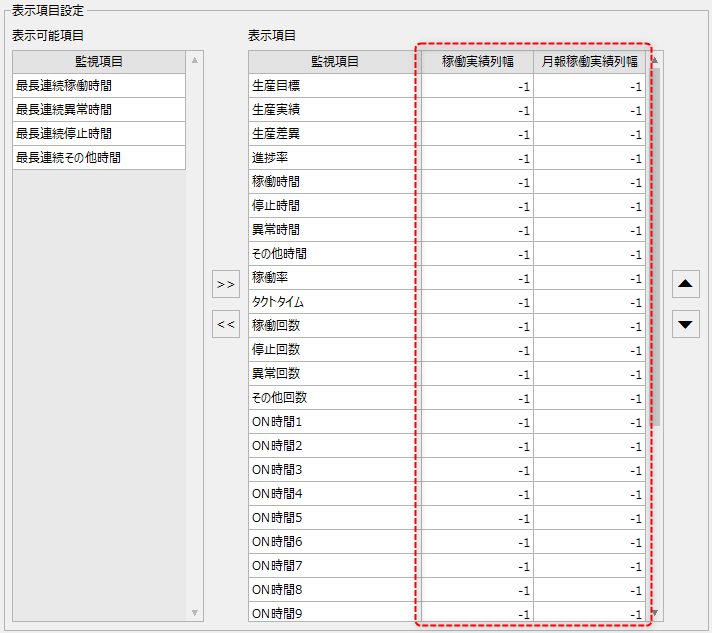
Display of operation result display item settings
When you select "Display items for operation results" from the left menu on the setting registration screen, the display in the center of the screen will change as follows.
(Settings registration screen: Operational performance display items)
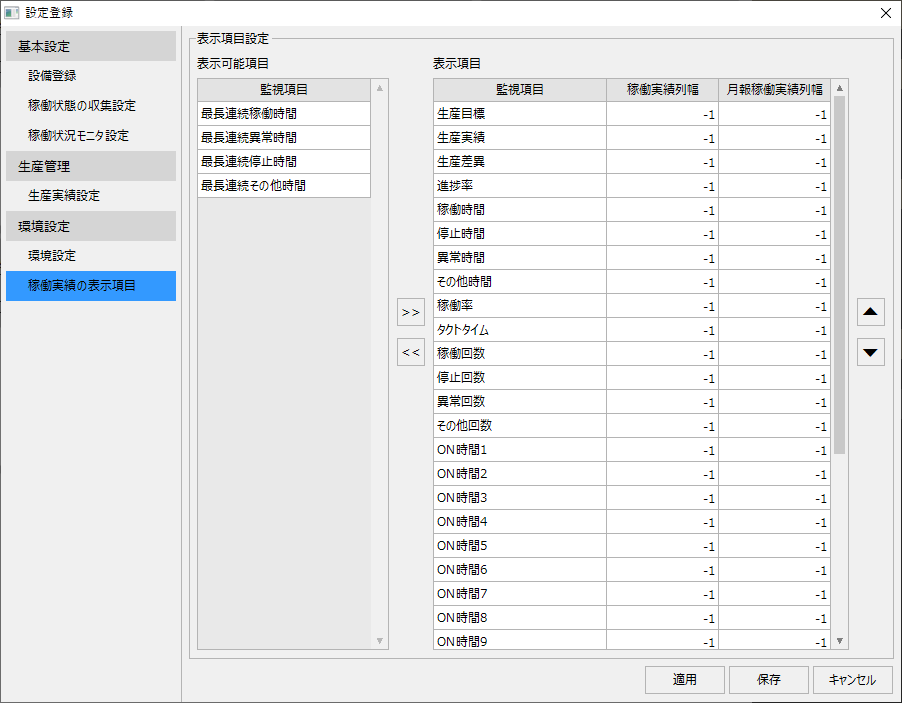
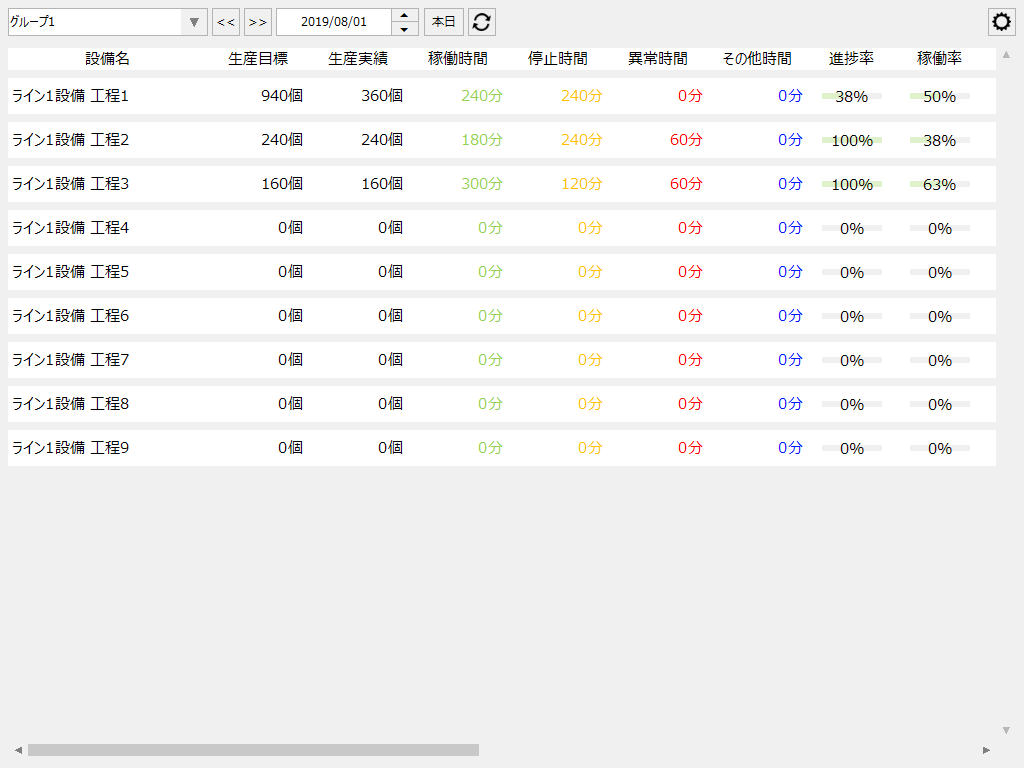
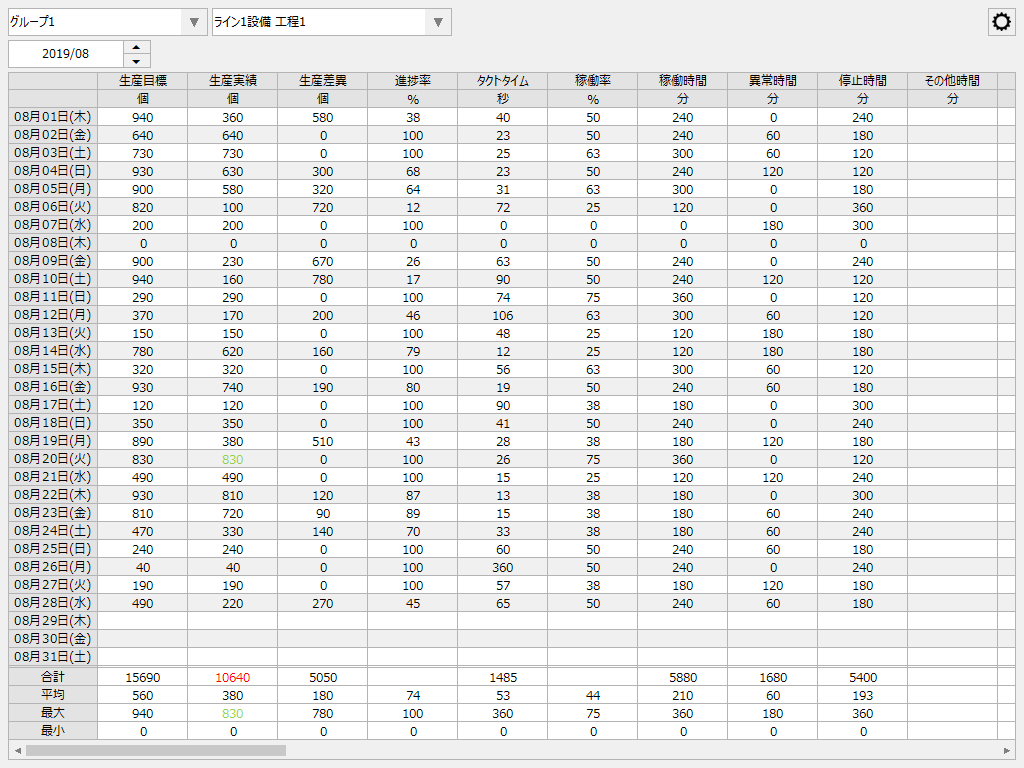
On the screen for setting the display items of operation results, you can edit the display items on the Operation Results screen and the Monthly Operation Results screen.
The display items displayed on these two screens are the same, and if you change the display settings or display order of the items on this settings screen, they will be reflected on both screens in the same way.
(Operation results screen)
(Monthly operation results screen)
Setting item description
This section describes the settings for the operation results display items.
|
The list on the left side of the settings screen shows data items that can be displayed on the screen but are not displayed. Also, the list on the right shows the data items that are currently being displayed.
|
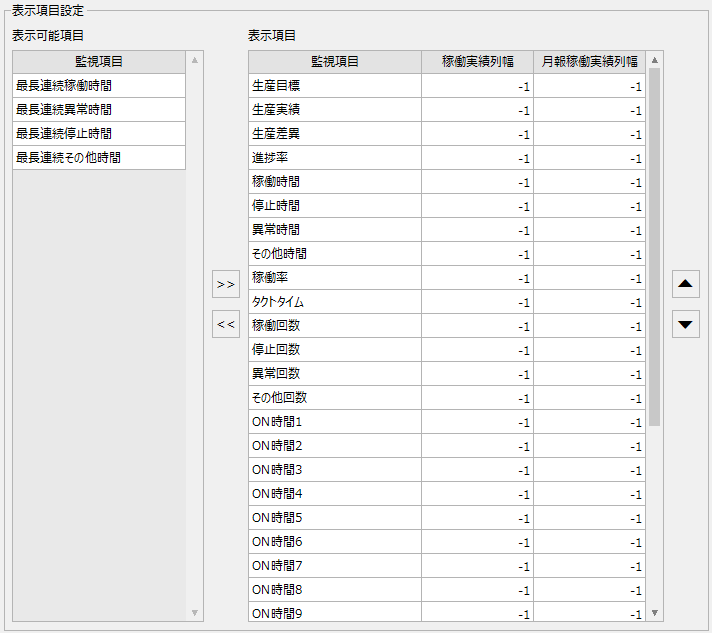
|
To add a display item, follow the steps below.
1.In the list on the left, use the mouse to select the display item you want to add to the screen. In the example on the left, "Longest continuous operating time" is selected.
2.In the list on the right, use the mouse to select the display position of the item you want to add. In the example on the left, "Operation Rate" has been selected.
3.Click the right arrow button in the center of the screen.
|
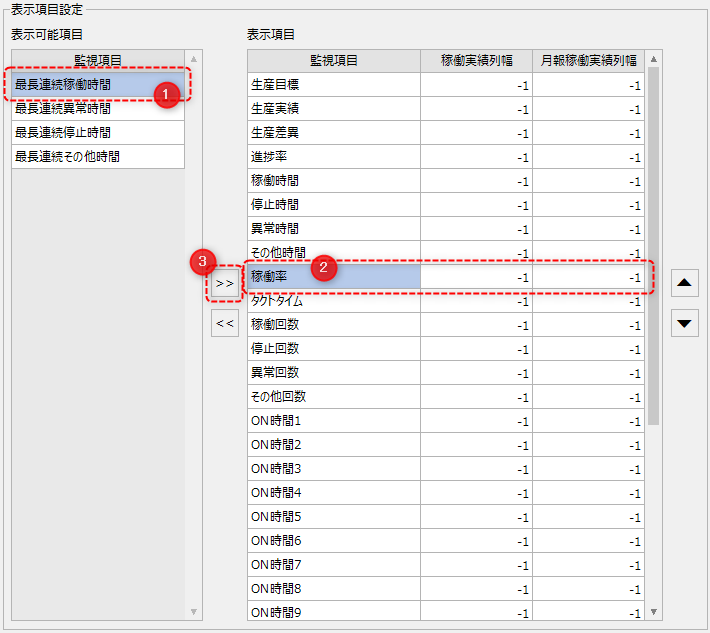
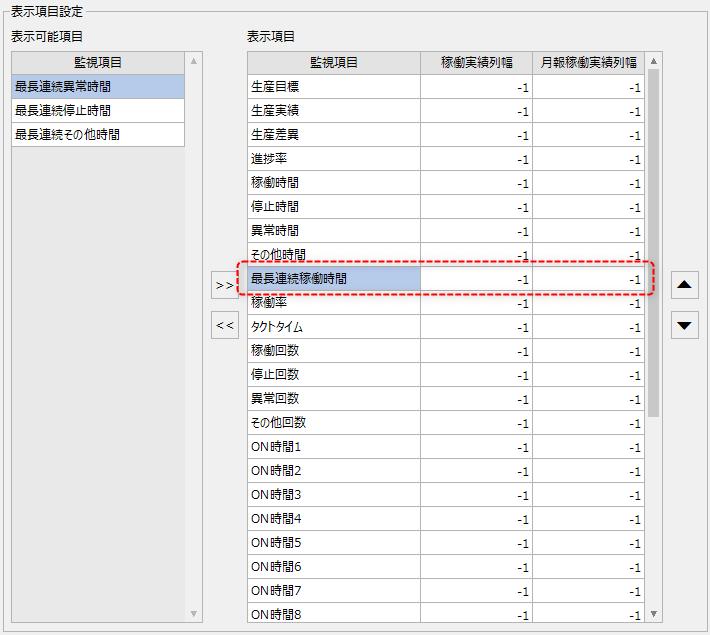
Then, a display item was added to the selection position of the list on the right, as shown below.
|
If you want to remove an item, you can move it from right to left in the list using the left arrow button in the center of the screen.
|
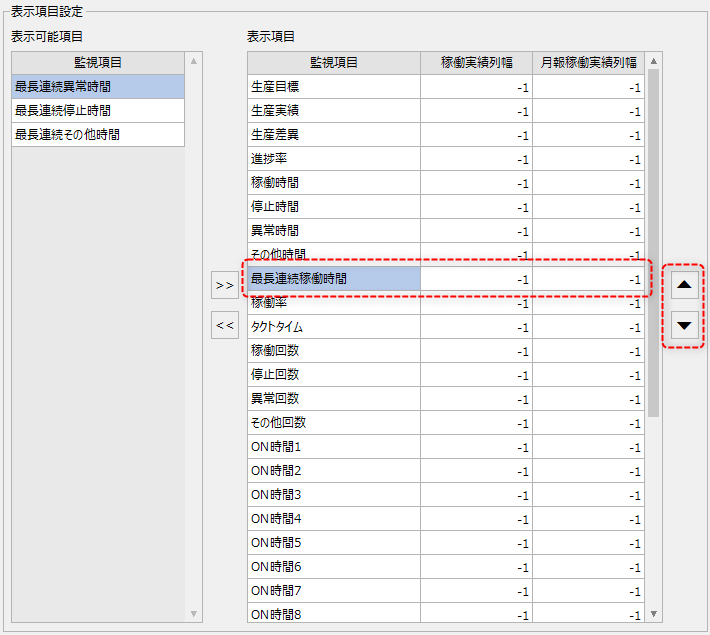
To change the display order of the display items, change the display order in the list on the right side of the screen. On each operation performance screen, items are displayed in order from the top of the list on this screen, from left to right.
|
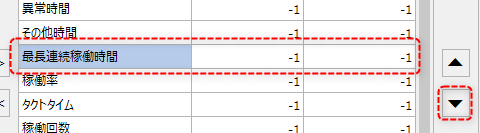
In the list on the right, select the row you want to move in the display order, and click the up or down arrow button.
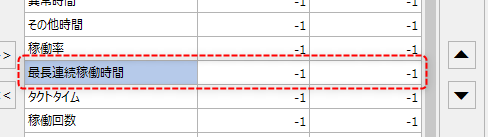
In the example below, select "Longest Continuous Work Time" and click the down arrow.
The display position has been moved down one level.
|
By editing the values in the following areas, you can change the display width of columns on the Operation Results screen and Monthly Operation Results screen.
|
Double-clicking on the cell will put it into edit mode.
Enter any number.
Furthermore, if you specify the default value "-1", the setting will be automatically adjusted.
|