Basic considerations for screen size
Let's cover the most basic screen size considerations.
Consider fixed size or variable size
Consider whether to keep the size of the Panel Browser window itself fixed or allow it to be resized.
Display as fixed size |
If you want to display the monitoring screen at a fixed resolution, such as when it is displayed on a single PC, design it as a fixed size. Furthermore, if you set it to a fixed size, when the screen is displayed on multiple PCs, the monitoring screen will be displayed at the same size on all other PCs.
|
||
Display as variable size |
If you are using multiple PCs to display a single surveillance system on multiple displays with different resolutions, or if you want to be able to freely change the size of the Panel Browser window while the surveillance screen is being displayed, you need to design the system so that it displays correctly even when the size is changed.
|

Consider screen resolution
Design the expected screen size in terms of resolution (in pixels). If you want to display at maximum size at "fixed size", check the display resolution in advance in the execution environment. For example, if you want to display at a fixed size to fill a WXGA display, the screen size will be 1440 x 900.
On the other hand, if you want to use "variable size", check and decide on the "expected maximum resolution" and "expected minimum resolution" in advance. Here, the maximum size should be the resolution of the display to be displayed, and the minimum size should be a size that allows the screen display to be shrunk without distorting the display. For example, if the maximum size is to be the full size of WVGA, the maximum size should be 1440*900, which is the full resolution, and the minimum size should be determined according to your requirements (for example, in the case of the standard framework, the minimum size is set to 1000*710).
Consider whether to use full screen display
When running Panel Browser, consider whether to use "full screen" display. If you use full screen, the monitoring screen will be displayed across the entire display, and the Windows OS taskbar, execution screen title bar, execution screen menu, and execution screen status bar will not be displayed. Full screen operation is suitable when you want to use the PC running the system exclusively as the monitoring screen, but is not suitable when you want to run other applications at the same time.
|
"Full screen display" is one of the display methods for Panel Browser, and refers to the behavior when "FULL_SCREEN" is specified for the StartupSize property of the root properties. When this mode is selected, the title bar and status bar of Panel Browser are hidden, allowing the monitoring screen to be displayed on the entire display. Note that if resizing is permitted, Panel Browser will be maximized and displayed when you double-click the title bar, but full screen display is different from maximized display. |
Considering whether to show or hide the Panel Browser title and status bar
If you do not use full-screen display, you need to consider whether or not to display the following areas in addition to the area displaying the monitoring screen. The size available for the monitoring screen display area will differ depending on whether or not you display these areas, so you must make this decision in the early design stages.
(Panel Browser display area)
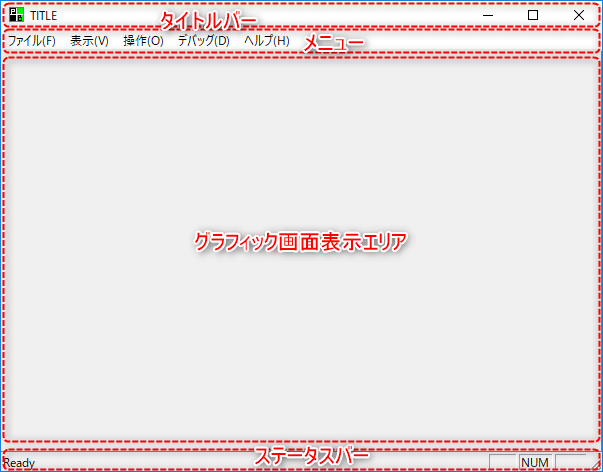
*In addition to whether or not each of the above areas is displayed, you also need to consider the display position and width of the Windows taskbar.
Display Area |
explanation |
||
Panel Browser Title Bar |
This is the title bar that is displayed at the top of the Panel Browser screen. The title bar also contains the minimize button, maximize button, and close button. If you want to display these buttons and the title, enable the title bar. Note that each button on the title bar can be individually set to be displayed or hidden by setting the root properties. For example, it is possible to hide only the maximize and minimize buttons while displaying the title. |
||
Menu of Panel Browser |
This is the menu display area that is displayed at the top of the Panel Browser screen. We will consider whether to display this area or not.
|
||
Graphic screen display area |
This is where the graphic screen (the form edited in Panel Editor) is displayed. The actual size of this area changes depending on the display size of the Panel Browser itself, as well as whether or not you want to display areas such as the title bar, menu bar, and status bar.
|
||
Panel Browser Status Bar |
This is the status bar displayed at the bottom of the Panel Browser screen. It displays the status of the Caps lock, Num lock, and Scroll lock keys.
|
||
Windows OS taskbar |
Consider whether to always display the "taskbar" of WindowsOS itself or hide it. The taskbar is a menu calling mechanism that is usually always displayed at the bottom of the window (where the so-called "start menu" is displayed). If you need to use an application other than the monitoring screen, it may be more convenient to display the taskbar. If you display the taskbar, please consider where to display it (such as at the bottom or side of the screen). Furthermore, settings for showing, hiding, and displaying the taskbar must be made from the Windows settings on the actual PC. |