overview
This section explains how to enable login/logout using your own mechanism without using the standard user management function.
The setup steps are as follows:
1)Register login user information (user name, password, level) in Panel Server.
2)Change the default login setting for Panel Browser to manual login via the login screen.
3)Provide a mechanism for logging out.
Below we will explain each step in detail.
Registering login information for Panel Server
If you want to switch login users during operation, you must first register the login information on the settings screen of Panel Server Panel-Interface.
As an example, let's assume that the following four pieces of user information have been registered.
Username |
password |
level |
admin |
(any) |
1 |
senior |
(any) |
10 |
operator |
(any) |
20 |
guest |
(any) |
30 |
If you would like to know how to register user information, please refer to "Registering a login user for your own project".
Below is an example configuration.
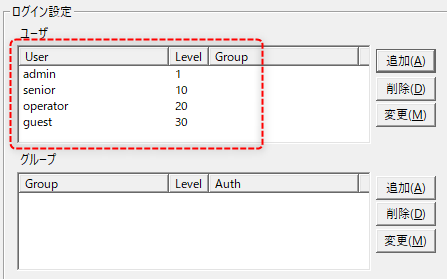
Panel Browser server connection settings
The behavior of how a Panel Browser logs into a Panel Server is determined by a combination of the PSLoginMust and PSLoginStartup route properties, which you set from the Panel Editor.
By setting each property as shown below, the login screen will be displayed when the system starts up and every time you log out.
Target Route Property |
Setting contents |
||
PSLoginMust
|
TRUE |
||
PSLoginStartup
|
Depending on the client runtime execution method, set one of the following:
•When executing by direct login... AUTO •When executing using the distribution file format (when opening and executing the file from Panel Browser): ・・・MANUAL
|

Implementing a logout button
The process of switching users calls the "Logout" root method to perform the logout. If you log out while the PSLoginMust root property is set to TRUE, the login screen will be displayed and you will be able to log in as a different user.
Here, we will introduce how to implement a script that calls a method to log out when a button is clicked (OnMouseUp event).
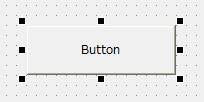
1.Place a button on the form.
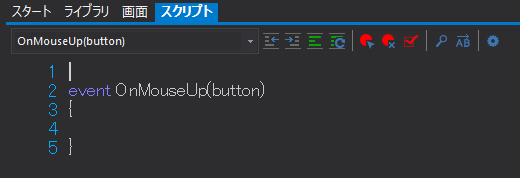
2.Open the button's script page and add a OnMouseUp event.
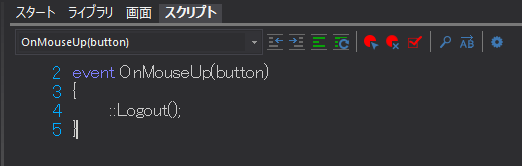
3.Write a script like the following:
(Description)
event OnMouseUp(button) { ::Logout(); } |
❖The code goes between "{" and "}" in the event.
❖All characters should be half-width.
❖The white space at the beginning of a line is called "indentation." To indent, press the Tab key (you can enter a few half-width spaces, but do not enter full-width spaces).
4.Operation check
With Panel Server running online, run the client application on Panel Browser.
The login screen will then be displayed. Enter the user name and password you registered beforehand to log in.
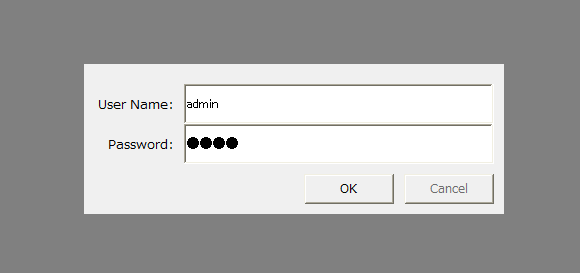
Once you have successfully logged in, make sure the form is displayed correctly.
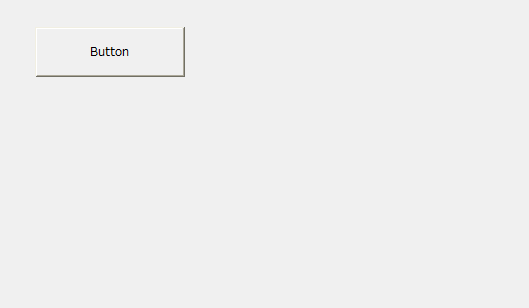
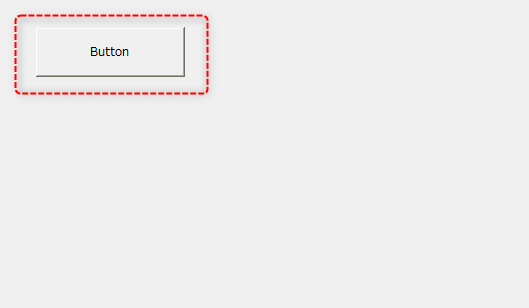
Click the button that implements the logout process.
You will then be logged out and the login screen will appear again.
Please try logging in with different user information than the initial login.
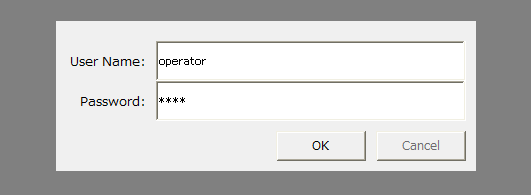
Verify that you are logged in correctly and that the form is displayed.