Video Recorder Recommended System Configuration
This section describes the recommended configuration for stable operation of the video recorder function.
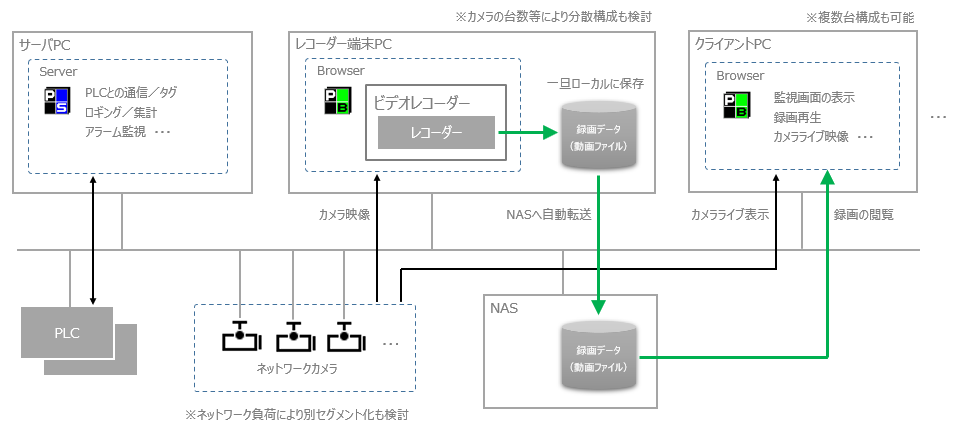
First, the video recorder is a function that runs on the Panel Browser side, and the recording process is performed on the PC registered as the recorder terminal. Since the recording process of the recorder may place a high CPU load on the Panel Server, we recommend that you configure the recorder terminal PC that performs the recording and the server PC that runs Panel Server as separate PCs as much as possible. In addition, the recorder terminal PC should be prepared separately from other client PCs and dedicated to recording processing. Furthermore, we recommend that you prepare a network drive such as NAS or File server (hereinafter referred to as "NAS drive") as a data store for storing recording data, and that the recorder recording process first saves the data locally on the recorder terminal PC as the recording destination, then transfers it to the NAS drive, and that the reference destination is the NAS drive.
Recommended system configuration
Components |
explanation |
||||||||||
Server PC (Panel Server) |
We recommend that you configure the server PC to run only Panel Server and not run a video recorder/video player using Panel Browser.
|
||||||||||
Recorder terminal PC (Panel Browser) |
The recorder terminal PC for recording will be configured as a dedicated PC for the recorder terminal, separate from the client PC that displays the normal monitoring screen. Also, the Panel Browser running on the recorder terminal PC will run a simple client application that only implements the video recorder screen library, as much as possible, and will not display screens such as graphic screens, alarm monitoring, or trend graphs.
Selection points: ❖Since recording will be done locally, please select a model with a fast disk access speed (5,400 rpm or faster is recommended for HDD). ❖Please select a LAN port with a high communication speed for connecting to the network camera (minimum 100BASE or higher is recommended). If there are many cameras or the camera images are received at a high fps, and the communication load of the camera is high, please consider separating the camera network from other networks.
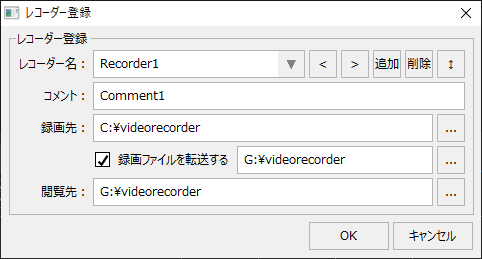
When registering the recorder, set the recording destination to the local disk, transfer to the NAS drive, and view destination to the NAS drive.
Key points: ❖Prepare a folder for recording separately from the project folder on the local disk of the recorder terminal PC. ❖Prepare a KNAS and set it up so that it can connect to the KNAS drive via network sharing. Also, prepare a folder on the drive for recording. ❖When registering the recorder, specify the recording destination as a folder on the local disk rather than a server (C:\videorecorder). ❖Specify a folder on the NAS drive to transfer and view the recorded files (G:\videorecorder).
(Example of recorder registration settings)
By setting it up like this, when configuring multiple recorder terminal PCs for distribution (such as when connecting many cameras at the same time), each client PC can view the recorded data of all recorders on the same level. With this configuration, when each client PC views the recorded data (plays back the recorded data using a player), the data on the NAS drive is referenced directly, so there is an advantage that no access load is placed on the recorder terminal PC when viewing the recorded data (which can lead to more stable recording processing).
|
||||||||||
Client PC (Panel Browser) |
The client PC that displays the graphic screen, etc. should be configured separately from the recorder terminal PC.
Selection points: ❖When displaying live images from a network camera on a split screen (camera monitor), the image is displayed by connecting to the network camera from a client PC. Therefore, select a LAN port with a high communication speed for connecting to the camera (minimum 100BASE or higher is recommended). ❖If you separate the network for connecting to the camera from other networks, make sure that the client PC that will display the live video from the camera also has a LAN port to connect to the camera.
|
||||||||||
Storage for recorded data (e.g. NAS) |
We recommend using NAS or File server as the destination for transferring recording data.
Selection points: ❖Please select a model with a fast disk rotation speed (7,200 rpm or higher) and a fast network connection speed (minimum 100BASE or higher). ❖The amount of data required for NAS varies depending on the number of cameras, storage period, recording fps setting, data resolution on the camera side, etc. In addition, "Recording data file size and disk capacity" lists the reference value of the size of the generated recording data. ❖If you would like to make the recording data redundant with this configuration, please use the NAS functions (such as RAID) to set it up (please also see the description in "Notes for this configuration" below).
|
||||||||||
Network Devices
|
The network equipment for connecting to the network camera should be configured so that bottlenecks do not occur. For example, even if you select high-spec models for the LAN port of the recorder terminal PC or NAS device, if the relay device such as HUB is slow, it will become a bottleneck. In addition, since a large amount of data is sent and received during communication with the network camera, the communication load increases. In particular, when connecting many cameras at the same time or connecting to a high-fps camera, consider preparing multiple LAN ports and HUBs for the PC and configuring the network routes for the normal network and the camera connection separately. |


Points to note about this configuration
Important points to note |
explanation |
||
Users must make the recording data redundant themselves.
|
If you wish to make the recording data transferred to NAS redundant, you will need to create a mechanism for this yourself (for example, using the NAS functions to create a RAID configuration, or creating a mechanism for backing up the data to a separate drive).
|
||
Be careful about the disk capacity of the recorder PC
|
In the recording process of this configuration, the recording data is first saved to the local disk of the recorder terminal PC, and then copied to the destination NAS drive. Therefore, it is necessary to ensure sufficient free space not only on the NAS disk capacity, but also on the local disk of the recorder terminal PC. The amount of free space that needs to be secured depends on the maintenance settings (how many days of recording data are to be saved).
|
||
Recording data maintenance settings
|
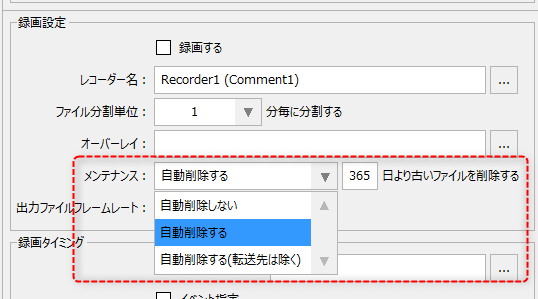
In this configuration, the recording data is temporarily saved to the local disk of the recorder terminal PC. Maintenance (automatic deletion) of the recording data on the local disk operates according to the following settings in the recording settings of the camera registration.
If you select "Automatically delete" above, local files and destination files will be automatically deleted after the same number of days. Therefore, the size of the recording data stored locally must be the same as the NAS drive. If you need to store data for a long period of time, please pay close attention to the remaining disk capacity.
On the other hand, if the above setting is set to "Automatically delete (excluding forwarding destinations)," only files on the local disk will be automatically deleted, and data on the NAS drive will not be subject to automatic maintenance. Therefore, if you are unable to secure sufficient local disk capacity, please set the above retention period to a short number and either manually delete files on the NAS drive or create a separate mechanism of your own to automatically delete files on the NAS drive.
|
Other system configuration examples
The recommended system configuration introduced above is a configuration that focuses on stable operation of the video recorder, and is one of the basic concepts. On the other hand, when actually using the video recorder function, various configurations can be considered depending on the required requirements, such as the number of cameras connected simultaneously (many or few), the required quality of the recording (fps or is low image quality acceptable, or is high quality recording required). For example, if you do not need to be particularly particular about the recording quality (for example, if a quality of about one frame per second is sufficient), you can operate it with a minimum configuration of only one PC by tuning the camera body and the recording fps value. Alternatively, if you connect many cameras simultaneously and require high quality recording, you will need to prepare multiple recorder terminal PCs and use a distributed configuration.
For information on system configurations, settings, and tuning methods to meet various needs, please refer to the description in "Introduction of configuration examples for each need."