How to read the manual
This chapter is for reference information only.
Please refer to the following link for the construction procedure.
•Building logging/trend graphs...Monitoring system building guide "Logging/trend graphs"
•Building a daily report...Monitoring system construction guide "Daily report"
|
There are two actions that provide logging functionality: "Summary Actions" (this action) and "Logger Actions". Each has its own characteristics. For example, if you want to perform daily report aggregation and report creation in addition to logging, select Summary Actions. For the differences between the two, please refer to the comparison table in "Differences with Logger Actions" on this page. |

overview
Summary actions are actions that combine a "logging function" that logs tag values as historical data, and an "aggregation function" that automatically aggregates historical data in any unit such as Daily/Monthly/Yearly Report. Data stores supported are CSV files and ODBC databases (see "About supported databases for details).
Summary actions are a function that plays a very important role in building a SCADA system with FA-Panel. Various functions provided by FA-Panel, such as trend graphs, energy management, and daily report screens (Daily/Monthly/Yearly Report), can be connected to summary actions to make use of historical data and aggregated data (Daily/Monthly/Yearly Report, etc.).
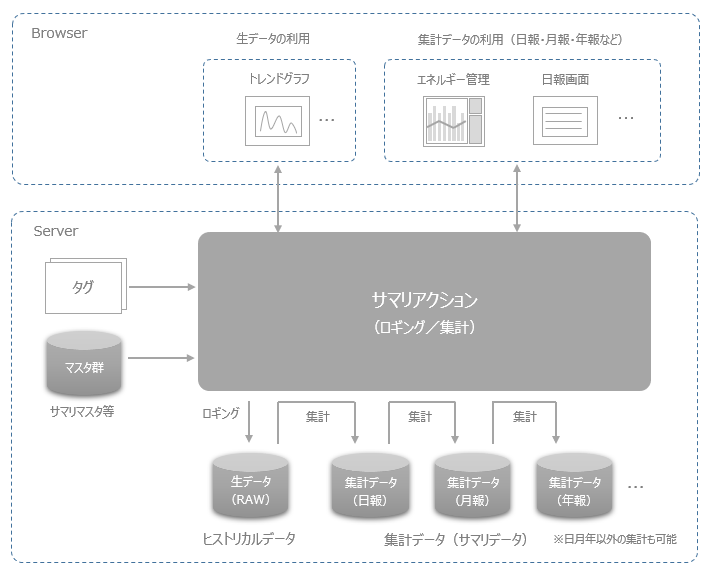
Summary Actions provide the following four main functions:
kinds |
overview |
Tag values are read periodically and logged in chronological order as historical data.
|
|
This function automatically aggregates data in preset aggregation units based on the historical data generated by the "logging function."
The unit of calculation can be freely set (you can freely set it to days, months, years, 10 minutes, 30 minutes, etc.).
The most common units of calculation are daily reports (hourly calculations: one line per hour * maximum of 24 lines), monthly reports (daily calculations: one line per day * maximum of 31 lines), and annual reports (monthly calculations: one line per month * maximum of 12 lines).
|
|
This is a report function for creating Daily/Monthly/Yearly Report etc. The report function is provided by summary actions (Panel Server) and summary report grid controls (Panel Browser). In addition to displaying and printing daily reports from the screen, you can also automatically print reports as needed. You can also use the sub-report function to automatically generate CSV files and Excel files.
|
|
Summary Actions also have the functionality of Historical data server. You can display it as a trend graph from the client Panel Browser via the Historical Graph Control (Trend Graph), or you can retrieve historical data for a specified period from a script via Historical data control, and then build your own processing, such as analysis or calculations based on the retrieved historical data.
|
Logger Action is a function developed in versions prior to Ver4, and is specialized only for logging processing. On the other hand, Summary Action is a new function added in Ver5, and is a functional configuration that integrates logging function, aggregation processing, and report creation function.
If you only want to build a process that logs tag values, you can use either a logger action or a summary action to achieve the logging process, but they each have the following characteristics. Which action to choose should be determined by the specifications and uses of each.
Comparison with Logger Action
Logger Actions |
Summary Actions |
|
High speed logging function |
Logging is possible down to milliseconds. For example, when saving to a CSV file, logging can be done in about a few tens of milliseconds, although this depends on the writing speed of the HDD and the communication speed with the PLC, etc. |
Logging can be done at a maximum interval of 1 second. Logging at millisecond intervals is not supported. |
How to set tags for logging |
You can set the desired tags by dragging and dropping them on the Panel Server screen. Each action corresponds to one database (one file for CSV, one table for ODBC). If you want to save to multiple CSV files or tables, you need to define multiple actions in parallel. |
Set the tag path to be logged in the summary action configuration file "Tag Field Master" (text file). Tag field masters are set manually using Excel or Notepad. Furthermore, by defining the maximum number of columns in the database in advance, the data will be automatically split and generated into multiple databases (multiple files for CSV, multiple tables for ODBC) at runtime. |
Log Format |
In addition to general time-series logs, it is also possible to generate event-type logs.
|
Only general time-series logs are supported.
|
Aggregation function |
none.
This action can only be used for logging. Furthermore, historical data generated by this action cannot be aggregated by summary actions.
|
Yes.
Based on the historical data (logging data) generated by Summary Action itself, it automatically performs aggregation processing using various statistical methods such as sum, average, maximum, and minimum. You can also perform calculations between aggregated data from each field and save the results as aggregated data.
|
Reporting |
none.
This action can only be used for logging. Furthermore, historical data generated by this action cannot be aggregated by summary actions.
|
Yes.
Built-in report creation function. Reports are created based on the data collected by Summary Action itself.
|
Historical data server Features |
Yes.
The client, Panel Browser, accepts access to historical data via the historical graph control and Historical data control.
|
Yes.
(Same as left) |
|
Use a logger action if you want to log at a high-speed interval such as milliseconds, or if you simply want to log. On the other hand, if a logging interval of 1 second or more is OK and you need to perform daily report aggregation, use a summary action (*If you need to perform daily report aggregation, you must select a summary action). For more information about logger actions, see "Logger". |

Differences from Daily/Monthly/Yearly Report action
Daily/Monthly/Yearly Report Actions are a feature developed in versions prior to Ver4, and are retained for backward compatibility with older versions. On the other hand, Summary Actions are a new feature added in Ver5, and are a feature that has been expanded in various ways, including the aggregation function of Daily/Monthly/Yearly Report.
If you are considering building a daily report aggregation function, we recommend using summary actions.
Comparison with Daily/Monthly/Yearly Report action
Action |
Summary Actions |
|
Logging feature
|
There is no built-in logging function. You must use a separate logger action to process the logs (that is, you must use a combination of logger and Daily/Monthly/Yearly Report actions). |
Summary Action has a built-in logging function. Because the logging process and the aggregation process work together, it has been improved to perform the aggregation process more efficiently. |
Change the form layout (column order, etc.) |
The report layout cannot be changed while Panel Server is online. |
You can freely change the report layout (which fields are displayed and printed on which page) from the settings screen of the Panel Browser report screen. Therefore, you can change the layout even when Panel Server is online. |
Adding and deleting columns after operation begins
|
You can only add to the end of a column. You cannot delete columns. |
You can freely add, remove, and insert columns in the logging aggregation. |
Operating environment
|
This action only works with 32-bit version. It does not work with 64-bit version. |
Both the 32-bit and 64-bit versions work. |
|
Daily/Monthly/Yearly ReportActions are a feature that remains in place to maintain backward compatibility with systems developed in older versions. If you need to build a daily report aggregation or report creation function, we recommend using summary actions unless there is a special reason not to do so. |