Basic operations in the Mini Properties box
The Mini Property Box allows you to intuitively configure various controls.
|
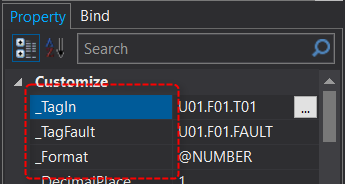
With the mini property box enabled, select the target control, then click the name of the property you want to display on the property page. In the example on the left, "_TagIn" is selected.
|
|
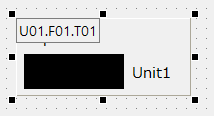
A mini properties box will then appear in the top left corner of the selected control, as shown below.
|
|
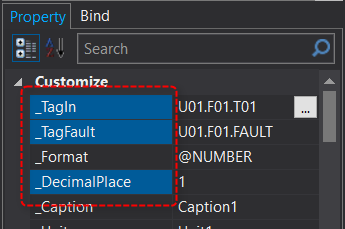
To display multiple properties, hold down Ctrl and click the names of the properties you want to display on the property page. In the example on the left, "_TagIn", "_TagFault", and "_DecimalPlace" are selected. |
|
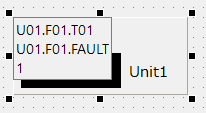
The property you selected will then be displayed in the selected control's mini property box.
|
|
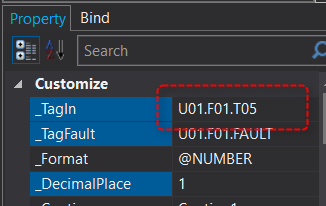
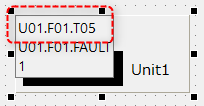
Try editing the value in the mini property box. The example on the left shows how to change the value from U01.F01.T01 to U01.F01.T05.
|
|
If you look at the property page, you can see that the edits you made to _TagIn have been reflected.
|