Application of Mini Property Box
By making effective use of the mini property box, you can efficiently perform setting tasks for multiple controls.
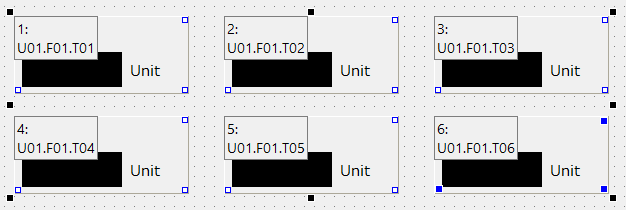
The image above is an example of the _TagIn properties of multiple controls displayed at once. By opening the mini property box, you can check the settings assigned to each control on the form at a glance. You can also edit the properties of each control directly from the individual mini property boxes.
Also, the mini property box allows you to perform bulk paste operations from cells in Excel.
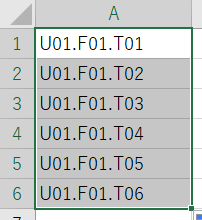
For example, suppose you have an Excel sheet like the one below. In this Excel sheet, the tag path of the tag you want to assign is entered.
First, on the Excel sheet, select the range of cells containing the tag paths you want to paste, then press Ctrl+C to copy them. In this example, six tag paths will be copied.
Next, in the Panel Editor window, select multiple controls to which you want to paste, and the properties to be pasted will be displayed in the mini property box.
In the example below, "_TagIn" is displayed (if nothing is set in the property, "(empty)" is displayed).
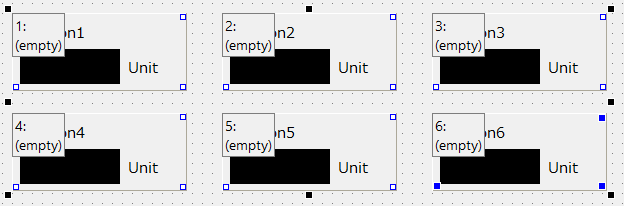
In the state shown in the image above, press Ctrl+V to paste.
Then, the tag paths from the first to sixth rows of the Excel sheet will be pasted all at once in the order selected in the mini property box ("1:", "2:", etc.).
|
Signal lists are often prepared using Excel as design materials for monitoring screen systems. By using the mini property box, tags can be assigned to multiple controls on a form all at once from a Excel sheet. In addition to tag assignment, text information such as units and captions can also be set all at once. |
