Specifying cell properties directly
This section explains how to set cell properties on a cell-by-cell basis.
This method is suitable when the content to be displayed in the grid needs to be set individually, rather than by row or column.
By setting cell properties for each cell, you can display the data in a grid as shown below.
(An example of specifying the display format for each cell)
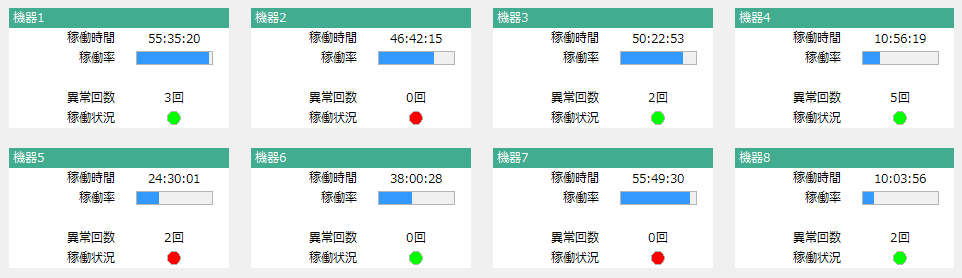
If you want to set cell properties for each cell individually, use the following methods.
... Sets the cell properties of the target cell. |
Below is an example of a script that sets cell properties individually.
	this.Rows = 10;
	this.Cols = 5;

	this.SetCellProperty( "all",c("CellType:label", "FillColor:#FFFFFF", "TextAlignX:RIGHT")));
	this.SetCellProperty( "cell",c("CellType:lamp", "Shape:CIRCLE", "OnColor:#FF0000", "OffColor:#00FF00"),3,1);

	// Set column width
	this.SetColWidth(0, c(110, 110, 22, 110, 110));
	// Set the header title
	this.SetTableData(
		c("Device 1",
		c("", "55:35:20", 95, "", "3 times", F)),
		0,
		0,
		F
	);
■Explanation
1) |
Specify the number of rows and columns to display in the grid this.Rows = 10; this.Cols = 5;
|
||
2) |
Set cell properties
	this.SetCellProperty( "all",c("CellType:label", "FillColor:#FFFFFF", "TextAlignX:RIGHT"));
	this.SetCellProperty( "cell",c("CellType:lamp", "Shape:CIRCLE", "OnColor:#FF0000", "OffColor:#00FF00"),3,1);
In the SetCellProperty method, the first parameter is used to define the range by specifying either "all"( all, "col"( column, "row"( row), "cell"( cell, or "range"( range).
Then, in the second parameter, specify an array of cell properties to apply to the cells in that range.
The second parameter is specified in the following format:
You can also set multiple cell properties at once by specifying them in an array.
|
||
3) |
Specify the column width this.SetColWidth(0, c(110, 110, 22, 110, 110));
|
||
4) |
Set data for the header and each cell
	this.SetTableData(
		c("Equipment 1",
		c("", "55:35:20", 95, "", "3 times", F)),
		0,
		0,
		F
	);
|

|
In a display format where properties are specified individually, if you add new rows and columns after setting cell properties, the added cells will not have any cell properties set, so you will need to set new cell properties for the added cells. |
|
The SetCellProperty method has several syntaxes, allowing you to set cell properties for a row (row), a column (col), or for all cells at once. You can also specify multiple properties at the same time using an array.
Example of setting multiple properties at once on a column basis)
|
|
Cell Properties(Background color, text color, text position, blinking, etc.)When settingYou must set the cell type. If you set the cell type using the common cell property "CellType", you must specify it at the beginning of the array.
this.SetCellProperty(
			"col",
			c("CellType:button", "TextColor:@TextColor"),
			1
		);
|

|
Header Cell PropertiesWhen setting (background color, text color, text position, blinking, etc.),SetCellPropertyThe first parameter of the method must be set to "cell", "row", "col", or "range". The header cell type is not set to "all". Also, please note that the index pointing to the header must be a negative value.
	this.SetCellProperty(
			"cell",
			c("CellType:label", "FillColor:#FFFFFF", "TextAlignX:RIGHT"),
			0,
			-1
		);
|