Demand History Custom Properties
The custom properties of this screen library are as follows:
Basic |
Start month |
_StartMonth |
default:1
Specify the start month for the year display from 1 to 12.
|
demand |
_DemandAction |
default:Demand01
Specify the name of the demand action of Panel Server to which this library connects. If multiple demand monitoring is to be performed, set the demand action names separated by ";" (half-width semicolon).
|
|
Summary |
_SummaryAction |
default:DemandSummary
Specify the name of the summary action for the Panel Server to which this library connects. Specify the summary action that will log and aggregate the demand history.
|
|
Summary Field |
_FieldName |
default:DEMAND01
Specify the data field name where the demand data of the summary action of Panel Server to which this library connects is saved. If multiple demand monitoring is performed, set the field names separated by ";" (half-width semicolon). You must specify the same number of field names as you have defined in "_DemandAction".
|
|
Forwarding server name |
_FileServerData |
default:Not specified
The setting information for this screen library is stored on the server side. There are two ways to set it up: using a public folder in Panel-Interface or sharing a file via an File server action.
■ When using the public folder of Panel-Interface
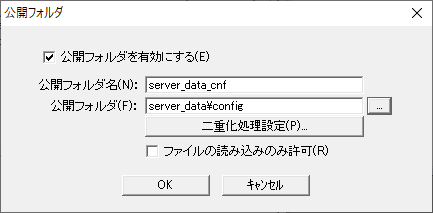
If you want to use the Panel-Interface public folder, leave this property blank. With this setting, the necessary subfolders will be automatically created in the folder defined as the Panel-Interface public folder name "server_data_cnf" and the configuration information will be saved. If a public folder has not been created, refer to the following to create a public folder called "server_data_cnf" from the Panel Server Panel-Interface settings screen. For information on how to register a public folder, see "Panel-Interface Basics".
(Public folder settings for Panel-Interface: server_data_cnf)
•Enable public folder: Check •Public Folder Name: server_data_cnf •Public folder: server_data\config •Allow files to be read only: Uncheck
■ When using the File server action
On the other hand, if you want to share the setting information on the server side using the File server action, specify the name of the action to connect to in this property. This will save the setting information in the target folder of the File server action.
|
|
Keep your settings |
_IsSaveDisp |
default:True
Specifies whether the screen state is preserved.
|
|
Show Settings button |
_IsConfig |
default:True
Specifies whether to show or hide the settings button.
|
|
Output File Output Folder |
_OutFilePath |
default:output
Sets the default folder for output files (CSV output).
|
|
Output File File name |
_OutFileName |
default:demandhistory
This is the string that will be added to the beginning of the default file name of the output file (CSV output). The default file name will be "_Graph period_Date and time.csv" following this string.
|
|
Set the base date to today when updating daily |
_AutoRefreshChanged |
default:True
If this setting is True, when the date changes, the current date will be used as the base date.
|
|
Comparison date initial value day |
_CompareOfDay |
default:7
This is the initial value when the comparison date is displayed on the screen. Set how many days before the base date it is.
|
|
Comparison date initial value month |
_CompareOfMonth |
default:12
This is the initial value when the comparison month screen is displayed. Set how many months before the base month it is.
|
|
Comparison date initial value year |
_CompareOfYear |
default:1
This is the initial value when the comparison year is displayed on the screen. Set how many years ago it is from the base year.
|
|
Graph Settings |
Background Color |
_GraphBackColor |
default:@FormColor
Sets the background color of the graph. The background color can be set only when "_GraphBackFill" is enabled. If you select "Select no color" (leave the property blank), the background will be transparent. If a background image is specified in "_GraphBackImage", the image will take priority.
|
Background Image |
_GraphBackImage |
default:Not specified
Sets the background image for the graph. A background image can be set only if "_GraphBackFill" is enabled. Specify with an absolute path or a relative path.
|
|
Background Transparency |
_GraphBackAlpha |
default:1
Specifies the transparency of the image file specified in "_GraphBackImage." Specify the transparency ratio between "0-1," where 0 is transparent, 0.5 is semi-transparent, and 1 is non-transparent.
|
|
Enable background (image/fill) |
_GraphBackFill |
default:False
If you want to set an image or fill the background color of the graph, set True.
|
|
Maximum Demand Value display |
_MaxValues |
default:True
Set whether to display the maximum demand value. Set True to display the maximum demand value.
|
|
Color Settings |
Graph text color |
_GraphTextColor
|
default:@ChartTextColor
Specifies the text color for the graph part.
|
Graph line color |
_GraphLineColor |
default:@ChartLineColor
Specifies the line color for the graph.
|
|
Graph background color 1 |
_GraphBackFillColor1
|
default:@GridLineColor
Specifies the background color 1 of the graph part (even columns of the X-axis).
|
|
Graph background color 2 |
_GraphBackFillColor2
|
default:@FormColor
Specifies the background color 2 of the graph part (odd columns of the X-axis).
|
|
Reference Graph Color |
_BarColorBase |
default:Not specified
Specify the display color of the bar graph for the base date. If not specified, it will be displayed with the initial value of the graph control.
|
|
Comparison graph color |
_BarColorComp |
default:Not specified
Specify the display color of the bar graph for the comparison date. If not specified, it will be displayed with the initial value of the graph control.
|
|
Guidelines |
Contract Demand display name |
_ConractLineName |
default: Contract demand
Sets the display name of the contract demand line.
|
Contract Demand Use demand setting style |
_ContractLineSelect |
default:True
If True, the style of the contract demand line (line type, color, thickness) will be the style of the demand setting. If False, the values of "ContractLineStyle", "_ContractLineColor", and "_ContractLineSize" will be used.
|
|
Contract Demand Linetype |
_ContractLineStyle |
default:SOLID
Specifies the line type. This is valid when "_ContractLineSelect" is False.
|
|
Contract Demand color |
_ContractLineColor |
default:#FF0000
Specifies the line color. This is valid when "_ContractLineSelect" is False.
|
|
Contract Demand Thickness |
_ContractLineSize |
default:1
Specifies the line thickness. This is valid when "_ContractLineSelect" is False.
|
|
Contract Demand |
_ContractLine |
default:True
Specifies whether to display the contract demand line. If True, it is displayed.
|
|
Contract Demand display name |
_ConractLineName |
default: Contract demand
Sets the display name of the contract demand line.
|
|
Target Demand Use demand setting style |
_TargetLineSelect |
default:True
If it is True, the style of the target demand line (line type, color, thickness) will be set using the style of the demand setting. If it is False, the values of "_TargetLineStyle", "_TargetLineColor", and "_TargetLineSize" will be used.
|
|
Target Demand Linetype |
_TargetLineStyle |
default:SOLID
Specifies the line type. This is valid when "_TargetLineSelect" is False.
|
|
Target Demand color |
_TargetLineColor |
default:#FF0000
Specifies the line color. This is valid when "_TargetLineSelect" is False.
|
|
Target Demand Thickness |
_TargetLineSize |
default:1
Specifies the line thickness. This is valid when "_TargetLineSelect" is False.
|
|
Target Demand |
_TargetLine |
default:True
Specifies whether to display the target demand line. If set to True, it is displayed.
|
|
Maximum Line |
Show Max Line |
_MaxLine |
default:True
Specifies whether to display the maximum line. If True, it is displayed.
|
Maximum Line |
_MaxGuideLineStyle |
default:DASH
Specifies the line type.
|
|
Maximum Line color |
_MaxGuideLineColor |
default:#FF69B4
Specifies the line color. |
|
Maximum Line Thickness |
_MaxGuideLineSize
|
default:2
Specifies the line thickness.
|
|
Multilingual Settings |
Date and Time Format Name |
_DeteTimeFormat |
default:@DATETIME
Date display format. For details on date and time formats, see "Date and Time Formats" in the Appendix.
|
CSV Format name |
_DateTimeFormatCsv |
default:@DATETIME
The format in which dates are displayed when outputting to CSV.
|
|
Number Format Name |
_NumberFormat |
default:@NUMBER.S
Number display format. For information on number formats, see "Number Format" in the Appendix.
|