Energy Management Custom Properties
The custom properties of this screen library are as follows:
Basic |
Update the graph when the period or type is changed |
_AutoReload |
default:True
If you specify True, the graph display will be updated each time the graph period, graph type, or display method is changed (default behavior). If you specify False, the graph will not be updated until you click "Update to latest state" in the settings menu. Consider specifying False for this parameter in environments with low PC specifications, where the response of operations will be poor if the graph is redisplayed each time the display method is changed.
|
Keep your settings |
_IsSaveDisp |
default:True
Specifies whether the screen state is preserved.
|
|
Show Settings button |
_IsConfig |
default:True
Specifies whether to show or hide the settings button.
|
|
Display the period setting menu |
_IsShowPeriodMenu |
default:True
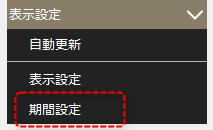
Specify whether or not to display the period setting in the display settings of the settings menu.
|
|
Summary Action Name |
_SummaryName |
default:Summary
Specifies the name of the summary action of the Panel Server to which this library connects.
|
|
Summary Actions Data Source |
_SummaryLogType |
default:DAY;MONTH;YEAR
Specify the summary name for retrieving data for summary actions. Specify the "Daily report summary name", "Monthly report summary name", and "Annual report summary name" in that order from the left, separated by a semicolon (;). If you change the summary name in the Summary Master to something other than "DAY", "MONTH", or "YEAR", change this item as well.
|
|
Historical data serverAction Data Source |
_HistoricalLogType |
default:Not specified
Specify the action name for retrieving data for the Historical data server action. Specify "Daily report", "Monthly report", and "Annual report" in that order from the left, separated by a semicolon (;). If you do not use the Historical data server action, leave it blank.
|
|
File server Action Name Configuration Data |
_FileServerData |
default:Not specified
The various settings information for this screen library is stored on the server side. There are two ways to set it up: using the public folder of Panel-Interface or sharing the file via the File server action.
■ When using the public folder of Panel-Interface
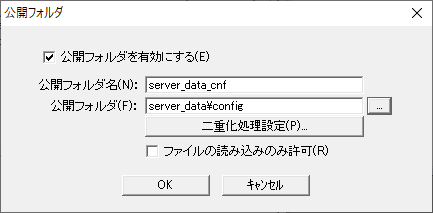
If you want to share configuration information on the server side using the Panel-Interface public folder, leave this property blank. This setting will automatically create the necessary subfolders in the folder defined as the Panel-Interface public folder name "server_data_cnf" to store various configuration information. If a public folder has not been created, refer to the following to create a public folder called "server_data_cnf" from the Panel Server Panel-Interface settings screen. For information on how to register a public folder, see "Panel-Interface Basics".
(Public folder settings for Panel-Interface: server_data_cnf)
•Enable public folder: Check •Public Folder Name: server_data_cnf •Public folder: server_data\config •Allow files to be read only: Uncheck
■ When using the File server action
On the other hand, if you want to use the File server action, define the File server action in Panel Server and specify the name of the File server action to connect to in this property. This will save the setting information in the target folder of the File server action.
|
|
File server Action Name System Data |
_FileServerConf |
default:Not specified
This screen library retrieves the system data required at runtime from the server side. There are two ways to set this: using the public folder of Panel-Interface or retrieving the file via the File server action.
■ When using the public folder of Panel-Interface
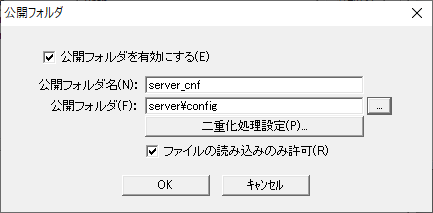
If you want to share configuration information on the server side using a public folder in Panel-Interface, leave this property blank. With this setting, the system data required for this library will be obtained from within the folder defined as the public folder name "server_cnf" in Panel-Interface. If a public folder has not been created, refer to the following to create a public folder called "server_cnf" from the settings screen of Panel Server. For information on how to register a public folder, see "Panel-Interface Basics".
(Panel-Interface public folder settings: server_cnf)
•Enable public folder: Check •Public Folder Name: server_cnf •Public folder: server\config •Allow reading of files only: Check
■ When using the File server action
On the other hand, if you want to use the File server action, define the File server action in Panel Server and specify the name of the destination File server action in this property. This will retrieve system data from the target folder of the specified File server action. Note that the File server action specified here must be defined as a different action from the File server specified in _FileServerData.
|
|
Output File Output Folder |
_OutFilePath |
default:output
Set the default folder for output files.
|
|
Graph Settings |
Background Color 1 |
_GraphBackFillColor1 |
default:@GridLineColor
Specifies the background color 1 of the graph part (even columns of the X-axis).
|
Background color 2 |
_GraphBackFillColor2 |
default:@FormColor
Specifies the background color 2 of the graph part (odd columns of the X-axis).
|
|
Text Color |
_GraphTextColor |
default:@ChartTextColor
Specifies the text color of the graph.
|
|
Background Image |
_GraphBackImage |
default:Not specified
Sets the background image for the graph. A background image can be set only if "_GraphBackFill" is enabled. Specify with an absolute path or a relative path.
|
|
Background Transparency |
_GraphBackAlpha |
default:1
Specifies the transparency of the image file specified in "_GraphBackImage." Specify the transparency ratio between "0-1," where 0 is transparent, 0.5 is semi-transparent, and 1 is non-transparent.
|
|
Enable background (image/fill) |
_GraphBackFill |
default:False
If you want to set an image or fill the background color of the graph, set True.
|
|
Display settings |
Displaying non-target graphs in conversion graphs |
_IsDisplayNonTarget |
default:False
If you specify True, data from graph groups that are specified as excluded on the graph group registration screen will also be displayed on the graph.
|
Handling indefinite values when adding up usage group values |
_IsGroupUncertainZero |
default:False
If you specify True, the usage group values will be calculated by treating undefined values as 0 and displayed on the graph. If False, if there is an indeterminate value, the sum itself will be displayed on the graph as an indeterminate value.
|
|
Enable automatic updates |
_AutoRefresh |
default:True
Specifying True will automatically refresh the screen at regular intervals. The refresh timing will be the interval specified by "_RefreshTiming".
|
|
Update timing |
_RefreshTiming |
default:1HOUR
Specifies the timing of automatic updates when "_AutoRefresh" is True. "1HOUR" will automatically update the screen every hour, and "1DAY" will automatically update the screen every other day.
|
|
Total amount decimal places |
_TotalAmountDecimalPlace |
default:3
Specifies the decimal place for the total amount displayed at the top of the conversion graph.
|
|
Unit consumption decimal places |
_IntensityDecimalPlace |
default:3
Specifies the decimal place for the energy intensity display at the top of the conversion graph.
|
|
Multilingual Settings |
Date and Time Format Name |
_DeteTimeFormat |
default:@DATETIME
Date display format. For details on date and time formats, see "Date and Time Formats" in the Appendix.
|
Number Format Name |
_NumberFormat |
default:@NUMBER
Number display format. For information on number formats, see "Number Format" in the Appendix.
|
|
Total quantity format name |
_NumberFormatTotal |
default:@NUMBER
The format for displaying the total amount.
|