Energy Management (EMS)
How to read the manual
This chapter is for reference information only.
For the main part, please refer to "Energy Management (EMS)" in the Monitoring System Construction Guide.
overview
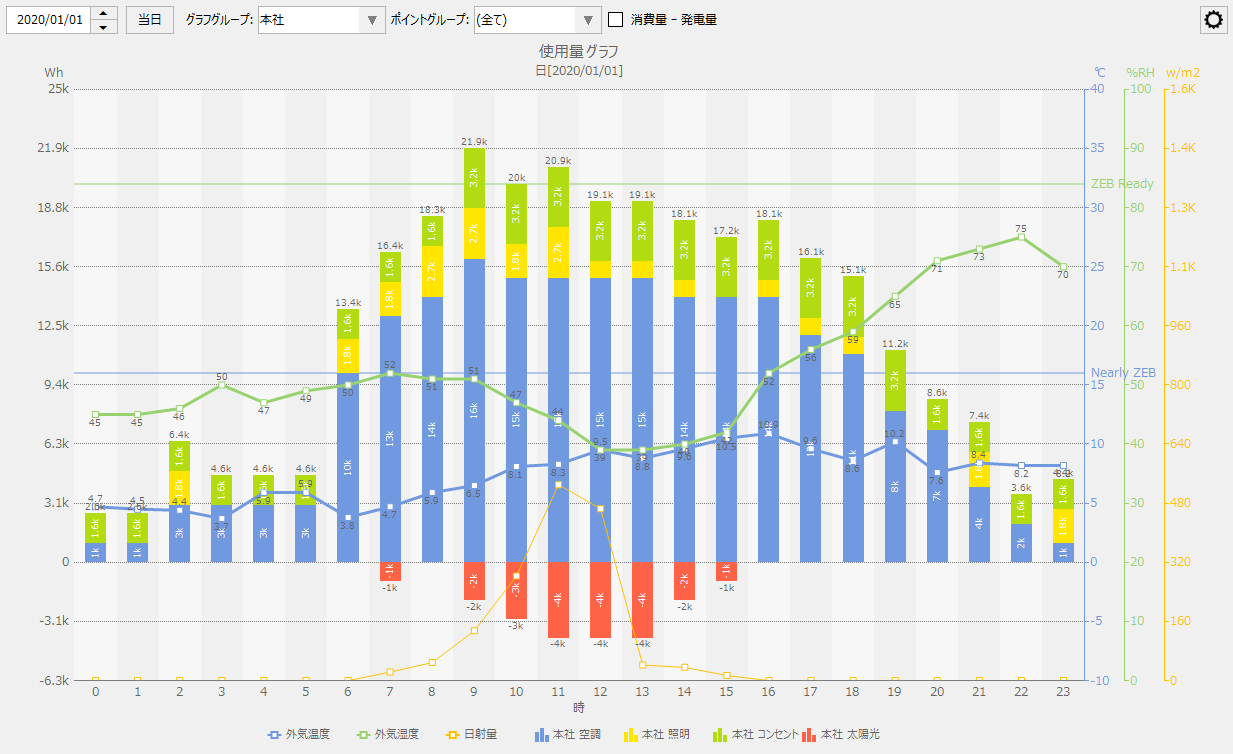
This screen library is for obtaining Daily/Monthly/Yearly Report aggregated data generated by Panel Server summary actions or external systems, and displaying various aggregated graphs for energy management. Based on the specified date and aggregation unit (daily, weekly, monthly, annual, multi-year) requested from the screen, metric aggregated data such as power consumption and gas consumption is displayed in various graph formats such as bar flags, stacked graphs, pie charts, cumulative graphs, and ranking displays. In addition, by registering conversion factors for various energy types, conversion graphs such as CO2 conversion, crude oil conversion, and energy conversion can be displayed. In various graphs, you can select any measurement data such as outside temperature and humidity and display it on the graph, print the displayed graph, or save it as a CSV file.
Please refer to the links below for more details.
|
|
Connected Action
Destination Action Name |
explanation |
|
|
An action for logging and aggregation. It can be specified as a data source for the energy management graph.
|
|
|
Aggregated data generated by external systems can be mapped as a data source and specified as a data source for the Energy Management graph.
|
|
|
The setting information for this screen library is stored on the server side. In addition, some system data required at runtime is obtained from the server. There are two ways to link files with the server side: sharing files using the File server action, or sharing via the "public folder" set in Panel-Interface on Panel Server. If you want to use the File server action, define the File server action in Panel Server and specify the action name to connect to in the custom property. On the other hand, if you use the public folder function instead of the File server action, there is no need to define the File server action. |