Login settings for your own project (Login settings for Panel-Interface/Public projects)
If you are running a client by direct login in an original project that does not use the standard framework, you will need to register the login user information and public project information from the login information of Panel Server's Panel-Interface.
|
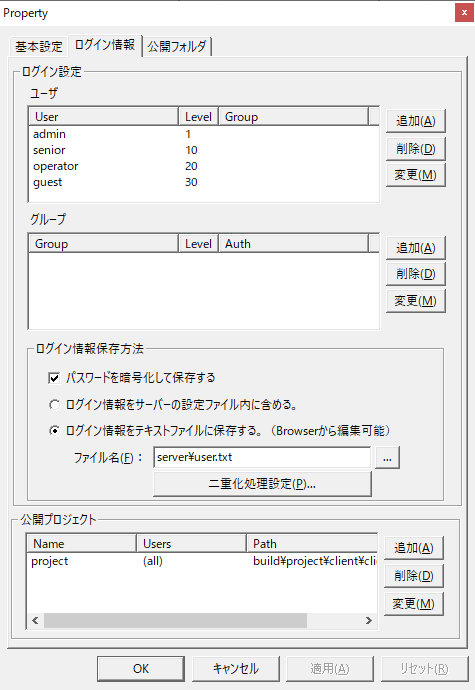
Shown on the left is the properties screen (login information) for Panel-Interface on Panel Server.

|
If you are incorporating the standard user management function into your own project, there is no need to change the login settings listed above, as they will be edited from the client's user management screen.
|
Login settings/
User
|
Please set the login user information for Panel Server. Please refer to "Registering a login user for your own project" for the registration method. However, if you are using the standard user management function, there is no need to make any changes here.
|
Login settings/
group
|
Set the user's group information as necessary. Group registration is not required. For details on how to register, please refer to "Registering login users for your own project". However, if you are using the standard user management function, there is no need to make any changes here.
|
Login settings/
How to save login information
|
Please set how you want to save your login information. Please refer to "Registering a login user for your own project" for how to register.
If you are using a duplicated server, please configure the duplicated settings. For details, see "Server Duplication Operation".
|
Public Projects
|
Please define the public project to which the client will connect via direct login. Click the Add button to display the registration screen.
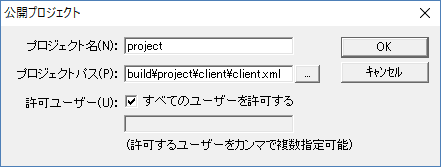
In the public project settings, you set the project name (the name of the project specified for direct login), project path (the path of the client configuration file executed on the client), and permitted users (user names allowed to log in directly).
For the project path, specify the file name of the client configuration file you want to publish as a relative path from the root folder defined in the Panel Server application settings. By specifying it as a relative path, it will not be affected even if the project folder name is changed later.
Example: build\project\client\client.xml
For the allowed users, specify the user names of the registered login users to whom you want to allow direct login. If you want to allow all registered users to connect, check "Allow all users".
|
If you have encrypted the output using the setup function, please specify "xxx.brw" as the project path.
|
|
In a system that consists of multiple client setting files, you can switch the client screen to be displayed by direct logging in. Specifically, by registering multiple public projects and specifying each client setting file in the project path, the connected project will be switched when executing direct login.
|
|
|