Client runtime executable
The runtime execution of client screens developed with Panel Editor is performed by Panel Browser. Panel Browser reads and executes the configuration file (xml) created with Panel Editor. There are several execution formats available for the runtime execution method of clients with Panel Browser depending on requirements such as network configuration and client configuration.
In either execution format, Panel Browser will connect to Panel Server and display the screen when it loads the configuration file. Panel Browser and Panel Server communicate via TCP/IP. Even in a non-LAN environment, as long as you are in an Internet/Intranet environment, you can connect from any PC. Additionally, Panel Server and Panel Browser can run on the same PC or on separate PCs.
Below we will explain how to run the client at runtime.
Most common client execution method (recommended) |
|
|---|---|
|
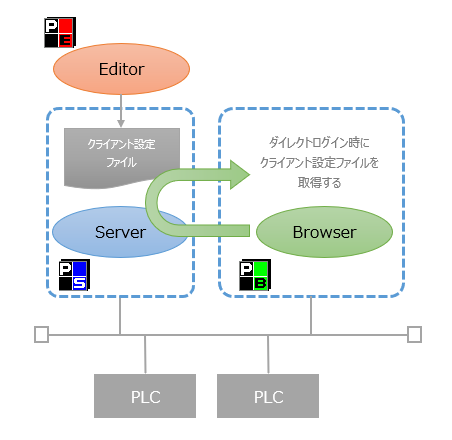
merit •There is no need to place the client configuration file on the PC running Panel Browser. •Since operation on each PC runs on Panel Browser, there are no functional limitations. •It is also possible to distribute separate client configuration files using a single Panel Server.
|
Direct login is the most common way to run a client. With direct login, when Panel Browser logs in to Panel Server, the client configuration file and a set of resource files required to run the client are automatically retrieved locally from Panel Server and run. The biggest advantage of this method is that it does not require configuration files to be placed on each client PC that runs at runtime.
(Conceptual image)
|
Running the client on an iPad or Android tablet |
|
|---|---|
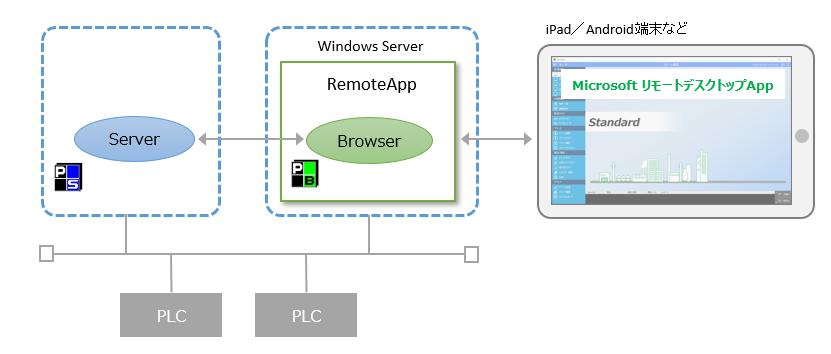
Running the client on a iPad or Android tablet
|
With this method, you can use the "RemoteApp" provided by the Windows Server remote desktop service to display the client screen on the "Microsoft Remote Desktop" app on your iPad or Android tablet.
(Conceptual image)
|
Other client runtime executable formats |
||
|---|---|---|
Execution in file distribution format
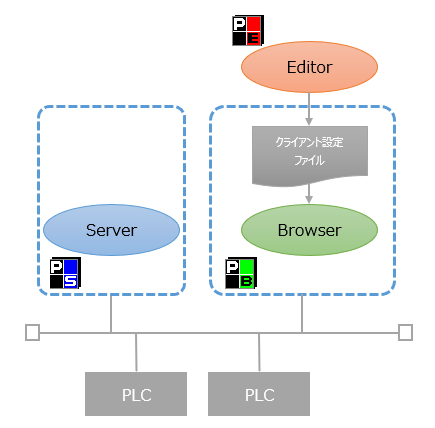
On the PC where Panel Browser is installed, start Panel Browser to display the client screen. |
merit •It can be easily executed during development, etc. (It can be executed from the Panel Editor toolbar). •Since operation on each PC runs on Panel Browser, there are no functional limitations.
Disadvantages •If you have multiple PCs, you need to place the latest configuration file on all PCs. |
(Conceptual image)
|
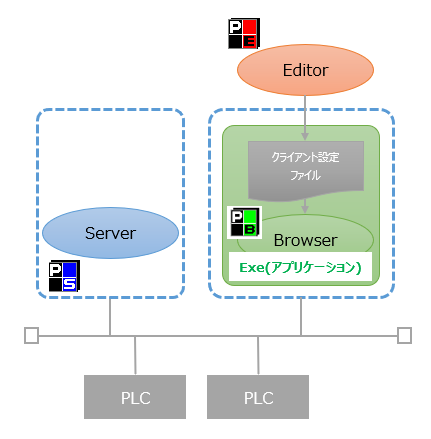
Execute Panel Browser as an embedded Exe (exe file generated by the setup function)
You can use the setup function of Panel Editor to create a single executable file (embedded Exe file) that contains the client configuration file and Panel Browser. When you run the embedded Exe file on a PC with Panel Browser installed, Panel Browser will start and the client screen will be displayed.
|
merit •You can combine the Panel Browser and client configuration files into a single application file. •Since operation on each PC runs on Panel Browser, there are no functional limitations.
Disadvantages •Setup (re-creation) is required each time the client configuration file is changed. |
(Conceptual image)
|
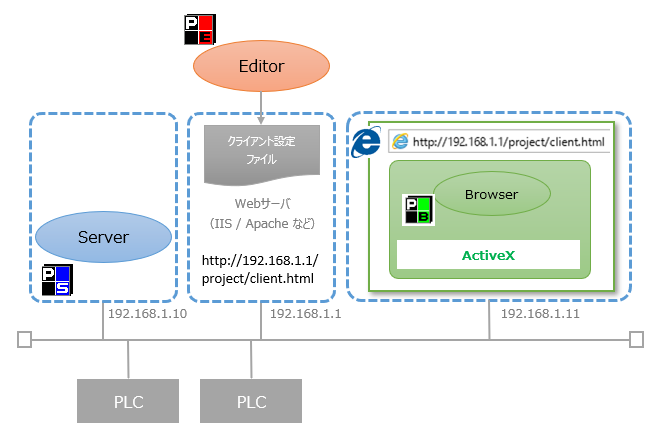
Embed Panel Browser into Internet Explorer and run (ActiveX embedding HTML)
The Panel Editor setup function outputs the files required for operation with IE (CAB files (including ActiveX for Panel Browser), files for Web access (html), client configuration files, etc.). When these files are placed on the Web server and the files for Web access are accessed from IE, the client screen will be displayed via ActiveX for Panel Browser.
|
merit •There is no need to place the client configuration file on each PC running Panel Browser. •It is also possible to distribute separate client configuration files from a single web server.
Disadvantages •It is necessary to build/configure a Web server. •Since the browser runs on IE on each PC, there are functional limitations (security restrictions and restrictions on some functions). •Depending on the version of IE, you may need to change the security settings. •The OnKeyDown event may not be available. For details, see Control Reference. |
(Conceptual image)
|
|
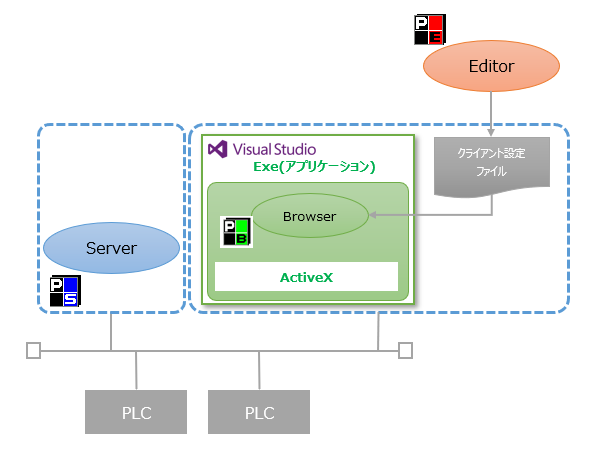
By using a development language such as VB or VC++ to incorporate Panel Browser's ActiveX into a form on the development language's platform, you can embed and run the FA-Panel monitoring screen in the application screen. |
merit •You can embed and display the Panel Browser screen in a part of your own developed application.
Disadvantages •The OnKeyDown event may not be available. For details, see Control Reference. |
(Conceptual image)
|
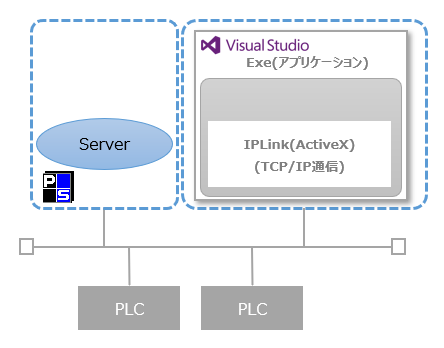
In addition to the method introduced above, there is a way to access tags in Panel Server from external applications such as VisualBasic via "IPLink-Interface". This method does not use Panel Browser.
Processing method |
||||
|---|---|---|---|---|
Panel Server has an interface to the IPLink server. By using the IPLink client library included in the FA-Panel package, you can connect to Panel Server tags via the same interface from applications developed with VisualBasic etc.
This method is suitable if you simply want to access the tags of Panel Server from an application such as VisualBasic (without needing a graphic screen, etc.).
|
(Conceptual image)
|

|
If you run Panel Server and Panel Browser on different PCs, make sure that the package revision (REV) is the same. If it is not the same, reinstall the package on all PCs or apply a patch program of the same revision. The revision of both Panel Server and Panel Browser can be confirmed in the version information of the help. |

|
If the OS of the PCs running Panel Server and Panel Browser are different, they can be operated without any problems. For example, there is no problem in connecting from Panel Browser on a PC running Windows 8.1 to Panel Server in a Windows Server 2012 environment. |
|
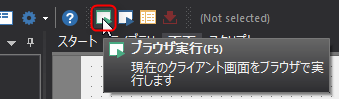
When developing a screen in Panel Editor, there are often times when you want to test the screen you are creating at runtime, and there is a function that allows you to easily launch Panel Browser from Panel Editor. To launch from Panel Editor, click the icon below (the RUN icon) in the Panel Editor toolbar. The Panel Browser will launch and the client configuration file you are currently editing will be automatically loaded and executed at runtime. There is no need to save the xml file before clicking the RUN icon.
|