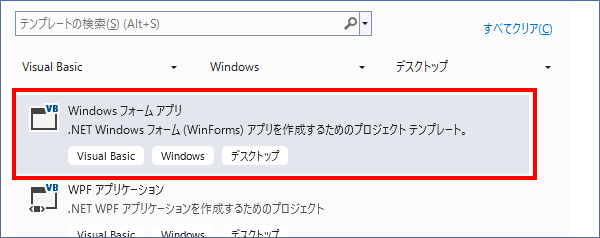
overview
This article explains how to incorporate and run Panel Browser into applications developed using development languages such as Microsoft's Visual Basic (hereinafter referred to as "VB").
(Image of execution when embedded in VB)
|
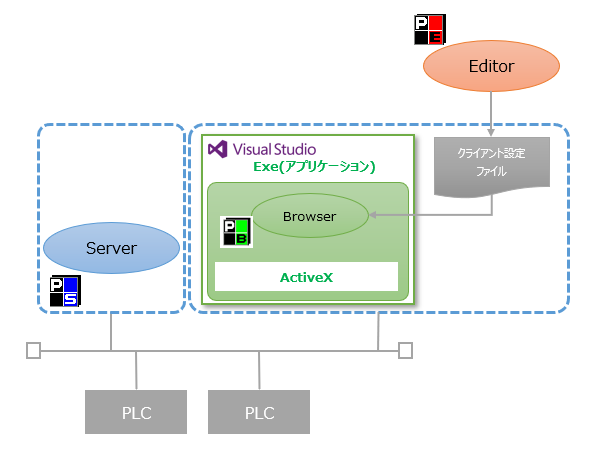
This package includes Panel Browser ActiveX. By using this ActiveX from a development environment such as VB, you can embed Panel Browser into the screen of an application developed with VB and run it. When you run the developed application, a graphic screen is displayed on the screen of the application via Panel Browser ActiveX. You can also access on-screen controls and scripts (global variables, user-defined functions, etc.) from VB code via the ActiveX interface. This method is suitable if you want to directly display and operate the Panel Browser screen from an application developed with VB.
In addition, Panel Browser must be installed on the PC in which the development application that incorporates Panel Browser is executed.
|
|
When you embed Panel Browser in VB and run it, you need to solve the problem of system file path reference in some functions such as screen printing, video player, video recorder, etc. For details, please refer to "Important) About path reference to system file when running client". |

For information on how to incorporate this into VB, see below.
•Steps for embedding in a VB application
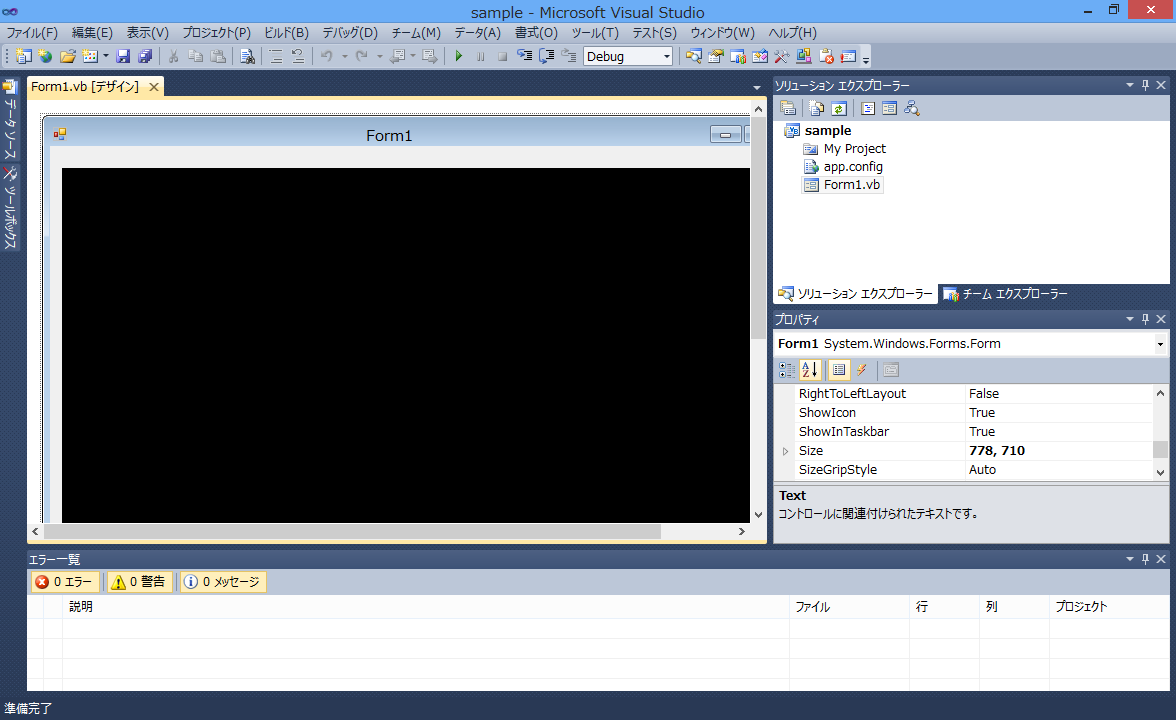
(VisualBasic screen image)
Installation Notes
When developing a user application that incorporates Panel Browser ActiveX, please note the following:
1) When using Visual Studio 2010 ~ 2019
- If you have only the 64-bit version of each product installed, you will also need to install the 32-bit version.
- If you have only the 32-bit version of each product installed and you want to compile an application in 64-bit, you will also need to install the 64-bit version.
2) When using Visual Studio 2022
- If you have only the 32-bit version of each product installed, you will need to install the 64-bit version as well.
- If you have only the 64-bit version of a product installed and you want to compile an application in 32-bit, you will also need to install the 32-bit version.
If you are running it on a PC different from the development environment, please set it up according to the compilation contents.
・If compiled as 32-bit: Only the 32-bit version setup is required for the execution environment.
・If compiled as 64-bit: Only the 64-bit version setup is required for the execution environment.
Available frameworks
The only framework that can be used in a VisualStudio project is ".Net Framework". ".Net6.0" etc. cannot be used.
Example) VisualStudio2022
The following is available:
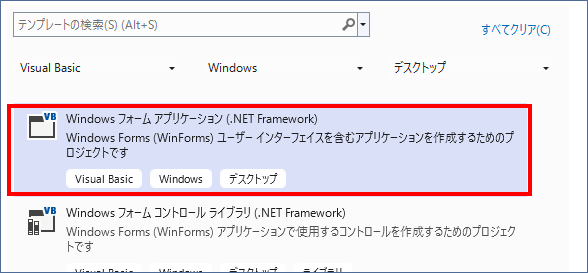
The followingNot available.