Display the screen via the Internet using the Panel Browser built into IE
|
If you want to display the client screen via the Internet, it does not necessarily have to be done with IE, and you can also use methods such as direct login. Displaying the client screen with IE has the following disadvantages. If your requirements dictate that you are happy with just being able to connect via the Internet, we recommend displaying the screen by executing a direct login rather than displaying the client with IE.
(Disadvantages of running IE) •A Web server must be built and configured separately. •Some functions are restricted (OnKeyDown events cannot be used, some route properties cannot be used, etc.). •Depending on the version of IE, you may need to change the security settings of Windows.
|

If you want to display a screen via the Internet from the Panel Browser built into IE, first carry out the setup process described in "Embed Panel Browser into IE and run it" to output the distribution files required for operation with IE (CAB file (including Panel Browser plug-in), Web access file (html), client setting file, etc.). Next, place the output set of distribution files in the public folder of the Web server (HTTP server). This will allow you to display the client screen on the Panel Browser built into IE by opening the URL of the Web access file (html) on the Web server from IE.
The following configuration example shows how to set up a Panel Server and Web server as separate PCs within an intranet, and connect to them from outside via the Internet.
■ Network configuration example
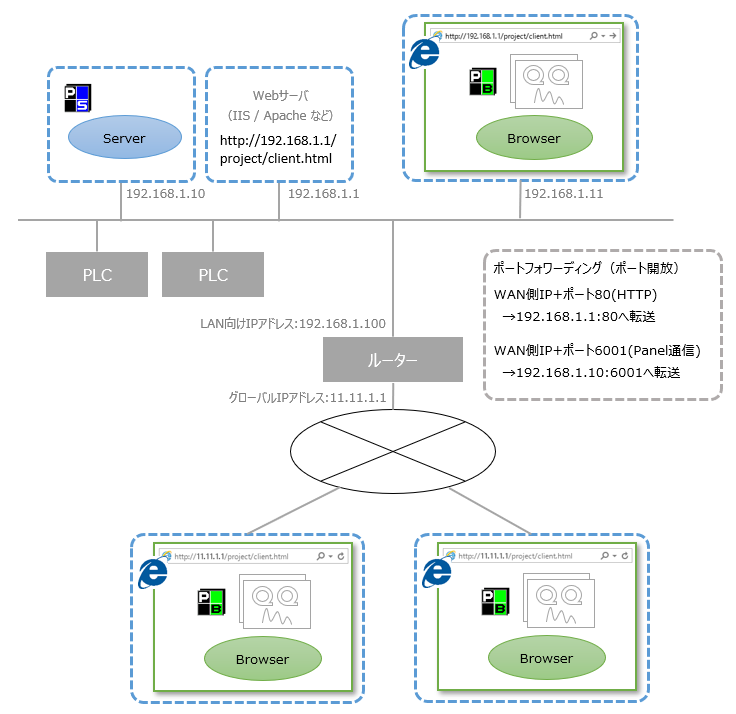
The table below is a configuration example using the IP addresses and port numbers shown in the diagram above.
Setting Panel Server |
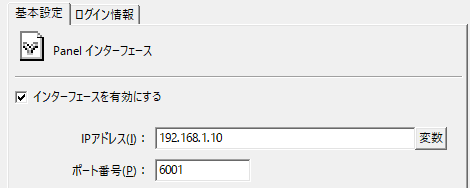
Set the following in the Panel-Interface settings for Panel Server.
•IP address: "192.168.1.10" •Port number: "6001"
|
||||||||||||||||||
Panel Browser settings |
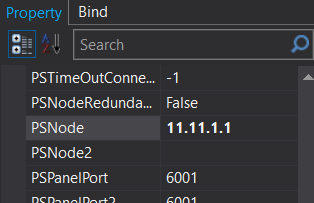
For client configuration files connecting from outside, specify PSNode and PSPanelPort as follows:
•PSNode: "11.11.1.1" - Set the global IP address of the router •PSPanelPort:「6001」
|
||||||||||||||||||
Web server setting |
Set the IP address and HTTP communication port of the Web server (IIS, Apache, etc.).
•IP address: "192.168.1.1" •HTTP Port number: "80"
In addition, place the set of files output by the Panel Editor setup function in the public folder of the Web server.
For files with special extensions used in the client configuration file, you must register the extension in the MIME settings of the Web server. The main extensions that may need to be added are as follows. If the MIME settings are already configured on the web server or if the file extension is not being used, there is no need to add it to the MIME settings.
|
||||||||||||||||||
Router setting |
When connecting to an intranet from the Internet in an external environment, a fixed global IP address that does not change is required (you can also use a service such as DDNS). In the router settings, set up port forwarding (opening a port) for packets from the WAN side to the LAN side.
•"Packets to port 80 from the WAN side" → "Forwarded to port 80 of the web server (192.168.1.1) in LAN" •"Packets to port 6001 from the WAN side" → "Forwarded to port 6001 on Panel Server (192.168.1.10) in LAN"
For instructions on how to set up port forwarding on your router, please refer to the router manual.
|
|
If there is a firewall on the network path, you must set it to allow port 6001. In addition, when selecting a router, it must be a model that supports port forwarding. For details on router settings and other information, please contact the manufacturer of the router you are using. |