Download the sample
The configuration examples provided on this page provide examples.
The sample can be downloaded from below.
If you are using IE11 or earlier
If you are using a version earlier than IE11, you will need to make the settings explained on this page in the client file.
To summarize the settings, you will need to create a separate screen for the frame in addition to the monitoring screen you are creating, paste Web browser control into the frame screen, and call up the monitoring screen via Web browser control.
|
If you do not configure the settings explained on this page, you may encounter problems such as not being able to enter text into Edit box control. On the other hand, configuring the settings in this section may cause the following issues:
•Unable to display different pages in tabs in IE •When you move the browser, Web browser control may not be able to keep up with the movement and may be left behind (a residual image may remain).
If you want to avoid the above problem, you can either update your IE version to version 11 or later, or use a browser other than IE, instead of using the method described on this page. If you use a browser other than IE, it must be compatible with IE and be able to use ActiveX.
|

The setup steps are as follows:
In the following description, the client screen being created will be explained as a monitoring screen (dialog.xml).
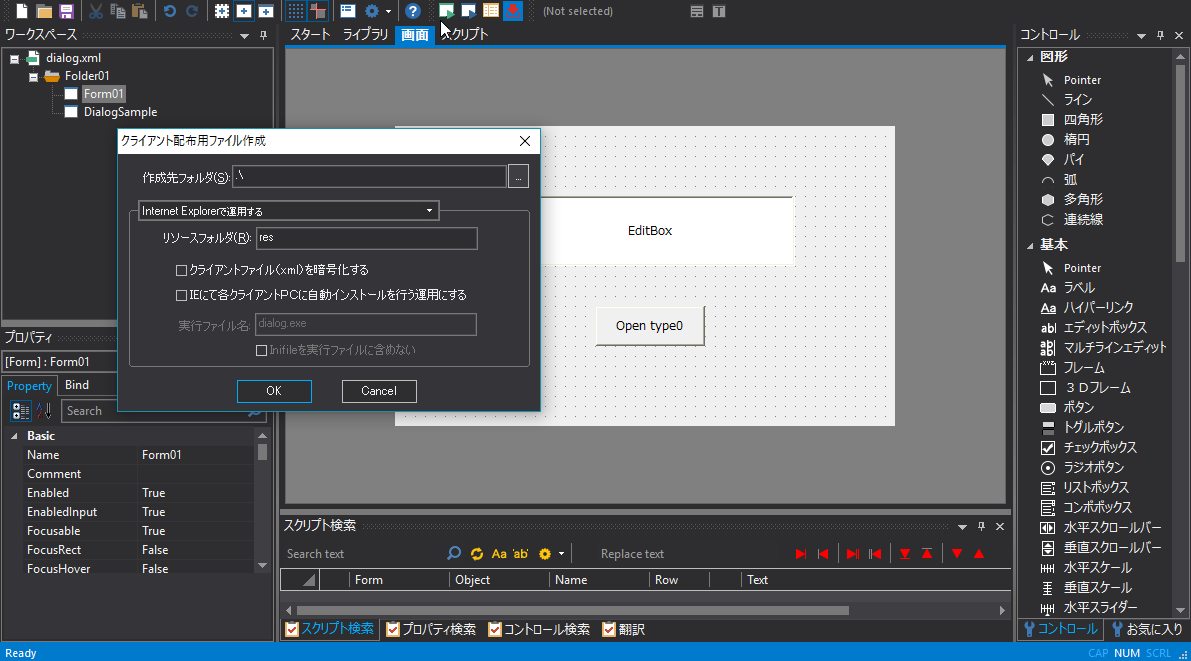
1.Use the setup function to create an HTML file (dialog.html) for the client screen you are creating.
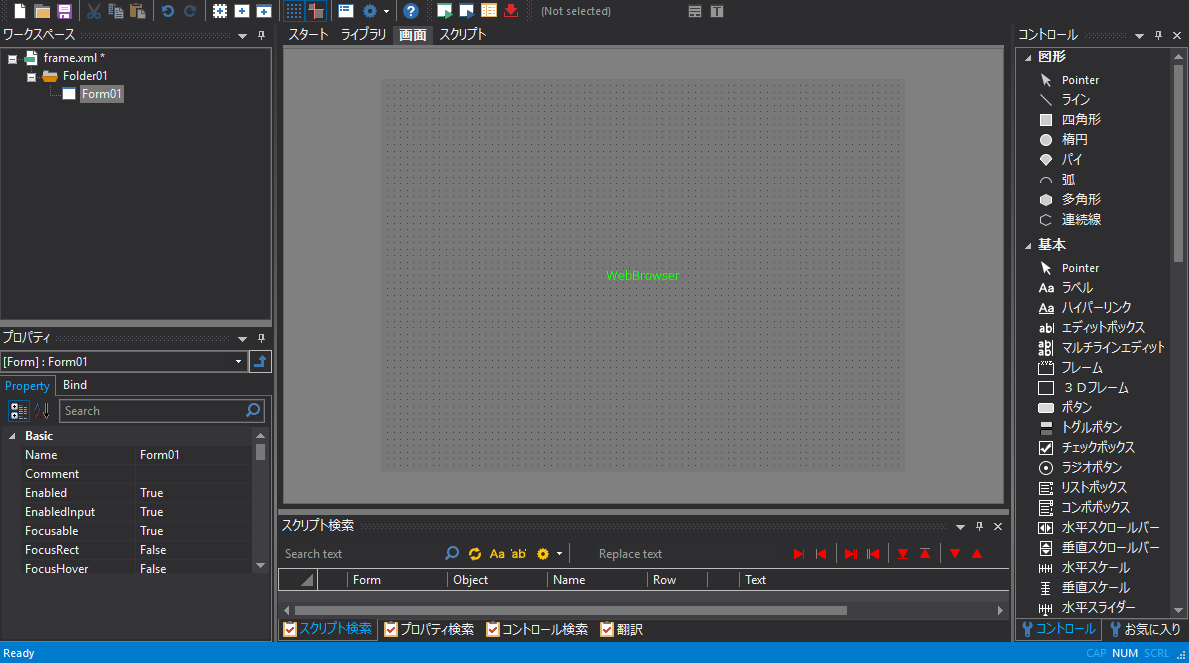
2.In addition to the above, create a new frame screen (frame.xml). Paste Web browser control into the frame screen's startup form (here, Form01).
3.Write the script in Web browser control.
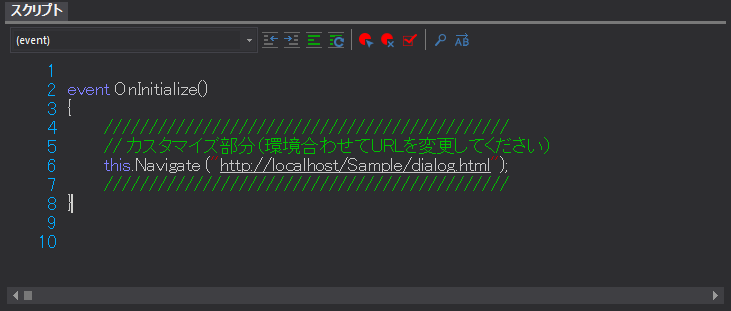
Script content
event OnInitialize() this.Navigate ("http://localhost/Sample/dialog.html"); |
In the above description, the Navigate property will be set to display the html of the monitoring screen created in 1. (URL should be the actual URL you want to connect to. In this example, dialog.html is specified.)
4.The setup function creates an HTML file (frame.html).
5.From IE, display the HTML file (frame.html) you set up in step 4.