Internet Security Settings
When operating a surveillance system set up on a WEB server via the Internet, the following problems may occur and connection may not be successful.
If you experience such a problem, please change your security settings by following the steps below.
■ Problems that occur
The dialog box on the right appears every time you open an HTML file on a web server in IE. |
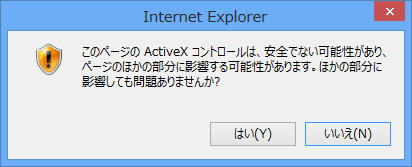
|
||
When I open an HTML file on a web server using IE, the client screen remains as shown on the right and does not display.
|
|

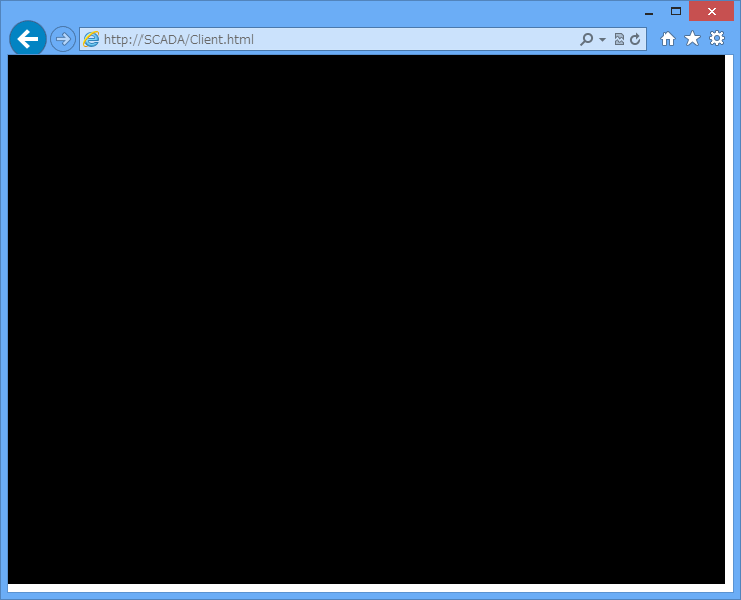
■Security settings
If you experience any of the above problems, please change your security settings by following the steps below.
1.Display the following dialog from the IE "Tools" "Internet Options" menu, select the "Trusted sites" icon in the Security tab, and then click the "Sites" button.
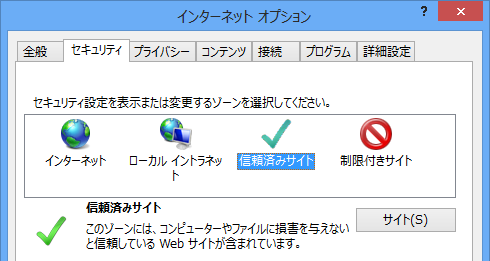
2.Add the web server you want to use from the dialog below and click the "Add" button.
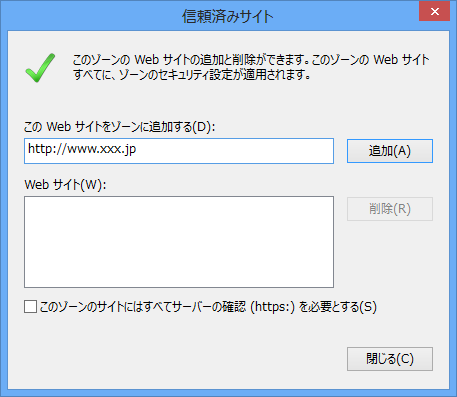
3.Display the dialog from the IE "Tools" "Internet Options" menu, select the "Trusted Sites" icon in the Security tab, and then click the "Custom level" button.
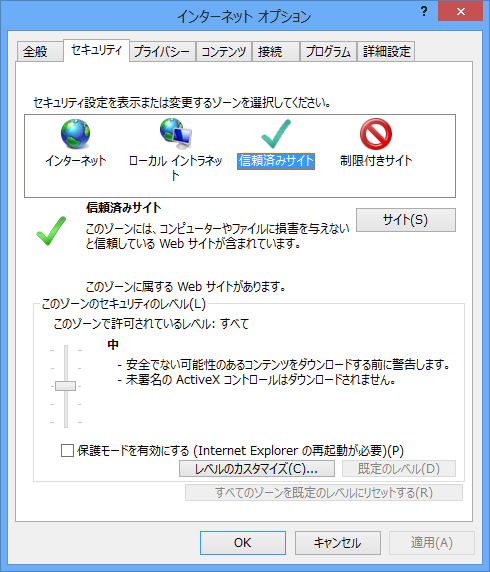
4.Check "Enable" for "Run ActiveX controls and plug-ins."
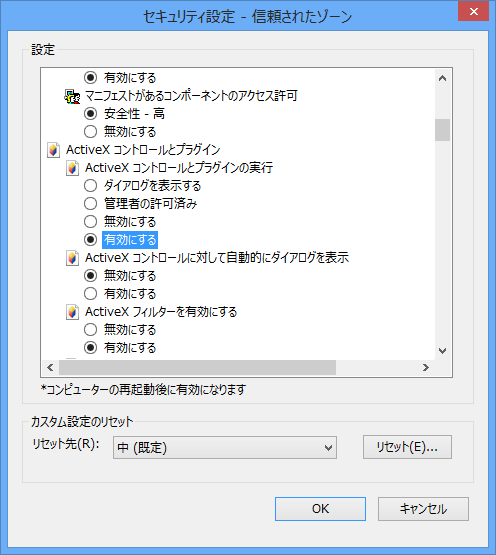
5.Check "Disable" for "Automatic prompting for ActiveX controls."
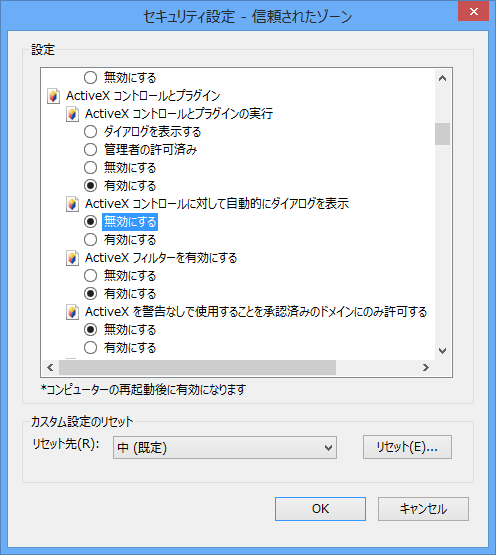
6.Check "Enable" for "Initialize and script ActiveX controls not marked as safe for scripting".
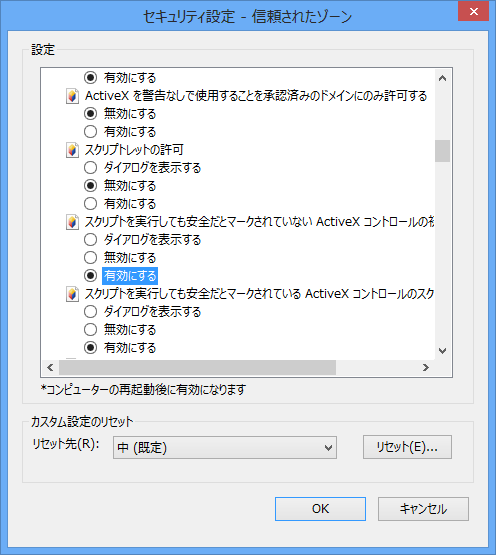
7.If you checked "Use IE to automatically install to each client PC" during setup and created the setup folder, check "Enable" for "Download unsigned ActiveX controls."
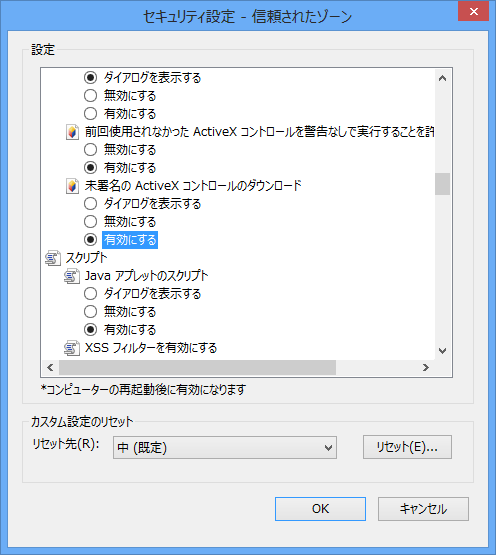
|
If the plug-in is not installed on the client PC, or if the version of the plug-in already installed is old, a warning dialog box may be displayed. In this case, the following procedure is required.
1.If the following message appears, click "Install". 2.If a dialog appears, click Yes. |


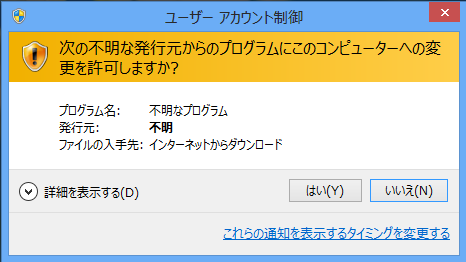
|
In IE8 and later, the DEP function is enabled by default, which may cause problems such as automatic plug-in downloads not working properly. When using IE, go to the advanced settings of the Windows Internet Options and uncheck the following "Enable memory protection to help mitigate online attacks."
|
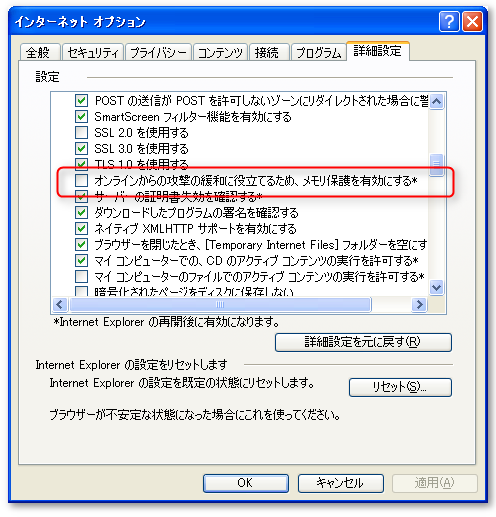
|
When opening an HTML file directly from Internet Explorer without going through the HTTP server, the following dialog box may be displayed. 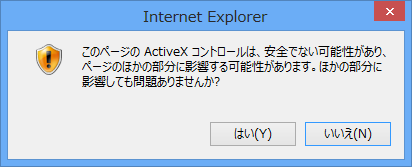
To prevent the above dialog from appearing, follow the steps below.
1.Make the folder containing the "xxx.html" file a shared folder. Specify a shared name of your choice. Here, we will set it to "system" as an example. 2.Please make sure that you can open the HTML file using the following address in IE. 3.In IE, go to "Tools" and "Internet Options", select the "Security" tab, select the "Trusted Sites" icon, and then press the "Sites" button.
4.Add the following to the Trusted Sites dialog, then close the dialog.
5.In IE, go to "Tools" and "Internet Options", select the "Security" tab, select the "Trusted Sites" icon, and then press the "Custom level" button.
6.Check "Enable" for "Initialize and script ActiveX controls not marked as safe for scripting." 7.Check "Disable" under "Enable ActiveX Filter."
8.Please check again that you can open the HTML file using the address below in IE (make sure that no dialog box appears).
|