How to perform direct login and how to use it
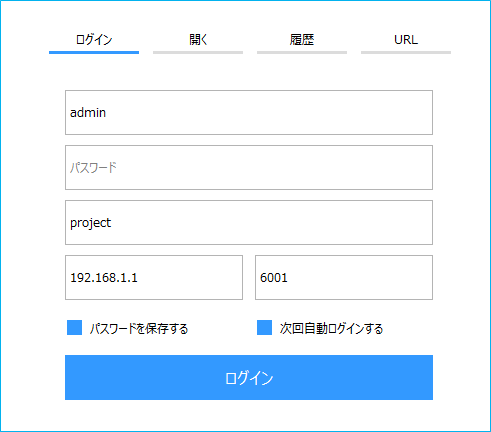
When you launch Panel Browser, the login screen will be displayed. You can log in directly from the "Login" tab on the screen. If you check the options "Save password" and "Automatically log in next time" on the login screen and then log in, you will be automatically logged in from the next time onwards.
(Login screen of Panel Browser)
On the other hand, there is a method to pass parameters when Panel Browser is started. With this method, parameters are defined in advance in a text format INI file (hereafter referred to as "login INI"), and when Panel Browser is started, the login INI is specified and executed. By specifying parameters and executing Panel Browser, the behavior at login can be customized. For example, it is possible to operate it so that the login screen is displayed every time and password entry is required.
The operation and execution methods for direct login are as shown in the table below. For details on each method, please refer to the links in the table.
How it works |
Summary of execution method and settings |
supplement |
|
Security strength: Medium
overview: If you start Panel Browser without specifying any parameters, the login screen will be displayed. To log in, enter your login user name and password from the Login tab on the login screen. If you check "Save password" and "Automatically log in next time" and then log in, you will be automatically logged in from the next time onwards.
This method does not require a login INI definition.
|
•Run Panel Browser without any parameters. •The login screen will appear, so select the "Login" tab from the screen and enter the parameters required for login directly to log in.
|
•The first time you start the app, you will not be able to log in unless you know all the information. By checking "Save password" and "Automatically log in next time" when logging in, you will be automatically logged in from the next time onwards. •If the user information is changed after automatic login, the next automatic login will fail and the login screen shown on the left will be displayed. If the user logs in with the correct user information, the automatic login will work again from the next time onwards.
|
Require a password every time you start the game
Security strength: High
overview: The login screen will be displayed every time Panel Browser is started. Users log in by entering their login user name and password on the login screen each time.
This method requires the definition of the login INI.
|
•Create a login INI file and define the following parameters:
PSLoginProject ・・Set according to the actual project PSNode - Same as above PSNode2: Same as above PSPanelPort...Same as above PSPanelPort2...Same as above PSAutoLogin=F - Disable automatic login PSLoginSavePwd=F - Do not save password
*Do not define PSLoginUser and PSLoginPwd.
•Place the login INI file on each client and specify the INI file with the "/Login" parameter from the Panel Browser shortcut. •Run Panel Browser using the shortcut created above.
|
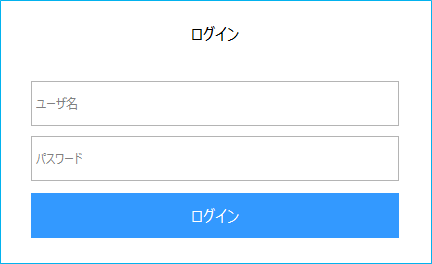
•The following login screen is displayed every time, and you cannot use the system unless you enter your password every time.
|