Automatic startup setting for Panel Server
This section explains how to set up Panel Server to start automatically. In order to start and run Panel Server automatically, you must first configure the startup settings for the Panel Server application itself. Next, in the Windows OS settings of the PC running Panel Server, set it up so that Panel Server runs automatically when you log in to Windows. Then, by setting it up so that Windows login occurs automatically when the PC starts up, you will be able to start the server application automatically just by starting up the PC running Panel Server.
The details of each are explained below.
Automatically start Panel Server when logging in to Windows
|
To have Panel Server start automatically when you start your PC, you must configure Windows to automatically log in. The method for configuring Windows automatic login differs depending on the version of Windows, so please configure it appropriately for the version of the Windows OS you are using. |

In the Panel Server startup settings, you can configure the behavior when Panel Server applications start up. For example, you can specify the server configuration file to be automatically loaded at startup, or set the startup operating mode to automatically run in "Online (fastest)".
The setup steps are as follows:
1.Start Panel Server.
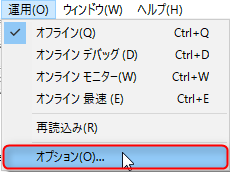
2.Open "Operation - Options" from the menu.
3.From the "Startup Settings" tab, configure the settings for Panel Server startup.
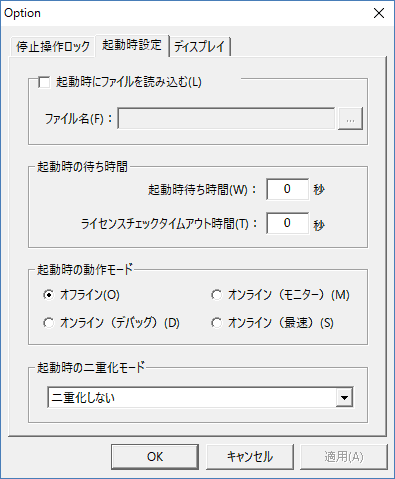 |
▪Loading a file at startup ▪Startup wait time ▪Startup mode ▪Duplex mode at boot
|
Automatically start Panel Server when Windows logs in
There are two ways to automatically start Panel Server when you log in to Windows: registering a Panel Server shortcut in the startup folder, or using the Windows Task Scheduler.
Either method will allow automatic startup, but if for some special reason you need to start Panel Server with administrator privileges, you will need to run it from the Task Scheduler.
The following explains how to set up each option.
Automatic startup using the Startup folder
Windows This is how to register a Panel Server shortcut to the OS startup. Here, we will use Windows 11 as an example.
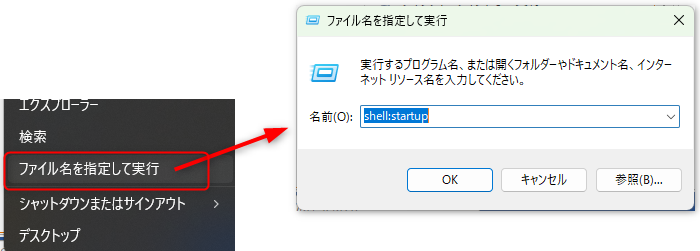
1.Right-click the window icon on the taskbar and select "Run...". In the execution screen that appears, enter "shell:startup" and click the "OK" button.
2.The Startup folder will be displayed, so right-click inside the folder to display the menu and select "New - Shortcut". This will display the shortcut creation screen. Click the "Browse" button under "Enter the location of the item" and select the Panel Server executable file in the installation folder to create a shortcut.
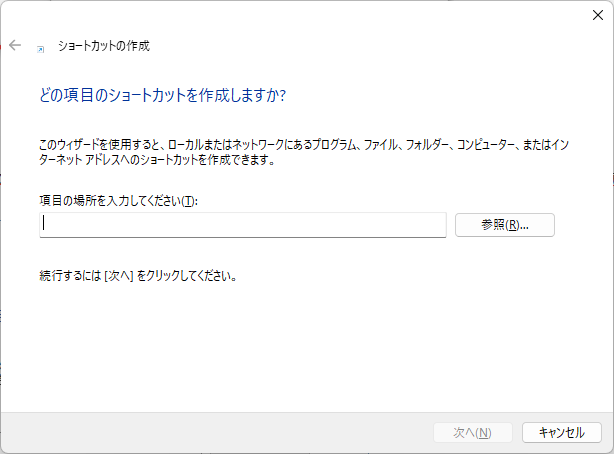
With the above, when the user currently logged in to the Windows OS logs in, Panel Server will be started automatically.
|
To operate Panel Server so that it starts automatically when you start up your PC, you must set Windows to log in automatically. The method for setting up automatic login for Windows varies depending on the version of Windows, so please make the appropriate settings according to the version of the Windows OS you are using. Also, if you want to register a shortcut in startup to start Panel Server automatically, make sure to register it in the startup of the user who will log in with the automatic login setting. |

Automatic startup via task scheduler
Windows This is how to register a task to automatically start Panel Server in the OS task scheduler. Here, we will use Windows 11 as an example.
1.Start the Task Scheduler.
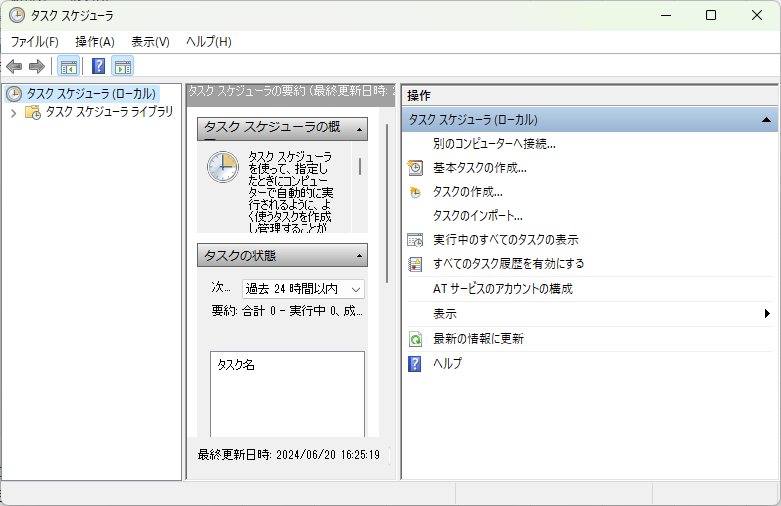
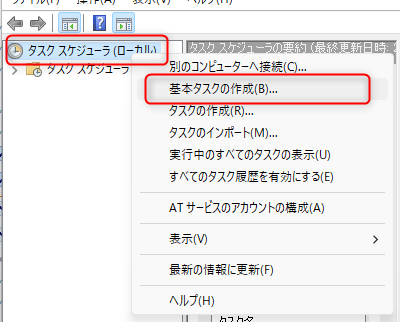
2.Right-click "Task Scheduler" in the tree on the left and select "Create Basic Task" from the menu that appears.
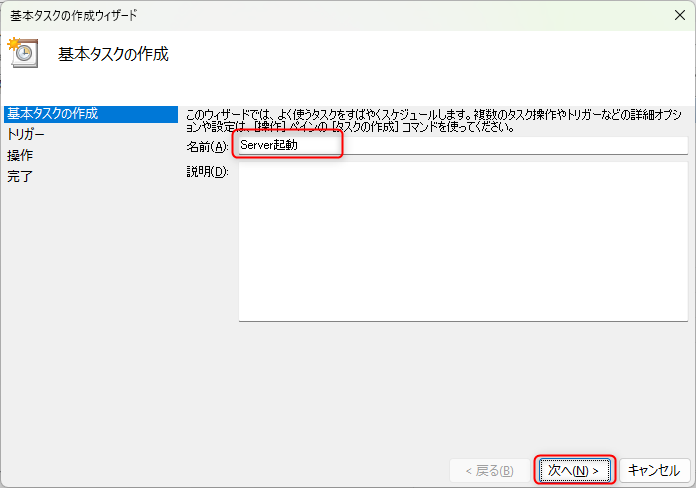
3.The wizard screen will appear. Enter a name and click "Next".
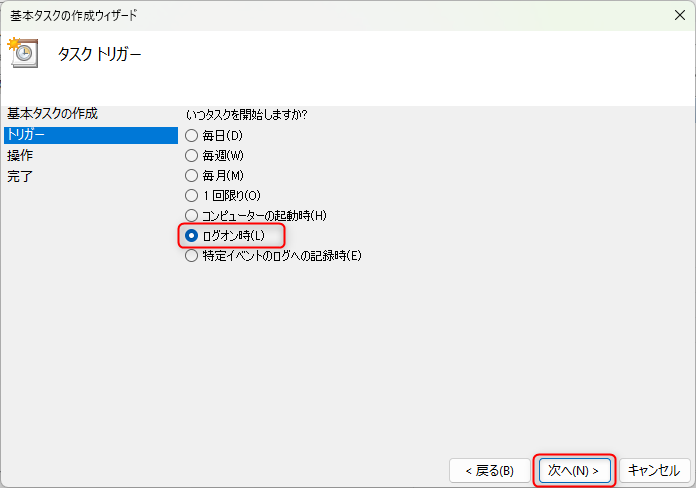
4.In the task trigger settings, select "At logon" and click "Next".
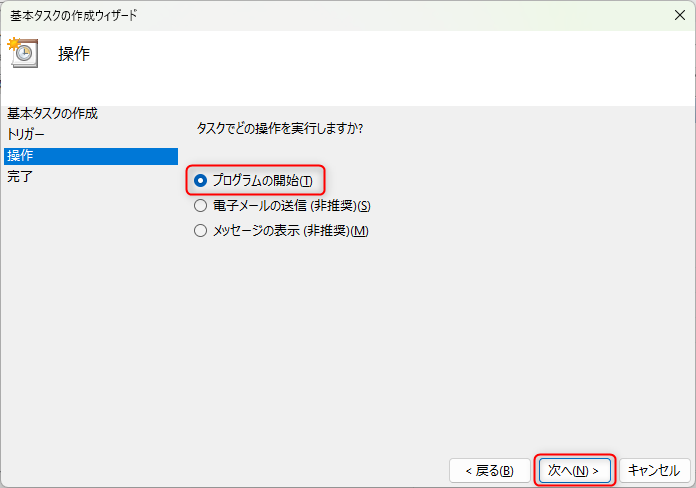
5.In the Action settings, select "Start a program" and click "Next".
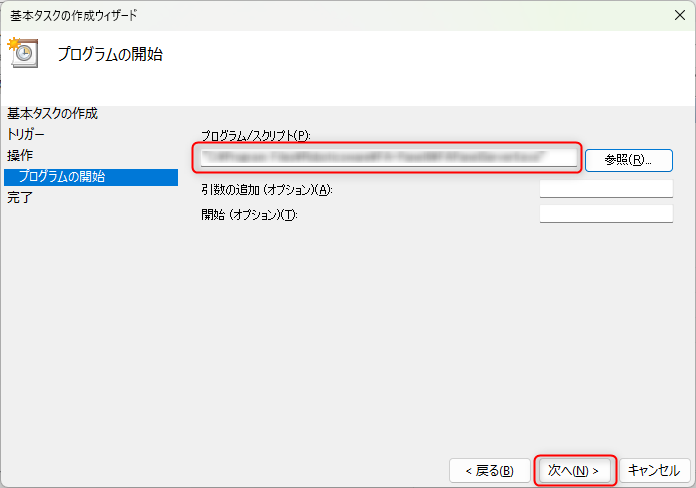
6.Click the "Browse" button for Program/Script, specify the executable file for Panel Server in the installation folder, and click "Next".
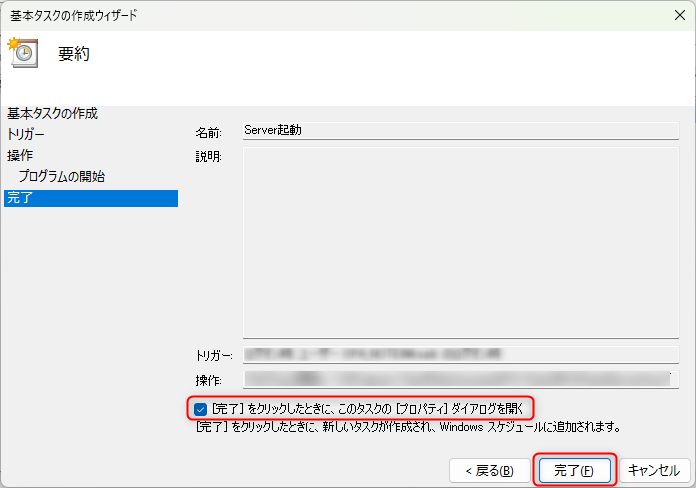
7.Check "Open this task's Properties dialog when I click Finish" and click "Finish".
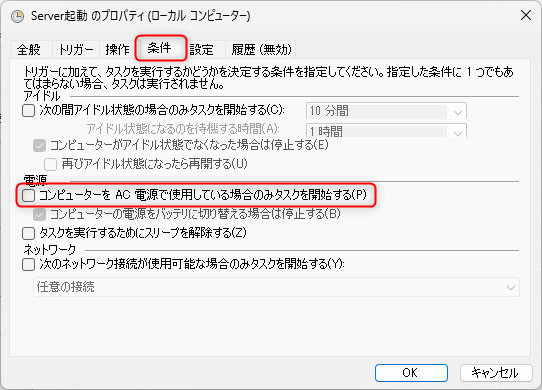
8.The properties of the task you created will then be displayed, so open the "Conditions" tab and uncheck "Start the task only if the computer is on AC power."
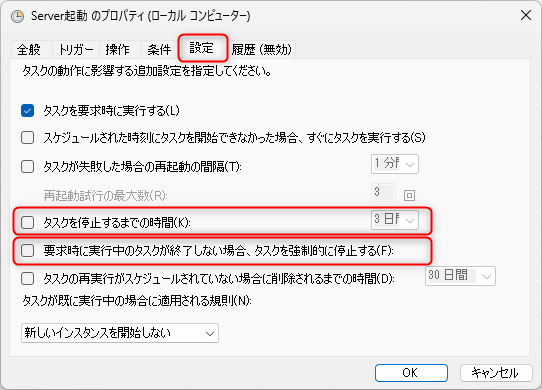
9.Next, open the "Settings" tab and uncheck the following two items:
•Time to stop the task
•Forces a running task to stop if it does not finish when requested
Finally, click the "OK" button to close the Properties window.
Once registered in the Task Scheduler, Panel Server will be started automatically when the user currently logged in to the Windows OS logs in.
|
To operate Panel Server so that it starts automatically when the PC is started, you must set Windows to log in automatically. The method for setting up automatic login for Windows varies depending on the version of Windows, so please set it appropriately for the version of the Windows OS you are using. Also, in the security options of the Task Scheduler properties, be sure to specify the user account that will log in with the automatic login setting as the "User account to use when executing the task." |
|
If "Stop task after" is checked, the task will automatically end after the specified time (3 days by default) after launch. This may cause the Panel Server application to be terminated unexpectedly, so be sure to uncheck it. |
|
Some functions of Panel Server cannot be used unless you run it with administrator privileges. To determine whether you should run Panel Server with administrator privileges, refer to the description of "Running with administrator privileges" in the installation.
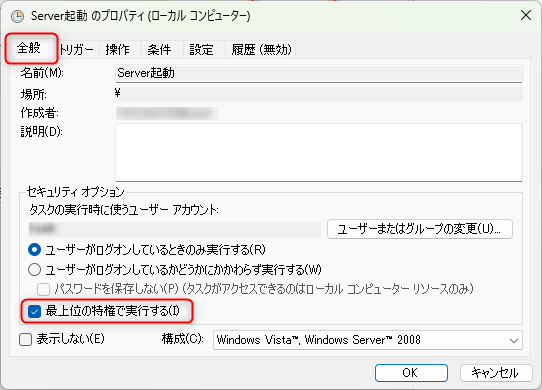
If you need to run Panel Server with administrator privileges, you can do so in the following way:
1.First, follow the steps in "Running with administrator privileges" to enable the application to be launched in administrator mode. 2.Open the "General" tab in the properties of the task in Task Scheduler and check "Run with highest privileges".
|